Lesson 13 of 21
Check the return, download it and find its deadline
What you will be able to do
This lesson is for the accountant who prepares the return. You will run the two checks on the computed return, download the return as a PDF, the package of files and the Excel workpaper, look at the advance deposit tool, and then open the Filing Tracker to see the deadline that the computed return created.
Before you start
- You are signed in as the accountant.
- The return for July to September 2026 has been computed in Filing-Ready mode, as in the previous lesson.
- Downloads are saved to your computer. Nothing is emailed or sent to the tax authority.
Steps
- 1
Compute the return for the quarter
In Tax Intelligence select Returns, choose 2026 and Q3, select Filing-Ready and select Compute VAT Return. The checks and downloads work on the return that is on screen.
- Select Returns
- Choose Year:
2026 - Select Q3
- Select Filing-Ready
- Select Compute VAT Return
- 2
Select Consistency Check
Select Consistency Check. It compares e-invoices the company issued through ComplianceOS with how the same sales were classified for tax. Here the result is Not applicable: these sales were imported, so there is nothing to compare.
- Select Consistency Check
- 3
Select Pre-Submission Check
Select Pre-Submission Check. It looks through the period for things that should stop or worry you before filing. The result is Ready to file, Warnings only or Cannot file. Two kinds of line would stop the filing and are listed first: AI suggestions still waiting for review, and credit notes that do not reconcile to the invoice they reverse. There are none here, because every suggestion was reviewed and the credit note matches its invoice. Here the result is Warnings only. Read each line: the entertainment whose VAT is blocked, the share of entertainment in total expenses, a transaction with no account mapped, and counterparties with no country recorded.
- Select Pre-Submission Check
- 4
Download the return as a PDF
Select VAT Return PDF. The computed return is downloaded as a PDF file. Use it as your working copy when you type the figures into the authority's portal, and keep it with your records.
- Select VAT Return PDF
- 5
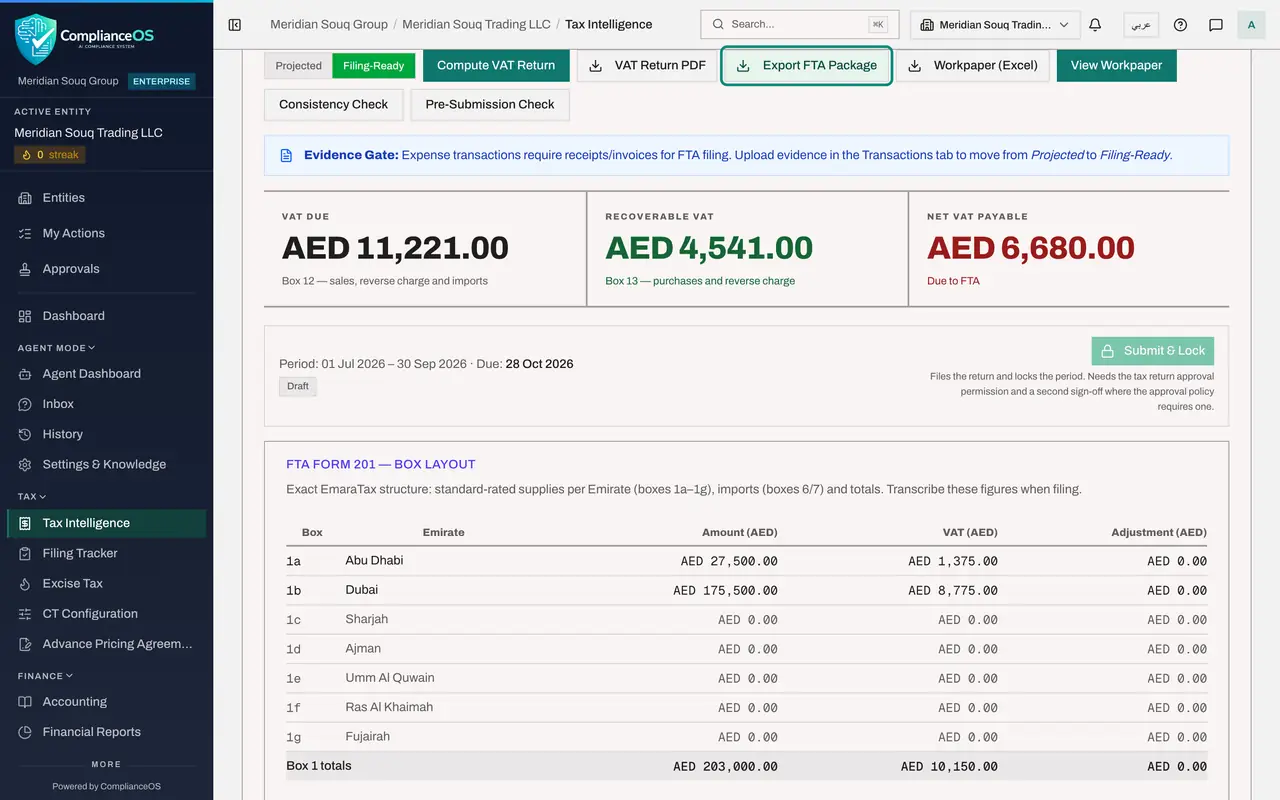
Select Export FTA Package
Select Export FTA Package. This downloads the same return as a package of files prepared for the Federal Tax Authority's portal. The app does not submit it: you still file on the portal yourself.
- Select Export FTA Package
- 6
Select Workpaper (Excel)
Select Workpaper, Excel. This downloads the workpaper that lists the transactions behind each box. View Workpaper, beside it, opens the same workpaper on screen, which the tax manager reviews in the next lesson.
- Select Workpaper (Excel)
- 7
Look at Advance Deposit Settlement
At the bottom of the tab is Advance Deposit Settlement. When a customer paid a deposit in advance and the invoice is issued later, Settle Deposit moves the deposit to revenue so that it is not taxed twice. Select Settle Deposit to see the form. It asks for the bank transaction of the advance and for the invoice. There is no deposit in this quarter, so the next step cancels it.
- Select Settle Deposit
- 8
Open the Filing Tracker
Close the form. In the left menu, under Tax, choose Filing Tracker. Computing the return created its deadline: VAT Return Filing for 1 July to 30 September 2026, due on 28 October 2026, 28 days after the quarter ended. The status is Upcoming.
- Select Cancel
- Select Filing Tracker
- 9
Read why there is no Record filing button
Other deadlines in the tracker have a Record filing button. This one does not. Under the line the tracker explains: the return is still a draft, and filing it completes this deadline. The link File the return takes the person who files to the VAT Return tab. So nobody can mark the VAT deadline as filed while the return itself is unfiled.
- 10
Read the tiles and the sections
The tiles count the total filings, how many are filed, due within seven days and overdue, and the share that is filed. The list on the left switches between all filings, Overdue, Filed and Reminders. Export iCal, at the top, downloads the deadlines as a calendar file for your own calendar.
How to check it worked
The Pre-Submission Check shows Warnings only, three files have been downloaded, and the Filing Tracker lists VAT Return Filing for 1 July to 30 September 2026, due on 28 October 2026, with the link File the return.
Common mistakes
- Reading Warnings only as a failure. Warnings are things to be able to explain. Only two checks actually refuse the filing: AI suggestions still waiting for review, and credit notes that do not reconcile. Other blocking lines are advice to resolve before you file.
- Looking for a Record filing button on the VAT deadline. A deadline that belongs to a return is completed by filing the return itself, with Submit and Lock.
- Sending the PDF to the authority by email. The return is filed on the authority's own portal; the PDF is your working copy.
Check your understanding
1. The Consistency Check says Not applicable. Why?
- A.The return is wrong
- B.It compares e-invoices issued through ComplianceOS with their tax classification, and none were issued for this period
- C.The period is locked
- D.The accountant is not allowed to run it
Show answer
Answer: B. It compares e-invoices issued through ComplianceOS with their tax classification, and none were issued for this period
The check only has something to compare when sales invoices were issued from the app. Here the sales came from an import.
2. When does the VAT return's deadline appear in the Filing Tracker?
- A.When the entity is created
- B.When the return for the period has been computed
- C.Only after the return is filed
- D.When an administrator adds it by hand
Show answer
Answer: B. When the return for the period has been computed
Computing the return creates its filing deadline, 28 days after the period ends. Filing the return completes it.