Lesson 19 of 21
VAT groups: register a group, add its members and compute its return
What you will be able to do
This lesson is for the organisation administrator. A VAT group is two or more companies that the tax authority has registered as one taxable person, with one tax registration number and one return. You will register the group in the organisation settings, choose the member that files for the group, assign both entities to it, and compute the group's consolidated return for a quarter.
Before you start
- You are signed in as an administrator. VAT groups belong to the whole organisation, so they are managed by administrators, not by the tax team of one entity.
- The tax authority has approved the group and issued its tax registration number. The number used here is invented for training.
- The organisation has two entities: Meridian Souq Trading LLC and Meridian Souq E-Commerce FZ-LLC.
Steps
- 1
Open the account menu and choose Organisation settings
Select your initial at the top right of the screen to open the account menu, and choose Organisation settings.
- Select Account menu
- Select Organisation settings
- 2
Select VAT Groups
In the list of settings select VAT Groups. The page lists each group with its name, its tax registration number and its representative entity. It is empty: No VAT groups yet. Each entity files its own return.
- Select VAT Groups
- 3
Select Create Group
Select Create Group. The form has three fields. Group Name and Group TRN are required.
- Select Create Group
- 4
Type the name and the group's tax registration number
In Group Name type the name the group is known by. In Group TRN type the tax registration number the authority issued for the group itself, 15 digits. It is not the number of any single member.
- Type Group Name *:
Meridian Souq VAT Group - Type Group TRN *:
100588431200003
- Type Group Name *:
- 5
Choose the representative entity
Open Representative Entity and choose Meridian Souq Trading LLC. This is the member responsible for submitting the consolidated return. The field is optional, so it can also be chosen later.
- Select Select representative entity (optional)
- Choose Meridian Souq Trading LLC
- 6
Select Create Group to save
Select Create Group at the bottom of the form. A message confirms that the group was created, and it appears in the list.
- Select Create Group
- 7
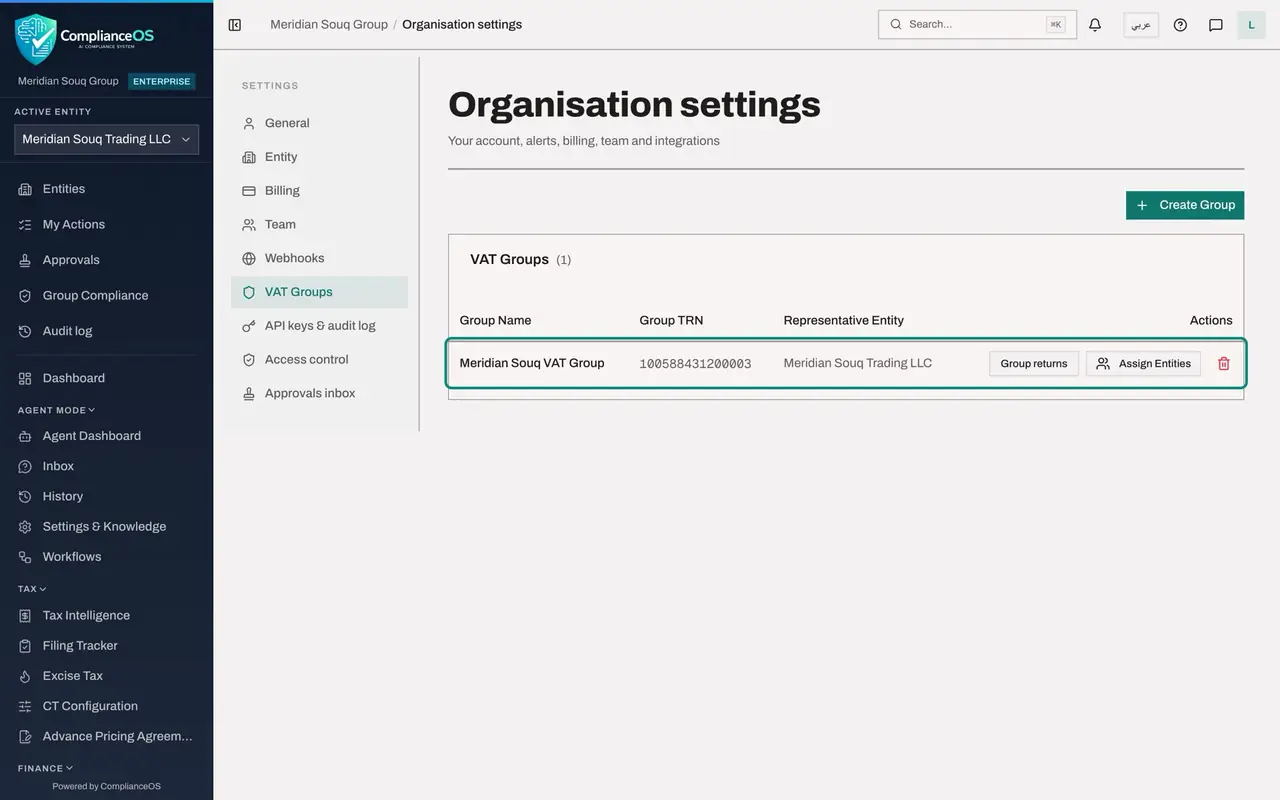
Read the line of the group
The line shows the group name, its number and the representative entity. Group returns opens the group's return, Assign Entities opens the page where members are chosen, and the bin deletes the group, after a warning that all member entities will be removed from it.
- 8
Select Assign Entities
Select Assign Entities. The VAT Group Assignment page lists every entity of the organisation with a box for its VAT group. Both entities read Unassigned.
- Select Assign Entities
- 9
Assign the trading company
Open the box beside Meridian Souq Trading LLC and choose Meridian Souq VAT Group. A message confirms that the entity was assigned to the VAT group.
- Select Unassigned
- Choose Meridian Souq VAT Group · 100588431200003
- 10
Assign the e-commerce company
Do the same for Meridian Souq E-Commerce FZ-LLC. Both entities now show the group and its number. A VAT group needs at least two members.
- Select Unassigned
- Choose Meridian Souq VAT Group · 100588431200003
- 11
Select Group returns
Select Group returns, under Consolidated returns. The VAT group return page opens in the representative entity. It shows the group, its number, the representative member and both members. This is where the group's consolidated return is computed, saved for each period and filed under the group's number.
- Select Group returns
- 12
Enter the period and select Compute & save return
In Period start enter 1 July 2026 and in Period end 30 September 2026, then select Compute and save return. The note under the button explains what it does: it recomputes each member's return for the period, removes supplies between members, and saves the consolidated figures. The period appears under Saved returns with its due date, the status Draft and the net VAT due.
- Type Period start:
2026-07-01 - Type Period end:
2026-09-30 - Select Compute & save return
- Type Period start:
- 13
Read the consolidated boxes
The return shows the group's output VAT, recoverable input VAT and net VAT due, then the consolidated boxes after removing supplies between members. Intra-group supplies eliminated is nought here: the two companies did not sell to each other.
- 14
Read the member breakdown
Member breakdown lists each member's own return for the period, with its status and figures, and an Open link to it. The e-commerce company had no transactions in the quarter, so its figures are nought. The buttons above, File group return with the authority and Submit and Lock, file the group return under the same approval policy as an entity's return. The group return is not filed in this course.
How to check it worked
Organisation settings, VAT Groups, lists Meridian Souq VAT Group with Meridian Souq Trading LLC as representative entity, both entities are assigned to it, and the group return for July to September 2026 is saved as a draft.
Common mistakes
- Creating a group before the authority has approved it. Until then each entity files its own return.
- Typing an entity's own tax registration number as the group's. The group has its own number.
- Expecting the group return to work with one member. The page says a VAT group needs at least two member entities.
Check your understanding
1. What is the representative entity of a VAT group?
- A.The largest customer
- B.The member responsible for submitting the group's consolidated return
- C.The auditor
- D.The entity with the oldest registration
Show answer
Answer: B. The member responsible for submitting the group's consolidated return
The form says the representative entity is the one responsible for submitting the consolidated VAT return, under the group's number.
2. Where are VAT groups created?
- A.In Tax Intelligence, on the VAT Config tab
- B.In the organisation settings, on the VAT Groups page
- C.In the Filing Tracker
- D.In the Evidence Vault
Show answer
Answer: B. In the organisation settings, on the VAT Groups page
A group spans entities, so it lives in the organisation settings. Tax Intelligence has the group's return.