Lesson 10 of 21
Attach the documents behind your transactions
What you will be able to do
This lesson is for the accountant. The tax authority expects a document behind the treatment of a transaction: a tax invoice for a purchase whose VAT is reclaimed, proof of export for a zero rated sale. You will see how the list shows which rows still need a document, attach a document to one row, read the check the app runs on it, use Bulk Evidence for several files at once, and see how the VAT return reminds you.
Before you start
- You are signed in as the accountant.
- The quarter's transactions are classified. The advertising invoice had its PDF attached when it was typed in.
- The files used here are training samples: an export declaration for the sale to Oman and the shop rent invoice.
Steps
- 1
Hide the menu and scroll to the Status column
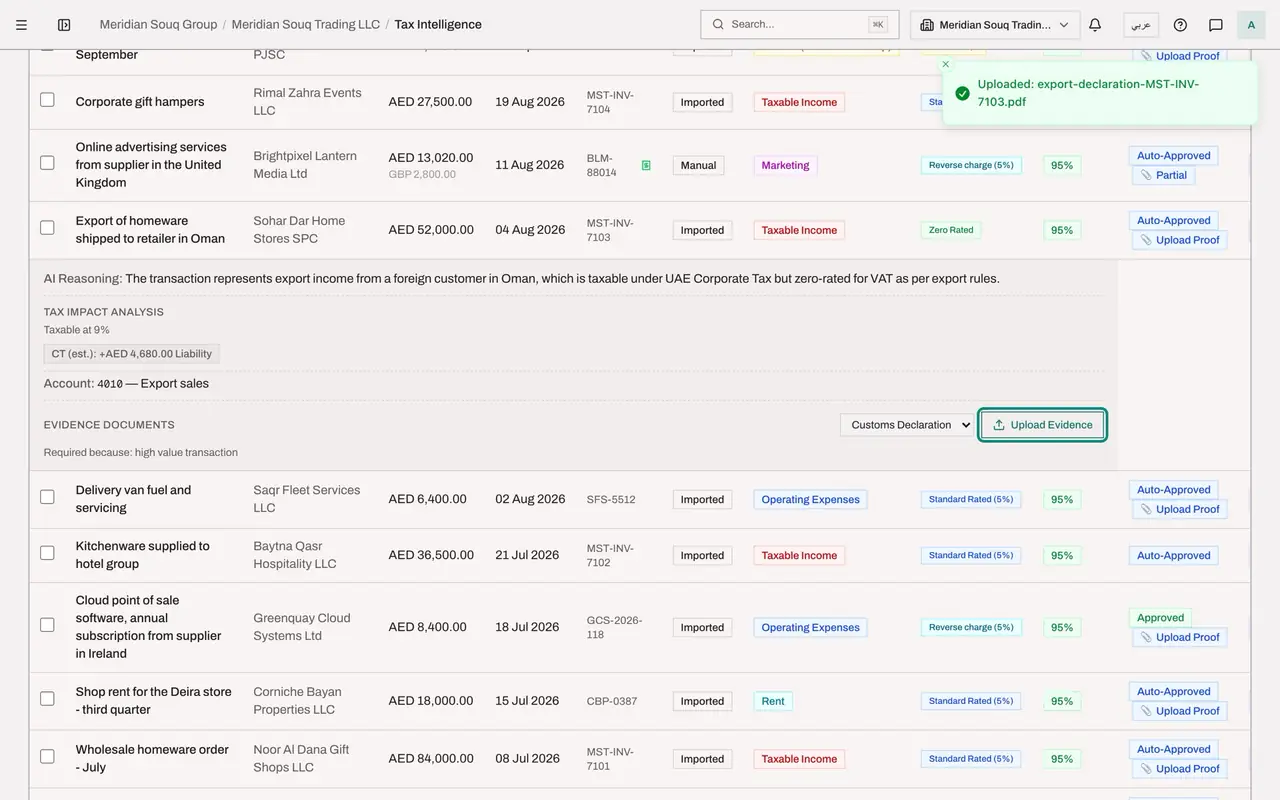
Open Tax Intelligence, select the Hide navigation icon and scroll the list sideways. Under the status of most rows there is a small note, Upload Proof. It marks a transaction that still needs its supporting document.
- Select Hide navigation
- 2
Find the row that already has a document
The advertising invoice was typed in with its PDF attached, so its note reads Partial rather than Upload Proof, and a green receipt mark sits beside its invoice number.
- 3
Select the export sale to open it
Scroll back and select the row Export of homeware shipped to retailer in Oman. At the bottom of its detail is Evidence Documents. The line Required because says why a document is needed.
- 4
Choose the document type
Open the list beside Upload Evidence. It names the kind of document: Invoice, Receipt, Utility Bill, Credit Note, Customs Declaration or Contract. For an export the proof is the customs exit papers, so choose Customs Declaration.
- 5
Select Upload Evidence and choose the file
Select Upload Evidence and choose the file, here export-declaration-MST-INV-7103.pdf. PDF and picture files are accepted. A message confirms that the file was uploaded.
- Upload Upload Evidence:
export-declaration-MST-INV-7103.pdf
- Upload Upload Evidence:
- 6
Read the result of the check
After a few seconds, open the row again. Under Uploaded the file is listed with its type and the result of the app's check, followed by the reasons. The app tries to read the document and compare it with the transaction. Where it cannot read a detail, such as the amount, it says so and asks for a person to look. Read the reasons, and replace the file with a clearer copy if they apply.
- 7
Select Bulk Evidence
Close the row. For many documents at once, select Bulk Evidence in the row of buttons above the list and choose several PDF or picture files, or one zip file. Here it is the shop rent invoice, invoice-CBP-0387.pdf. The app starts processing and tracks its progress.
- Upload Bulk Evidence:
invoice-CBP-0387.pdf
- Upload Bulk Evidence:
- 8
Read the Bulk Evidence result
When processing ends, the Bulk Evidence Processing window counts the files, how many were matched to a transaction, how many were not, and any errors. Each file is listed with its status and the reason. A file that was not matched can be attached by hand on its row, as you did for the export.
- 9
Read the Evidence Gate note on the return
Close the window. Select Returns, choose the third quarter of 2026 and select Compute VAT Return. Under the buttons, the Evidence Gate note reminds you that expense transactions need their receipts or invoices before filing, and that they are uploaded on the Transactions tab.
- Select Close
- Select Returns
- Choose Year:
2026 - Select Q3
- Select Compute VAT Return
How to check it worked
The export sale to Oman lists one uploaded document with its type, Customs Declaration, and the result of the check. The Bulk Evidence window has reported on the file you sent.
Common mistakes
- Leaving the documents until the day the return is due. Attach each document when the transaction is entered or soon after.
- Choosing the wrong document type. Pick the type before you choose the file: Invoice for a supplier's tax invoice, Customs Declaration for export or import papers.
- Ignoring the result of the check. Read the reasons under the document and replace an unclear or wrong file.
Check your understanding
1. What does the note Upload Proof under a status mean?
- A.The transaction was rejected
- B.The transaction still needs its supporting document
- C.The transaction has been filed
- D.The classification failed
Show answer
Answer: B. The transaction still needs its supporting document
It marks a row whose tax treatment depends on a document that is not on file yet.
2. Where do you attach a document to one transaction that is already in the list?
- A.In the Filing Tracker
- B.In VAT Config
- C.In the row itself: select the row, choose the document type and select Upload Evidence
- D.It cannot be attached after the transaction is saved
Show answer
Answer: C. In the row itself: select the row, choose the document type and select Upload Evidence
Selecting a row opens its detail, where Evidence Documents has the document type list and the Upload Evidence button.