Lesson 21 of 21
How this connects: the calendar, the Evidence Vault and sanctions screening
What you will be able to do
This lesson is for the compliance officer, and for tax staff who want to know where their work shows up elsewhere. The VAT work of this course left traces in three other parts of ComplianceOS. You will find the filing deadline in the Compliance Calendar, the filing acknowledgement in the Evidence Vault, and the screening of the imported customers and suppliers against sanctions lists.
Before you start
- You are signed in as the compliance officer, Mariam Aziz, whose menu includes the Calendar, the Evidence Vault and the financial crime screens. The tax manager's and the accountant's menus do not.
- The return for July to September 2026 has been computed, filed and locked, and the quarter's transactions were imported or typed in.
Steps
- 1
Open the Calendar
In the left menu, under Assurance, choose Calendar. The Compliance Calendar shows deadlines from every module. The tiles count the deadlines of the month, those overdue, those coming in the next 30 days and those completed in the year.
- Select Calendar
- 2
Find the VAT deadline
The month view marks 28 October with a VAT label. Under October deadlines, the line reads VAT Return Filing for 1 July to 30 September 2026, with the status Completed. The Tax module created this deadline when the return was computed, and completed it when the return was submitted and locked. Nobody added it here.
- 3
Look at the buttons
Sync Deadlines brings in deadlines from the modules again. Add Custom Deadline is for a deadline that no module creates. The year box at the top changes the financial year shown.
- 4
Open the Evidence Vault
In the left menu choose Evidence Vault. It stores documents and records in a form that cannot be altered afterwards, each with a fingerprint, called a SHA-256 hash, and a retention period. The tiles count the records and how many are sealed.
- Select Evidence Vault
- 5
Search for the acknowledgement
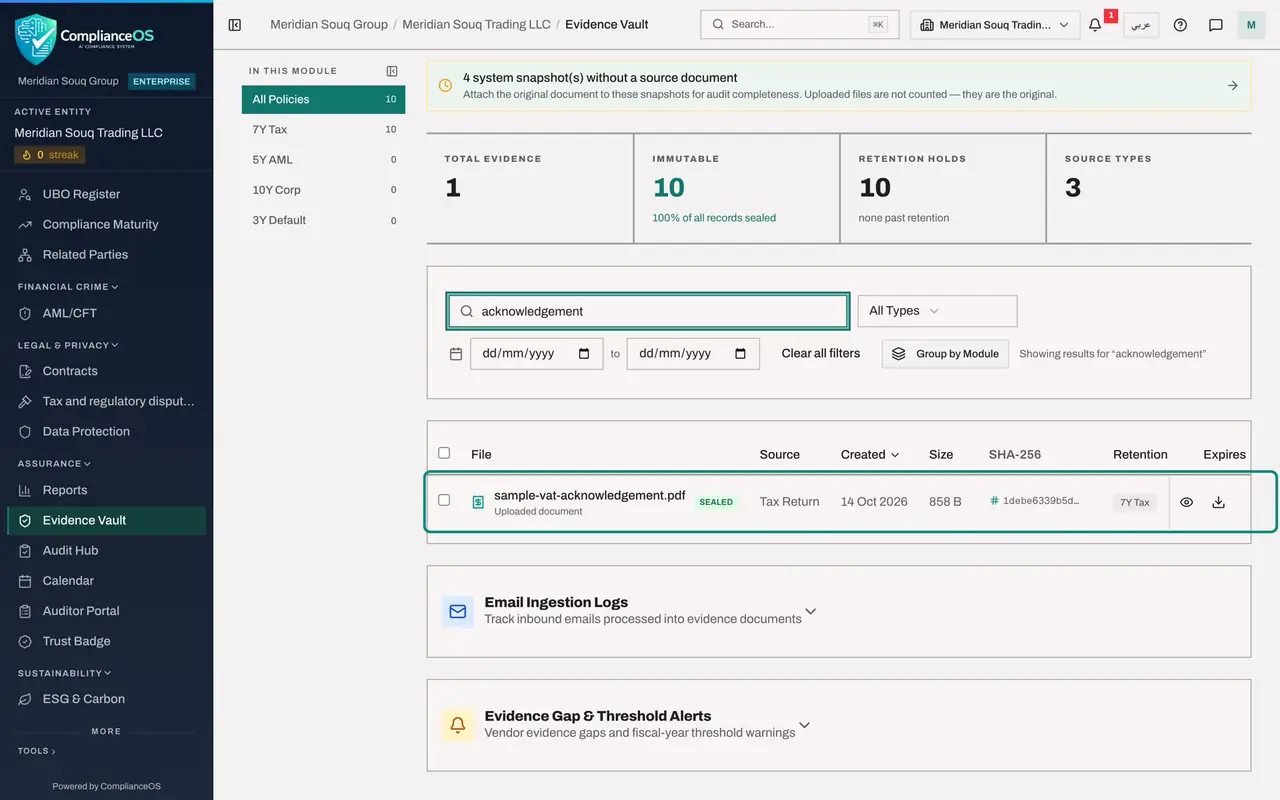
In the search box above the list type acknowledgement. The list narrows to sample-vat-acknowledgement.pdf, the file the tax manager attached in the Submit and Lock window. It is an uploaded document from the source Tax Return, marked Sealed, with the retention 7 years, Tax, and an expiry date seven years from now.
- Type Search by file name, original document, hash, or record ID...:
acknowledgement
- Type Search by file name, original document, hash, or record ID...:
- 6
See what else the VAT work left in the vault
Clear the search. The documents attached to transactions are here too, such as the export declaration and the supplier invoices. The other lines were written by the app itself as the work was done: a VAT Return record each time the return was computed, a record for each approval and override of a classification, and a memo of the blocked input VAT. Together they are the audit trail of the quarter.
- 7
Open the screening list
In the left menu, under Financial Crime, choose AML/CFT and select the Screening tab. AML and CFT stand for anti money laundering and countering the financing of terrorism. The tiles count the names screened and how many are pending, cleared, matched and escalated.
- Select AML/CFT
- Select Screening
- 8
Find the customers and suppliers from the tax transactions
All Screening Checks lists every name that was screened. The customers and suppliers of the quarter are here, although nobody entered them in this module: each name on an imported or typed tax transaction was checked against the sanctions lists when it arrived. Each line shows the status, the score of the closest list entry and when it was screened. All of them are Cleared.
- 9
Know what happens on a match
Screen Counterparty, above the list, checks a single name by hand. If a name on an import had matched a list entry closely, the import window would have shown a sanctions alert for it with the words Review in Sanctions module, and the check would be listed here as Matched for the financial crime team to resolve.
How to check it worked
You have seen the VAT Return Filing on 28 October in the Compliance Calendar marked Completed, the file sample-vat-acknowledgement.pdf in the Evidence Vault marked Sealed with a seven year tax retention, and the quarter's counterparties in the Screening list with the status Cleared.
Common mistakes
- Adding the VAT deadline to the calendar by hand. It is created when the return is computed and completed when the return is locked; a second, manual deadline would stay open for ever.
- Uploading the acknowledgement to the Evidence Vault again. Submit and Lock already vaulted it.
- Reading Cleared as a guarantee. It means no list entry matched the name closely enough when it was screened; names change and lists are updated.
Check your understanding
1. What put the filing acknowledgement into the Evidence Vault?
- A.The compliance officer uploaded it
- B.Submit and Lock on the VAT return vaulted the attached document
- C.The tax authority sent it
- D.It was imported with the transactions
Show answer
Answer: B. Submit and Lock on the VAT return vaulted the attached document
The document attached in the Submit and Lock window is stored in the Evidence Vault, sealed, with the tax retention period.
2. A supplier name arrives in a transaction import. What happens in the financial crime module?
- A.Nothing until someone screens it by hand
- B.The name is screened against the sanctions lists and the check is listed under Screening
- C.The supplier is blocked
- D.A report is sent to the regulator
Show answer
Answer: B. The name is screened against the sanctions lists and the check is listed under Screening
Counterparty names on tax transactions are screened automatically, and each check appears in the Screening list with its status.