Lesson 5 of 21
Classify transactions and read the result
What you will be able to do
This lesson is for the accountant and the tax manager. You will ask the app to classify the quarter's transactions, first only the rows that match a filter and then all the rest, and you will learn to read what it decided: the VAT treatment, the confidence, the status and the reasoning behind each row.
Before you start
- You are signed in as the accountant.
- Fifteen transactions for July to September 2026 are in the list and none is classified yet: fourteen were imported and one was typed in.
- Classification runs in the background. Some rows are decided by a rule written in the law; the rest get a suggestion from the AI. Nothing is sent to the tax authority.
Steps
- 1
Open Tax Intelligence and hide the menu
In the left menu choose Tax Intelligence and select the Hide navigation icon at the top left, so the whole list fits. Under Classify, the strip says 15 remaining. Those are the rows with no tax treatment yet.
- Select Hide navigation
- 2
Filter the list to sales
Open the All Types filter above the list and choose Income. The list now shows only the five sales. Look at the green button in the row of buttons: Batch Classify has become Classify filtered.
- Select Type
- Choose Income
- 3
Select Classify filtered
Select Classify filtered. The app reads each sale in the list, its description, customer, account and amount, and proposes a corporate tax category and a VAT treatment. This runs in the background and the rows fill in after a few seconds.
- Select Classify filtered
- 4
Read the sales
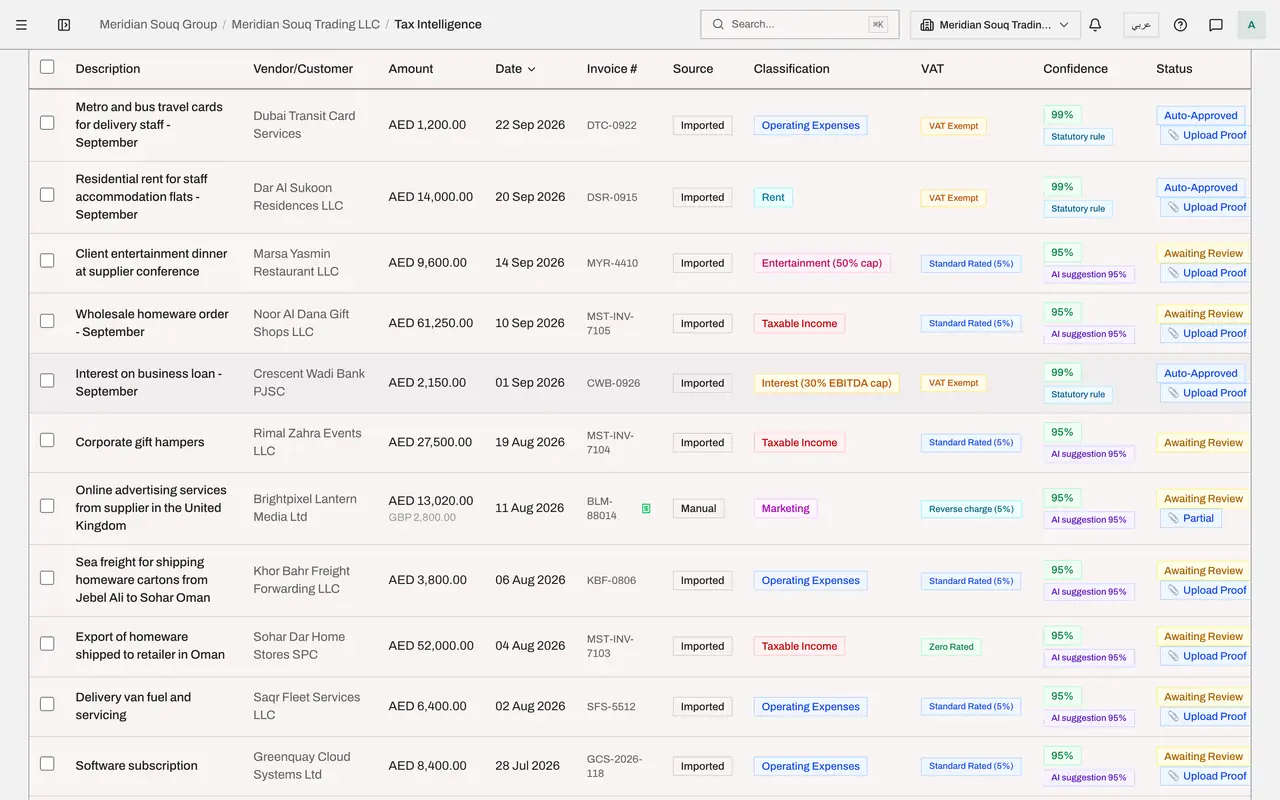
Each sale now has four results. Classification is the corporate tax category. VAT is the VAT treatment: Standard Rated, five percent, for the local sales, and Zero Rated for the export to Oman, a taxable sale at nought percent. Confidence is how sure the classification is, and under it each sale carries the badge AI suggestion with the same percentage: the AI proposed it. Status reads Awaiting Review, because a suggestion from the AI always waits for a person to approve it.
- 5
Show all types again and tick the box at the top of the list
Set the type filter back to All Types. Then tick the box in the heading row of the list. It selects every row shown. A bar appears with the number selected and three buttons: Classify Selected, Clear classifications and Clear selection. The green button now reads Classify 15 selected.
- Select Type
- Choose All Types
- Select Select all
- 6
Select Clear selection
Classify Selected would run the classification again on every ticked row, including the sales that are already done. That is useful after you correct descriptions. It is not needed now, so select Clear selection.
- Select Clear selection
- 7
Select Batch Classify
With no filter and nothing ticked, the button reads Batch Classify and covers every transaction that is not classified yet. Select it and wait until no row says Unclassified.
- Select Batch Classify
- 8
Read the VAT column on the purchases
The purchases use the same treatments. Standard Rated means the supplier charged five percent VAT. VAT Exempt means no VAT was charged and none can be reclaimed. Outside VAT Scope means the tax does not apply at all. The rent for the staff flats is VAT Exempt, with the badge Statutory rule under its confidence. Before the AI is asked, the app checks a short list of supplies that the law itself makes exempt, such as residential rent, loan interest and local passenger transport. The loan interest and the metro and bus travel cards are decided the same way.
- 9
Find the reverse charge row
The advertising invoice from the United Kingdom, which you saved with Reverse charge ticked, is labelled Reverse charge (5%) in the VAT column, not Standard Rated. A service bought from abroad is taxed under the reverse charge at five percent, and the app always applies that rate to a reverse charge purchase, whatever the AI suggests. The return reports its VAT both as tax due and as tax you can reclaim. The row is still an AI suggestion, so it waits for the tax manager like the others.
- 10
Scroll sideways to read the Status column
Scroll the list sideways to bring Confidence and Status into view. The three rows decided by a statutory rule are Auto-Approved: the law decides them, so no review is needed. Every row with an AI suggestion is Awaiting Review, whatever its confidence, until the tax manager approves or corrects it. An Upload Proof note marks a row that still needs its invoice on file.
- 11
Select a waiting row to see the reasoning
Select anywhere on a row that is awaiting review to open it. Why this needs review lists what the checks found. AI Reasoning explains in a sentence why the treatment was proposed, and Tax Impact Analysis shows the effect. Evidence Documents is where the invoice for the row is kept.
- 12
Look at the buttons at the end of a row
Select the row again to close it. Every classified row ends with an Override button, a pencil to edit and a bin to delete. A row that is still waiting also keeps a Classify button, which runs the classification again for that one row.
- 13
Check the strip and the Review Queue tab
At the top, Classify is ticked and no longer shows a number remaining. The Review Queue step and the Review Queue tab show how many transactions are waiting for a person. The tax manager deals with those in a later lesson.
How to check it worked
No row in the Transactions list says Unclassified. The loan interest, the residential rent and the metro and bus travel cards carry the badge Statutory rule and the status Auto-Approved. Every other row carries the badge AI suggestion with a percentage and the status Awaiting Review, and the Review Queue tab shows how many rows are waiting for a person.
Common mistakes
- Pressing Batch Classify with a filter still set and expecting everything to be classified. With a filter set the button reads Classify filtered and covers only the rows that match.
- Expecting the AI to approve its own suggestions. An AI suggestion always waits for a person, however high its confidence, unless an administrator has switched on Approve AI suggestions without a person in the VAT set-up. Auto-Approved means a rule decided the row: a statutory rule, the company's own supplier rule, or the credit note of an approved invoice.
- Ignoring a row's reasoning when the treatment looks odd. Select the row: the reason is written there, and it is the first thing a reviewer will read.
Check your understanding
1. You set the type filter to Income. What does the classify button do now?
- A.It is disabled
- B.It classifies every unclassified transaction
- C.It reads Classify filtered and classifies only the unclassified rows that match the filter
- D.It deletes the other rows
Show answer
Answer: C. It reads Classify filtered and classifies only the unclassified rows that match the filter
Batch Classify follows what you have narrowed the list to: ticked rows first, then the current filters, otherwise everything unclassified.
2. A purchase from an overseas supplier was saved with Reverse charge ticked. How is it labelled in the VAT column after classification?
- A.Standard Rated
- B.Reverse charge
- C.VAT Exempt
- D.Outside VAT Scope
Show answer
Answer: B. Reverse charge
Reverse charge rows carry their own label, so they are not mistaken for ordinary standard rated purchases.