Lesson 9 of 21
Record a credit note and watch the return change
What you will be able to do
This lesson is for the accountant. A customer returned damaged goods from the September wholesale order, and a credit note was issued for part of that sale. You will compute the return first, import the credit note as a negative row, classify it straight from the import window, see it take the treatment of the invoice it names, and compute the return again to see the box of the original sale go down.
Before you start
- You are signed in as the accountant.
- The original sale, invoice MST-INV-7105 for 61,250 dirhams to Noor Al Dana Gift Shops, is already in the list, classified as Standard Rated and approved by the tax manager.
- The credit note is in a small CSV file with one row. Its amount is negative, minus 6,250, and it has a document_type column that says CREDIT_NOTE.
Steps
- 1
Select Returns and choose the quarter
In Tax Intelligence select Returns. On the VAT Return tab choose the year 2026 and select Q3, so that Period Start is 1 July and Period End is 30 September 2026.
- Select Returns
- Choose Year:
2026 - Select Q3
- 2
Select Compute VAT Return
Leave the switch on Projected, which counts every classified transaction, including those still waiting for review. Select Compute VAT Return. After a few seconds the totals and the boxes of the return appear.
- Select Compute VAT Return
- 3
Note box 1b before the credit note
Find the table headed FTA Form 201. Boxes 1a to 1g are standard rated sales for each Emirate. Box 1b, Dubai, shows 181,750 dirhams with VAT of 9,087.50. The September order of 61,250 is part of that figure.
- 4
Go back to Work and select Import
Select Work to return to the Transactions tab, then select Import. The same window you used for the quarter's file opens.
- Select Work
- Select Import
- 5
Choose the credit note file
Select Choose File and pick credit-note-september.csv. It has one row: the date of the credit note, the type INCOME, the amount minus 6,250, the customer, the credit note's own number MST-CN-0031, and CREDIT_NOTE in a column named document_type. The preview shows 1 Will import.
- Upload Choose a file:
credit-note-september.csv
- Upload Choose a file:
- 6
Select Confirm import
Select Confirm import, 1 row, and wait for the count to read 1 Imported. The window says the transaction is imported and not classified yet.
- Select Confirm import (1 row)
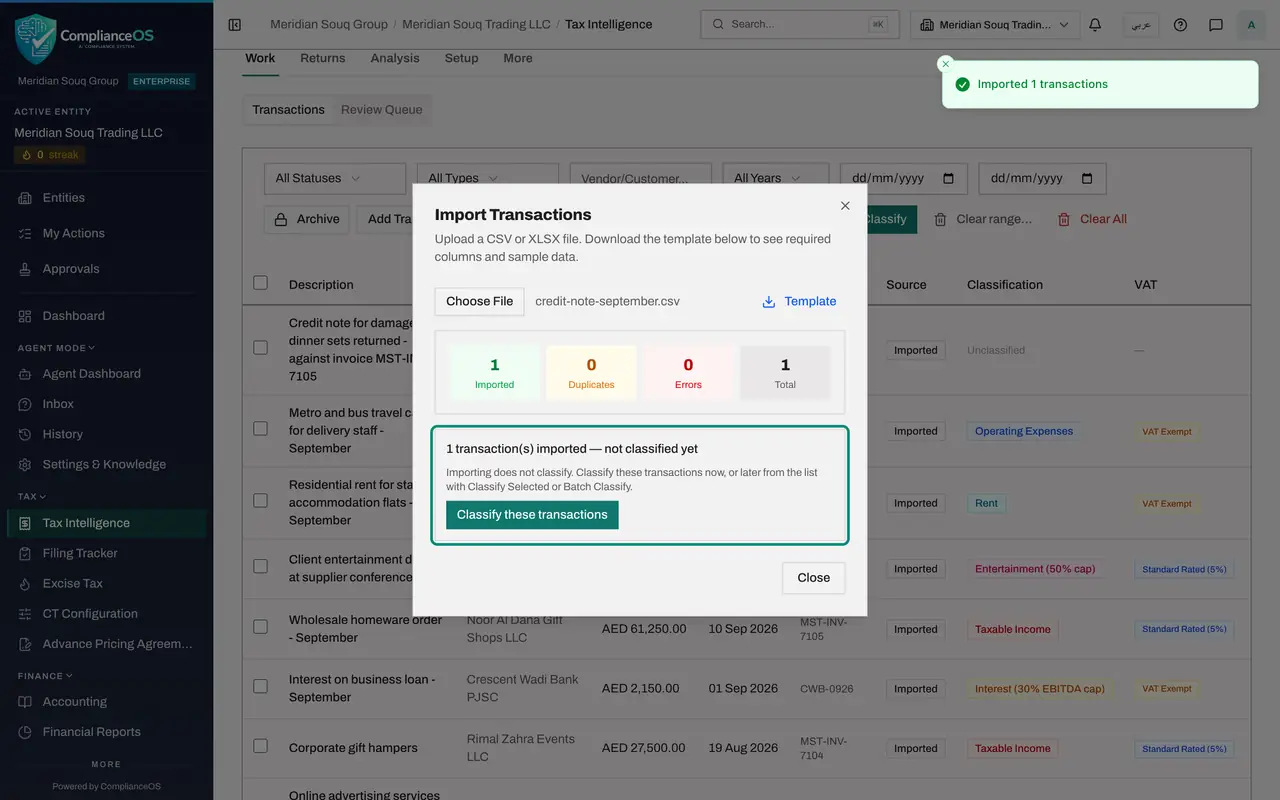
- 7
Select Classify these transactions
This time select Classify these transactions. Only the row you just imported is classified. When it is done the window says The imported transactions have been classified. Undo these classifications would put the row back to unclassified.
- Select Classify these transactions
- 8
Select Close and find the credit note
Select Close and hide the menu. The credit note is in the list with a negative amount, minus 6,250 dirhams. Look at its VAT column: Standard Rated. Under its confidence is the badge Credit note of MST-INV-7105, and its status is Auto-Approved. The AI was not asked. The credit note names the invoice it corrects, so it takes that invoice's treatment, and because a person approved the invoice, the credit note is approved automatically.
- Select Close
- Select Hide navigation
- 9
Select the row to read why
Select the row to open it. The reasoning is headed Follows the original invoice, not AI reasoning, because no AI decided it. It says Credit note of MST-INV-7105: the credit note names the invoice, so it carries that invoice's treatment, and it cites Articles 61 and 62 of the VAT law, which cover credit notes. Select the row again to close it.
- 10
Check that the treatment matches the sale
Close the row. The VAT column reads Standard Rated, the same as invoice MST-INV-7105, so the credit note will reduce the same box of the return. Had the original invoice still been waiting for review, the credit note would wait with it. A credit note that cannot be matched to its invoice, or that lands in a different box, is listed under credit note reconciliation in the pre-submission check, and the return cannot be filed until it is fixed or cleared with a written justification.
- 11
Compute the return again
Select Returns, check that the period is still the third quarter of 2026, and select Compute VAT Return again. A saved return does not change by itself when transactions change: it has to be computed again.
- Select Returns
- Choose Year:
2026 - Select Q3
- Select Compute VAT Return
- 12
Read box 1b after the credit note
Box 1b now shows 175,500 dirhams with VAT of 8,775. The credit note took 6,250 off the sales and 312.50 off the VAT due, and the net VAT payable at the top fell by the same 312.50.
How to check it worked
The list has a row for MST-CN-0031 with a negative amount of 6,250 dirhams, the treatment Standard Rated, the badge Credit note of MST-INV-7105 and the status Auto-Approved. In the computed return, box 1b for Dubai is 175,500 dirhams where it was 181,750 before.
Common mistakes
- Editing the original invoice down to the reduced amount. The sale and the credit note are two documents with two dates; record the credit note as its own row.
- Typing the credit note as a positive expense. A credit note for a customer is a negative row on the income side, so it reduces the same box as the sale it corrects.
- Giving the credit note the invoice number of the original sale. Use the credit note's own number, and mention the original invoice in the description: the app uses that number to give the credit note the invoice's treatment.
Check your understanding
1. A credit note of 6,250 dirhams is issued against a standard rated sale to a Dubai customer. What happens to the return?
- A.Box 9, purchases, goes up by 6,250
- B.Box 1b goes down by 6,250 and its VAT by 312.50
- C.Nothing, credit notes are ignored
- D.Box 5, exempt supplies, goes up by 6,250
Show answer
Answer: B. Box 1b goes down by 6,250 and its VAT by 312.50
A credit note is a negative row that reduces the box of its original supply, here the standard rated sales for Dubai.
2. After the import, which button classifies only the rows you have just imported?
- A.Batch Classify
- B.Classify these transactions
- C.Clear All
- D.Export CSV
Show answer
Answer: B. Classify these transactions
The import window offers Classify these transactions for exactly the rows that came in, and Undo these classifications if you change your mind.