Lesson 6 of 21
Edit a transaction: description, date, reverse charge and Emirate
What you will be able to do
This lesson is for the accountant. You will correct two transactions that are already in the list. On an imported software purchase you will fix the description and the date and mark it as reverse charge. On a sale delivered in another Emirate you will set the Emirate, so the sale is reported in the right box of the return.
Before you start
- You are signed in as the accountant.
- The quarter's transactions are in the list and have been classified.
- Editing is possible until the period is filed and locked. After that the pencil is greyed out and a correction needs a voluntary disclosure.
Steps
- 1
Find the row to correct
Open Tax Intelligence and select the Hide navigation icon. Find the row Software subscription from Greenquay Cloud Systems. The import gave it a vague description and the wrong date, and nobody marked that the supplier is in Ireland.
- Select Hide navigation
- 2
Select the pencil on that row
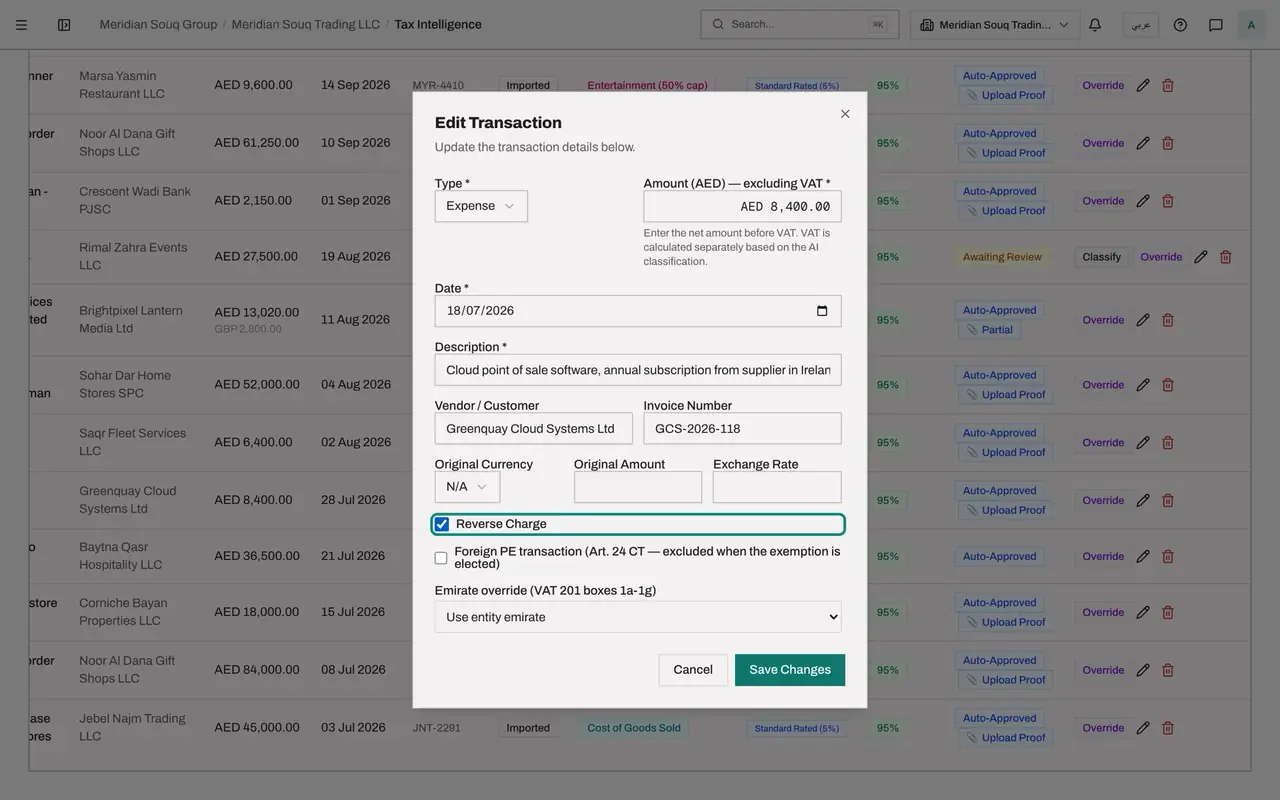
Select the pencil, Edit transaction, at the end of the row. The Edit Transaction window opens with the same fields as the add form: Type, Amount, Date, Description, Vendor or Customer, Invoice Number and the original currency boxes.
- Select Edit transaction
- 3
Correct the description
Replace the text in Description with what was really bought: Cloud point of sale software, annual subscription from supplier in Ireland.
- Type Description *:
Cloud point of sale software, annual subscription from supplier in Ire…
- Type Description *:
- 4
Correct the date
Change Date to the date printed on the invoice, 18 July 2026.
- Type Date *:
2026-07-18
- Type Date *:
- 5
Tick Reverse Charge
Lower in the window, tick Reverse Charge, because the supplier is outside the country and charged no VAT. The box below it, Foreign PE transaction, is for corporate tax and stays unticked.
- Select Reverse Charge
- 6
Select Save Changes
Select Save Changes. A message confirms Transaction updated. The row shows the new description and date, and its VAT column now reads Reverse charge. Because the tax treatment changed, the row goes back to Awaiting Review and gets its Classify button back, so the tax manager will see the change.
- Select Save Changes
- 7
Open the corporate gift hampers sale
Now the second correction. The corporate gift hampers were delivered to the customer's office in Abu Dhabi. Select the pencil on that row.
- Select Edit transaction
- 8
Choose the Emirate override
At the bottom of the window, open Emirate override. It is set to Use entity emirate, which means Dubai from the VAT set-up. Choose Abu Dhabi. This sale will now be reported in box 1a of the return instead of box 1b.
- 9
Select Save Changes again
Select Save Changes. The message Transaction updated appears. Nothing changes in the list itself, because the Emirate is not a column: you will see the effect in the return.
- Select Save Changes
- 10
Know what editing leaves alone
Editing changes the facts of the transaction. It does not run the classification again and it does not approve anything: the hampers sale is still waiting in the Review Queue. If a corrected description should change the tax treatment, select Classify on the row to run it again, or Override to choose the treatment yourself. The bin at the end of a row deletes the transaction.
How to check it worked
The software row reads Cloud point of sale software, is dated 18 July 2026 and is labelled Reverse charge in the VAT column. The corporate gift hampers sale has Abu Dhabi as its Emirate when you open it again.
Common mistakes
- Deleting a transaction and typing it again to fix a small error. Use the pencil: the row keeps its history and its classification.
- Ticking Reverse Charge on a sale. It is for purchases of services from suppliers outside the country.
- Setting the Emirate override on every sale. Leave it on Use entity emirate unless the sale was supplied in a different Emirate from the one in the VAT set-up.
Check your understanding
1. A sale by a Dubai company was delivered to a customer in Abu Dhabi. Which field moves it to box 1a of the return?
- A.Description
- B.Emirate override
- C.Reverse Charge
- D.Original Currency
Show answer
Answer: B. Emirate override
Boxes 1a to 1g report standard rated sales per Emirate. The override replaces the entity's own Emirate for that one transaction.
2. You tick Reverse Charge on a classified purchase and save. What changes in the list?
- A.The row is deleted
- B.The VAT column changes to Reverse charge
- C.The amount is increased by five percent
- D.Nothing until the next import
Show answer
Answer: B. The VAT column changes to Reverse charge
The label changes at once, and the return then reports the VAT on that purchase as both due and reclaimable.