Lesson 14 of 21
Review the VAT workpaper and tie it to the return
What you will be able to do
This lesson is for the tax manager who reviews the return before it is filed, and for anyone who hands working papers to an auditor. You will open the VAT workpaper for the quarter, check that the transactions listed add up to every box of the return, read the lists behind each box, download the workpaper in Excel, and export the transactions with their VAT treatment.
Before you start
- You are signed in as the tax manager.
- The accountant has computed the return for July to September 2026.
- A workpaper is the list of transactions behind each figure of the return. It is what a reviewer or an auditor asks for first.
Steps
- 1
Open the workpaper from the More group
In Tax Intelligence select More. Under the heading Filing, corrections and sign-off, select the tool named VAT Workpaper. You can also get there with the View Workpaper button on the return.
- Select More
- 2
Select the period
Under Tax period, the app lists the recent quarters, because the filing frequency is quarterly. The quarter in progress is labelled, and the page opens on the latest quarter that has ended and is not yet filed. Select 2026-Q3 to be sure. Period Start and Period End read 1 July and 30 September 2026, and the workpaper is drawn up for that quarter. Generate Workpaper draws it up again after you type other dates.
- Select 2026-Q3
- 3
Read the five tiles
Net VAT is the amount payable and matches the return: 6,680 dirhams. Box 1 Sales and Box 9 Purchases give the totals of standard rated sales and purchases and how many lines there are. Blocked VAT is VAT you paid but cannot reclaim. Pending Review counts transactions nobody has approved; it must be nought before the return is filed.
- 4
Read the agreement with the return
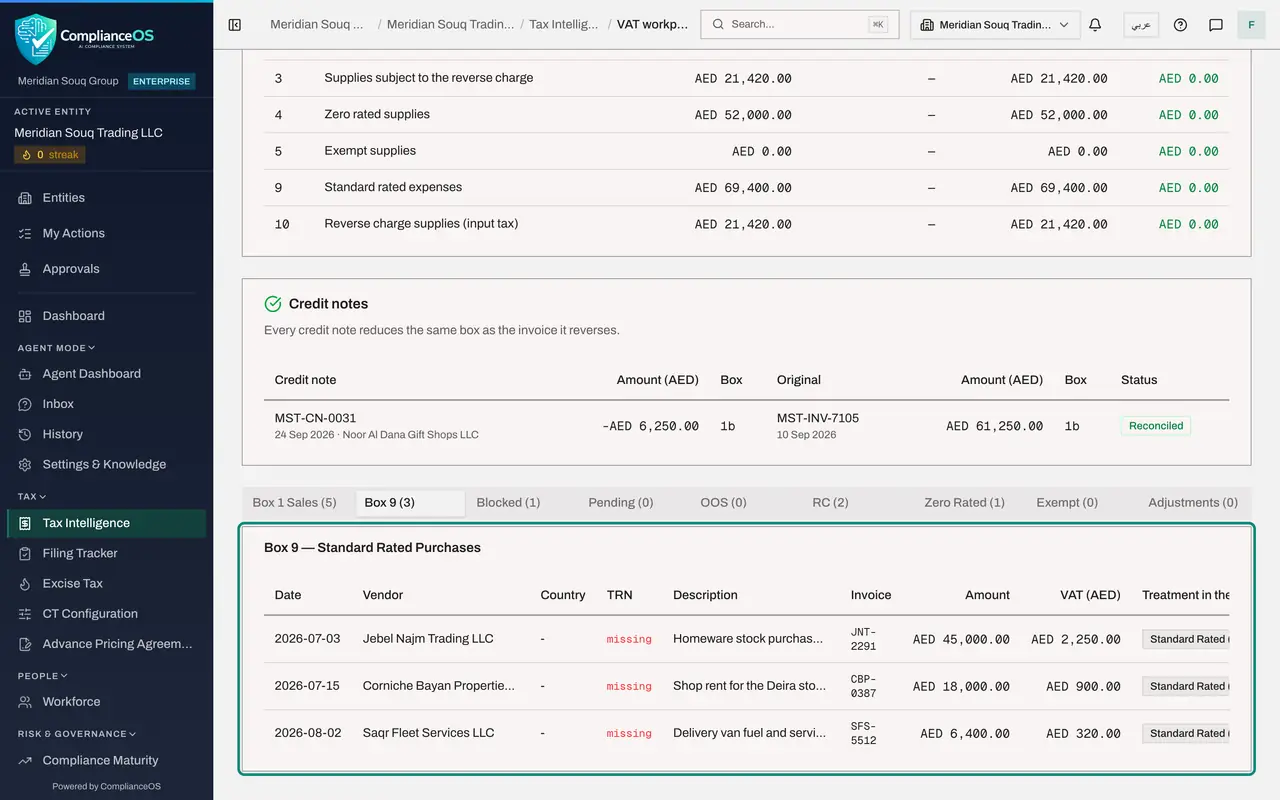
The table Agreement with the VAT return is the tie-out. For each box it shows the total of the transactions listed below, any other amounts, the figure in the return and the difference. Every difference here is nought: boxes 1, 3, 4, 5, 9 and 10 are fully explained by the transactions. The banner above it names what was blocked, the entertainment dinner. Below the table, the workpaper now also has a Credit notes card. It checks that every credit note reduces the same box as the invoice it reverses; here the one credit note, MST-CN-0031, and invoice MST-INV-7105 are both in box 1b, and its status reads Reconciled.
- 5
Read the Box 1 Sales tab
The tabs list the transactions behind each part of the return, with the number of lines in brackets. Box 1 Sales lists every standard rated sale with its date, customer, invoice number, amount and VAT. The credit note is here as a negative line, so the total agrees with box 1 of the return.
- 6
Select the Box 9 tab
Select Box 9. These are the standard rated purchases whose VAT is reclaimed: the stock, the shop rent and the van costs. Add up the VAT column and you get the 3,470 dirhams of box 9. The columns Country and TRN show what the vendor directory holds; missing means the supplier's tax number has not been recorded.
- Select Box 9 (3)
- 7
Select the Blocked tab
Select Blocked. These purchases are left out of box 9 because their VAT is not recoverable. Block Reason says why: the client dinner is entertainment.
- Select Blocked (1)
- 8
Select the RC tab
Select RC, short for reverse charge. It lists the two services bought from suppliers abroad, the advertising and the software, with the VAT that is both due and recoverable.
- Select RC (2)
- 9
Select the Zero Rated tab
Select Zero Rated. It lists the export sale of 52,000 dirhams, with no VAT. The remaining tabs work the same way: Exempt lists exempt sales, OOS lists transactions outside the scope of VAT, Pending lists anything not yet approved and Adjustments lists adjustment entries. They are empty for this quarter.
- Select Zero Rated (1)
- 10
Select Download Excel
Select Download Excel at the top. The file VAT Workpaper, with the period in its name, is saved to your computer. It has an overview with the entity and its tax number, the return, a summary by tax code, sheets listing purchases and sales line by line, sheets of exceptions, a sheet named Box Tie-out with the same agreement table, and a sheet named Credit Notes that matches each credit note to its invoice. This is the file to give to a reviewer or an auditor.
- Select Download Excel
- 11
Export the transactions as well
Go back to Tax Intelligence and, on the Transactions tab, select Export CSV. The file lists every transaction with its date, type, amount, description, vendor or customer, invoice number, category, VAT treatment and review status. Filter it to the period in a spreadsheet if the auditor wants the raw list.
- Select Hide navigation
- Select Export CSV
How to check it worked
In Agreement with the VAT return every line shows a difference of nought. You have an Excel file named VAT Workpaper with the period in its name, and a CSV file of the transactions with a column for the VAT treatment.
Common mistakes
- Reviewing the workpaper for the wrong period. Check the highlighted quarter and the two dates, here 2026 Q3, before you read anything.
- Handing over the workpaper while Pending Review is not zero. Unapproved transactions are not in a Filing-Ready return.
- Ignoring a difference in the agreement table. A difference means a box of the return is not explained by the transactions listed, and must be resolved before filing.
Check your understanding
1. What does the table Agreement with the VAT return prove?
- A.That the return was filed on time
- B.That the transactions listed in the workpaper add up to each box of the computed return
- C.That every supplier has a tax number
- D.That the bank has been reconciled
Show answer
Answer: B. That the transactions listed in the workpaper add up to each box of the computed return
For each box it compares the total of the listed transactions with the return, and shows the difference, which should be nought.
2. On which tab of the workpaper do you find the client entertainment dinner?
- A.Box 9
- B.Blocked
- C.Zero Rated
- D.Box 1 Sales
Show answer
Answer: B. Blocked
Its input VAT cannot be reclaimed, so it is listed under Blocked with the reason, and left out of box 9.