Lesson 1 of 21
Tour of Tax Intelligence for VAT
What you will be able to do
This lesson is for everyone who works on value added tax, or VAT: the tax manager and the accountant. You will learn where each part of the VAT work lives in Tax Intelligence, before any data has been entered: the workflow strip, the counters, the five groups and their tabs, the extra tools and the Filing Tracker.
Before you start
- You are signed in with a tax role for the entity. In the demo company Fatima Noor is the tax manager; the accountant sees the same screens with fewer rights.
- The company is new: no transactions have been entered yet, so every list in this lesson shows its empty state. The next lessons fill them.
Steps
- 1
Open Tax Intelligence
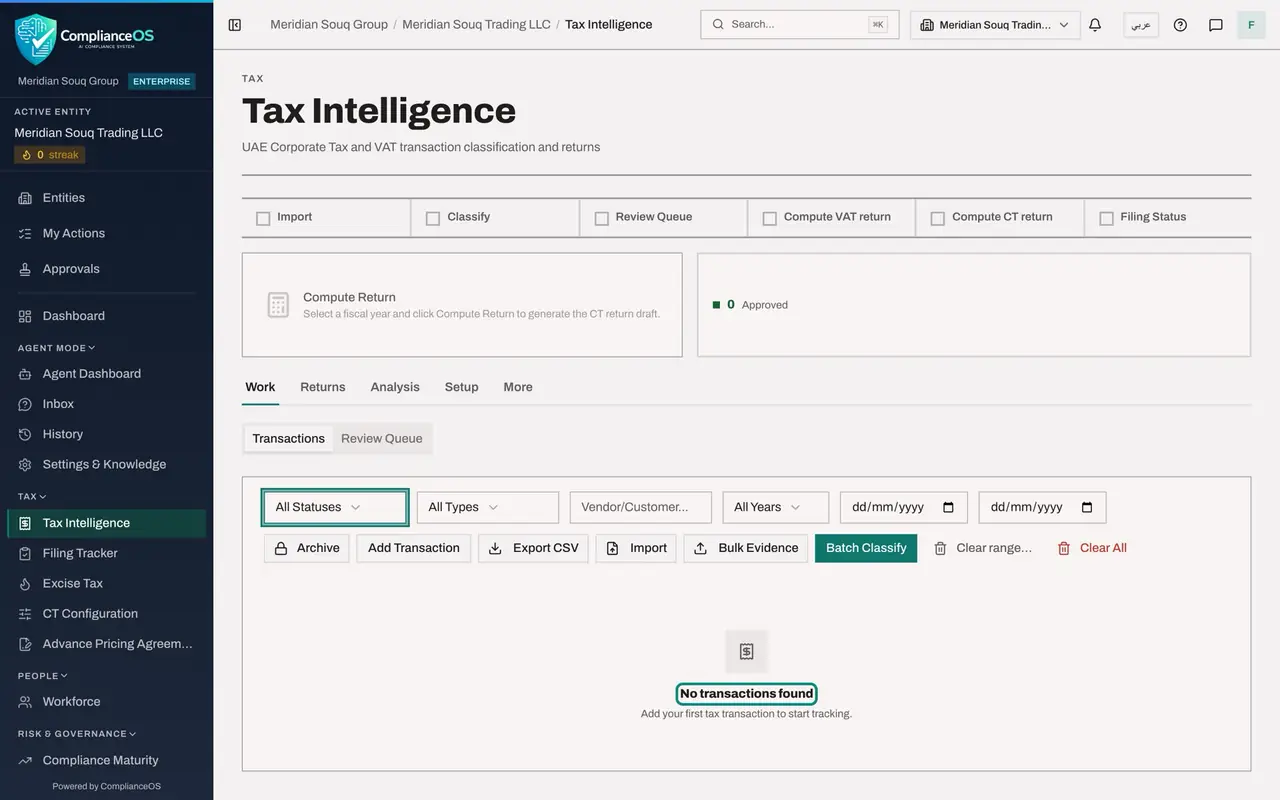
In the left menu, under Tax, choose Tax Intelligence. This one screen serves both corporate tax and value added tax, or VAT, the five percent tax on most sales. This course uses it for VAT.
- 2
Read the workflow strip
The strip across the top shows the work in order: Import, Classify, Review Queue, Compute VAT return, Compute CT return and Filing Status. Each step is a shortcut to its screen, and a step is ticked when nothing is waiting there. VAT and corporate tax, shortened to CT, have their own compute steps.
- 3
Read the counters
Under the strip, the box on the right counts the transactions by state. A new company shows 0 Approved. Once transactions exist it also counts those Awaiting Review and those still Unclassified, with the total. The card on the left shows the latest computed return.
- 4
Find the five groups
Below the counters are five groups: Work, Returns, Analysis, Setup and More. Selecting a group changes the row of tabs underneath. Work is open now, with two tabs: Transactions and Review Queue.
- 5
Open the status filter above the Transactions list
The Transactions tab lists every sale and purchase that feeds the return. Select All Statuses to see the first filter: Pending Review, Approved, Rejected and Auto Approved. Beside it are filters for type, vendor or customer, year, and a from date and a to date.
- Select Status
- 6
Read the row of buttons
Close the list. Archive opens the filed periods. Add Transaction enters one transaction by hand. Export CSV downloads the list. Import brings in a spreadsheet. Bulk Evidence attaches many invoices at once. Batch Classify asks the app to decide the tax treatment. Clear range and Clear All remove classifications so they can be run again.
- 7
See the empty list
With nothing entered, the list says No transactions found. You will fill it in the import lesson.
- 8
Select the Review Queue tab
Select Review Queue. This is where a person approves or corrects what the app proposed. The four tiles count Pending Review, High Risk, Tax Exposure at Risk and Potential CT Savings. The letters at the top are keyboard shortcuts: A to approve, R to reject, the down arrow for next, and O to override.
- Select Review Queue
- 9
Select Returns to see the VAT Return tab
Select Returns. The VAT Return tab opens first. Here you choose the Year and a period under Quick select, or type Period Start and Period End, choose Projected or Filing-Ready, and select Compute VAT Return. Consistency Check and Pre-Submission Check test the figures before filing. The other tabs, CT Return, Withholding Tax and Customs, belong to other courses.
- Select Returns
- 10
Select Analysis
Select Analysis. The first tab is the profit and loss summary. It shows income, expenses and profit month by month, with four tax tiles: VAT on Sales, VAT on Purchases, Blocked VAT and Net VAT Due. Penalties is a calculator for late filing and late payment. Transfer Pricing belongs to the corporate tax course.
- Select Analysis
- 11
Select Setup
Select Setup. VAT Config holds the registration details and the filing frequency. Classification Rules and Vendors hold standing instructions about suppliers and customers. Chart of Accounts lists the account codes, CT Config is for corporate tax, and Access shows who holds which rights.
- Select Setup
- 12
Select More
Select More. All tax tools lists the less frequent tasks. For VAT, look under Filing, corrections and sign-off: VAT Group Return, Voluntary Disclosures, Sign-off Cockpit, VAT Workpaper and Submitted Packages. Under Data and learning are Import Transactions and Filing Learning.
- Select More
- 13
Find the Filing Tracker
The Filing Tracker is a separate screen in the left menu, under Tax. It lists every filing deadline for the entity. A VAT return appears there with its due date as soon as it has been computed, and is marked filed when the return is submitted and locked.
How to check it worked
Without help you can open the Transactions list, the Review Queue, the VAT Return tab, the VAT Config tab, the list called All tax tools and the Filing Tracker.
Common mistakes
- Selecting Compute CT return on the strip when you want the VAT return. The strip has two separate steps: Compute VAT return opens the VAT Return tab and Compute CT return opens the corporate tax return.
- Thinking the two date boxes above the Transactions list set the return period. They only filter the list. The VAT return has its own Period Start and Period End.
- Looking for VAT set-up in the organisation settings. The entity's VAT details are in Tax Intelligence, under Setup, on the VAT Config tab.
Check your understanding
1. Where do you prepare the VAT return?
- A.Work, on the Transactions tab
- B.Returns, on the VAT Return tab
- C.Setup, on the VAT Config tab
- D.The Filing Tracker
Show answer
Answer: B. Returns, on the VAT Return tab
Returns holds the VAT Return tab, where you pick the period and compute the return. Transactions is the list that feeds it.
2. Which group holds the VAT Workpaper, Voluntary Disclosures and Submitted Packages?
- A.Work
- B.Analysis
- C.Setup
- D.More
Show answer
Answer: D. More
More opens All tax tools. The filing, corrections and sign-off tools are listed there.