Lesson 11 of 21
Classification rules, learning from history and the vendor directory
What you will be able to do
This lesson is for the tax manager. You will give the app standing instructions, so that recurring transactions are classified the same way every time. You will add a classification rule for a regular supplier, see where the app learns from past filings, build the vendor directory from the transactions, record that a supplier is abroad, and record the checks you made on a supplier.
Before you start
- You are signed in as the tax manager.
- The quarter's transactions are in Tax Intelligence, so the vendor directory can be built from them.
- You know how the supplier in your rule should always be treated. A rule is applied before the app's own classification and without asking.
Steps
- 1
Select Setup, then Classification Rules
In Tax Intelligence select Setup. The first tab, Classification Rules, opens. A rule tells the app how to classify every transaction that matches a pattern. The list is empty: No classification rules yet.
- Select Setup
- 2
Select Add Rule and open Match Type
Select Add Rule. In the window, open Match Type. Vendor Name matches the supplier or customer name. Description Keyword matches a word in the description. Vendor plus Description needs both. Choose Vendor Name.
- Select Add Rule
- Select Match Type
- Choose Vendor Name
- 3
Type the pattern and choose the transaction type
In Name Pattern type the part of the name that never changes: Saqr Fleet Services. In Transaction Type choose Expense, Purchases, so the rule never touches a sale. All Types would apply it to everything from that name.
- Type e.g. ATS TRAVEL L.L.C:
Saqr Fleet Services - Select Transaction Type
- Choose Expense (Purchases)
- Type e.g. ATS TRAVEL L.L.C:
- 4
Choose the CT Category and the VAT Treatment
These two are what the rule will set. In CT Category choose Operating Expenses. In VAT Treatment choose Standard Rated, five percent: this garage is a local supplier that charges VAT on fuel and servicing.
- Select CT Category
- Choose Operating Expenses
- Select VAT Treatment
- Choose Standard Rated (5%)
- 5
Add a note and select Create Rule
Priority decides which rule wins when two match; leave it as it is. In Notes say why the rule exists. Then select Create Rule.
- Type Why this rule exists...:
Van fuel and servicing, always a local standard rated purchase. - Select Create Rule
- Type Why this rule exists...:
- 6
Read the rule in the list
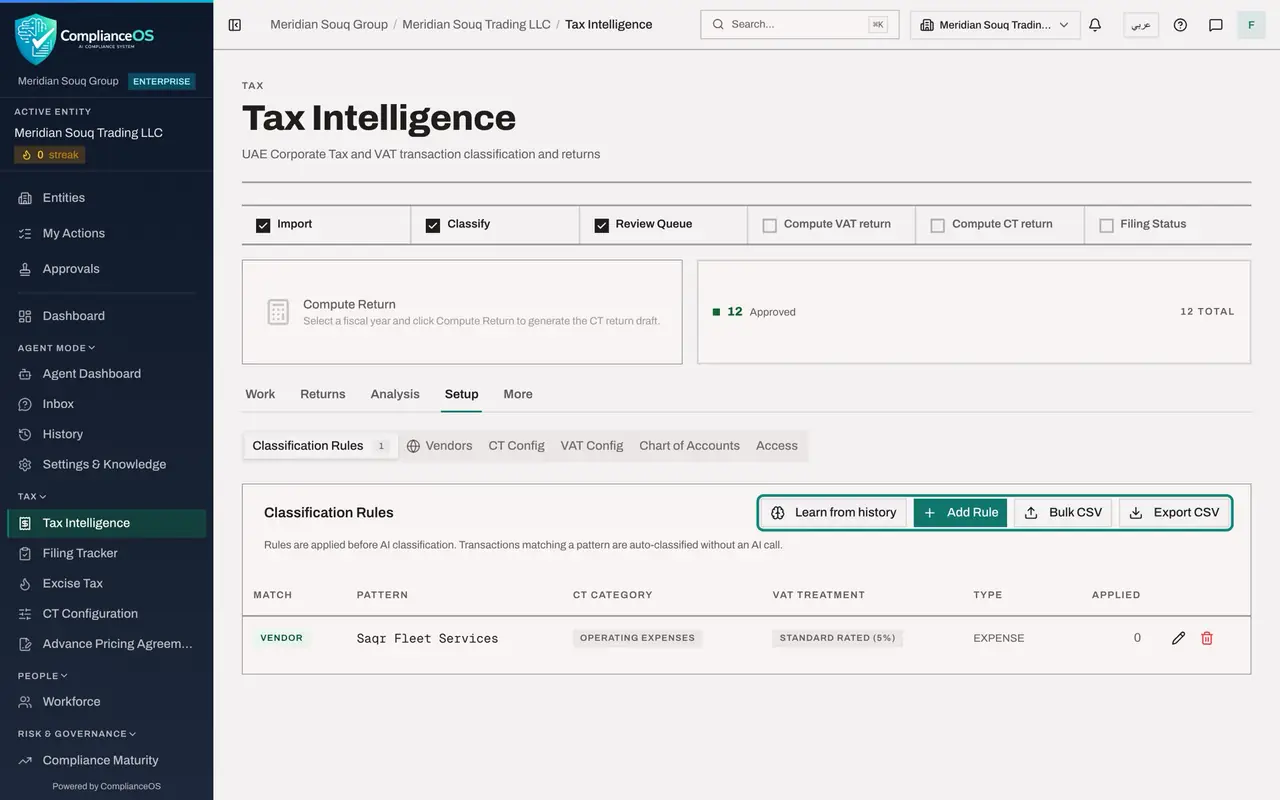
The rule is listed with its match type, pattern, corporate tax category, VAT treatment and transaction type. Applied counts how many transactions it has classified. The buttons at the end of the line change or remove the rule. A rule is also created when a reviewer ticks Save as classification rule in the override window.
- 7
Look at the other buttons
Bulk CSV loads many rules from a file and Export CSV downloads the rules you have. Learn from history opens a screen where you upload returns that were filed before you used ComplianceOS, with their workpapers, so the app can learn how this entity's transactions were treated.
- 8
Select Learn from history
Select Learn from history. Choose the filing type, VAT, type the period, add the files and select Learn from these filings. What the app learns is applied as provisional, to be reviewed first, until you confirm it. Nothing is uploaded in this lesson.
- Select Learn from history
- 9
Go back and select the Vendors tab
Go back to Tax Intelligence, select Setup and then the Vendors tab. The directory is empty. Select Seed from Transactions. The app creates an entry for every vendor and customer name it finds in the transactions.
- Select Seed from Transactions
- 10
Read the directory
Each line has the name, the tax registration number, the country, the zone type and three supplier checks: ID, Premises and Bank. Above the list you can search and filter by country, zone, source, whether the tax number is missing and whether the checks are complete.
- 11
Select Edit and record that the supplier is abroad
Select Edit on Brightpixel Lantern Media. The line opens for typing. In the country box type GB, the two letter code for the United Kingdom, and in the zone list choose International. The tax number box takes a 15 digit number for suppliers registered here; leave it empty for this one.
- Select Edit
- Type AE:
GB
- 12
Select Save
Select Save on the line. The directory is where the app looks up a counterparty's country and zone, and a change here applies to all of that vendor's transactions.
- Select Save
- 13
Select Checks on a local supplier
Select Checks on Jebel Najm Trading. The window explains the rule: from 1 October 2026 you must verify a supplier before claiming its input VAT. Tick Identity and Place of business, the two checks you have done, and say in Evidence notes where the proof is kept.
- Select Checks
- Type Evidence notes:
Trade licence and site visit note saved in the supplier file, October…
- 14
Select Save checks
Select Save checks. On the line, ID and Premises are now marked as done and Bank is still open. Bank account confirmation is required only for larger suppliers, as the window explains.
- Select Save checks
How to check it worked
Classification Rules lists one rule for Saqr Fleet Services. The Vendors tab lists the quarter's counterparties, Brightpixel Lantern Media shows the country GB and the zone International, and Jebel Najm Trading shows two of its three supplier checks done.
Common mistakes
- Writing a rule for a vendor whose invoices are not all alike. A bank charges exempt interest and standard rated fees; one rule for the bank would get one of them wrong.
- Typing a country name in the vendor's country box. It takes the two letter code, for example AE for the United Arab Emirates or GB for the United Kingdom.
- Ticking supplier checks you have not done. The ticks are your record that you verified the supplier before reclaiming its VAT.
Check your understanding
1. When is a classification rule applied?
- A.After the return is filed
- B.Before the app's own classification, for transactions that match the pattern
- C.Only when a reviewer asks for it
- D.Only to transactions that are already approved
Show answer
Answer: B. Before the app's own classification, for transactions that match the pattern
The screen says rules are applied before the classification, and matching transactions are classified without the assistant being asked.
2. What does Seed from Transactions do on the Vendors tab?
- A.Deletes vendors with no transactions
- B.Creates a directory entry for each vendor or customer name found in the transactions
- C.Sends the vendor list to the tax authority
- D.Classifies all transactions again
Show answer
Answer: B. Creates a directory entry for each vendor or customer name found in the transactions
It builds the directory from the names already in the transactions, so you can then add the tax number, country and zone to each.