Lesson 2 of 21
Work a risk: status, residual score, review, filters and export
What you will be able to do
This lesson is for the compliance officer. You will update a risk as work on it progresses: change its treatment status, record the residual score, mark it reviewed, then find risks with the filters, the heat map and the insights panel, and export the register.
Before you start
- You are signed in with the Compliance officer role for the entity.
- The register holds at least one risk, from the lesson Tour the risk register and add a risk.
Steps
- 1
Open the register and give the list room
Open Risk Register. Two risks are listed now. Select the small collapse icon beside In this module, then Hide above the insights panel on the right, so the list gets the full width.
- Select Collapse section list
- Select Hide insights panel
- 2
Select the pencil to edit the risk
At the end of the trade licence row, select the pencil. The Edit Risk form opens with everything you entered. It has two things the Add form did not: Treatment Status, beside Category, and a section called Residual Risk, after treatment.
- Select Edit
- 3
Change the treatment status
Treatment Status says what is being done about the risk. IDENTIFIED means recorded and nothing started. MITIGATING means the plan is under way. ACCEPTED means you have decided to live with it. TRANSFERRED means someone else carries it, for example an insurer. AVOIDED means the activity has stopped, and CLOSED means the risk is gone. The list offers only the moves allowed from the current status, and the line under it says which they are. The renewal has started, so choose MITIGATING.
- Choose Treatment Status:
MITIGATING
- Choose Treatment Status:
- 4
Record the residual score
Scroll down to Residual Risk, after treatment. This is the risk that remains once the plan is working. With the renewal booked, a lapse is now rare, but it would hurt just as much. Choose 1 for Residual Likelihood and 4 for Residual Impact. Left at Not assessed, the Residual column stays a dash.
- Choose Residual Likelihood:
1 — Rare - Choose Residual Impact:
4 — Major
- Choose Residual Likelihood:
- 5
Select Update Risk
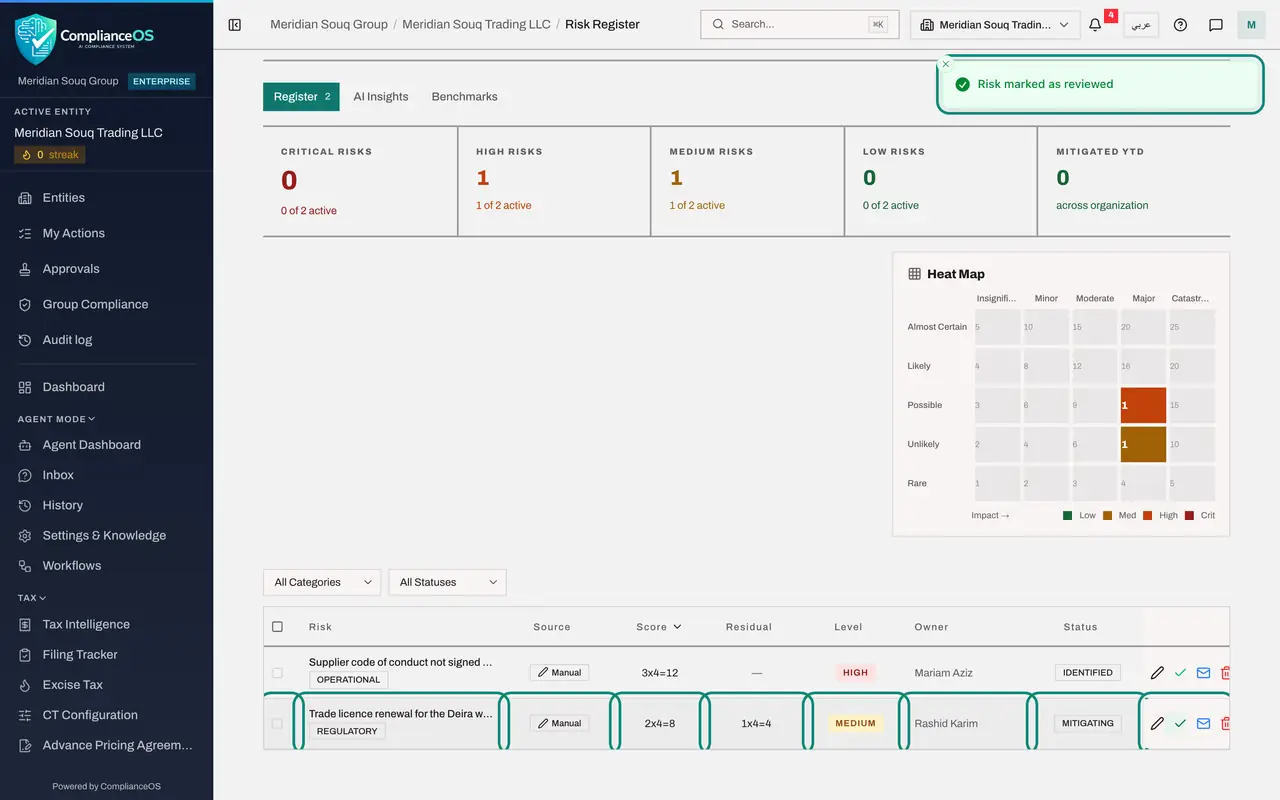
Select Update Risk. A message confirms Risk updated. In the list, Status now reads MITIGATING, and Residual shows one times four equals four beside the unchanged score of eight.
- Select Update Risk
- 6
Mark the risk as reviewed
The green tick at the end of the row records that you have looked at this risk today. Select it. A message confirms Risk marked as reviewed. Afterwards, resting the pointer on the tick shows the date of the last review, and you can mark it again at the next review.
- Select Mark reviewed
- 7
Filter by category
Above the list are two filters. Open the first, All Categories, and choose OPERATIONAL. Only the supplier code of conduct risk is left.
- Choose Filter by category:
OPERATIONAL
- Choose Filter by category:
- 8
Filter by status
Set the first filter back to All Categories. Open the second, All Statuses, and choose MITIGATING. Now only the trade licence risk is listed. Set it back to All Statuses when you have finished, or the list stays short.
- Choose Filter by category:
All Categories - Choose Filter by status:
MITIGATING
- Choose Filter by category:
- 9
Sort the list by score
The column headings Risk, Source, Score, Level, Owner and Status sort the list. Select Score once and the lowest score comes first; select it again for the highest first. A small arrow beside the heading shows the direction.
- Select Score
- 10
Select a square on the heat map
On the heat map, a coloured square holds the number of risks with that likelihood and impact. Select the square where Possible meets Major, which shows one. A panel opens beside the map naming the square, Possible by Major, HIGH, and listing the risk in it with its category, its status and a pencil to edit it. Select the cross to close the panel.
- Select 1
- 11
Open the insights panel
At the top right of the page, select Insights. A panel slides in from the right and sums up the register. Risk distribution counts the risks by level. Treatment shows how many have a residual score, how many treatment plans are overdue and how many risks have no owner. The AI note puts the same figures in a sentence. Pin keeps the panel open beside the page, and the cross closes it.
- Select Show insights panel
- 12
Export the register
Select Export CSV at the top right. The whole register is downloaded to your computer as a comma separated file, which opens in a spreadsheet. It holds one line for each risk, with its scores, owner, status, treatment plan and dates.
- Select Export CSV
How to check it worked
The trade licence risk shows the status MITIGATING and a Residual score of one times four equals four. Its tick icon reports the date it was last reviewed, and the exported register is in your downloads folder.
Common mistakes
- Lowering Likelihood or Impact when the treatment starts to work. Leave the inherent score alone and record the improvement under Residual Risk, so the register shows both where the risk started and where it is now.
- Setting the status to CLOSED when the plan is only under way. Use MITIGATING while work continues; CLOSED and AVOIDED take the risk out of the active counts.
- Expecting to move a risk back to IDENTIFIED once work has started. From MITIGATING a risk can move only to ACCEPTED, TRANSFERRED, AVOIDED or CLOSED; the form offers only those, and a closed risk can be reopened as IDENTIFIED.
- Forgetting that a filter is still set. If the list looks short, check that both filters read All Categories and All Statuses.
Check your understanding
1. A treatment has reduced how likely a risk is. Where do you record that?
- A.Lower the Likelihood at the top of the form
- B.Under Residual Risk, in Residual Likelihood and Residual Impact
- C.In the Notes box only
- D.Delete the risk and add it again
Show answer
Answer: B. Under Residual Risk, in Residual Likelihood and Residual Impact
The inherent score is the risk before treatment and should stay as it was. The residual score is the risk that remains after treatment, and the register shows both side by side.
2. What does selecting a coloured square on the heat map do?
- A.Deletes the risks in that square
- B.Changes the score of those risks
- C.Lists the risks with that likelihood and impact, each with a pencil to edit it
- D.Exports them to a file
Show answer
Answer: C. Lists the risks with that likelihood and impact, each with a pencil to edit it
The square opens a small panel naming the likelihood, the impact and the level, with every risk scored there. It changes nothing until you edit a risk.