Lesson 7 of 21
Add, edit, complete and delete your own deadlines
What you will be able to do
This lesson is for the compliance officer. Some deadlines live in no module: a certificate, a board filing, a licence held on paper. You will add one to the calendar by hand, change it, mark it complete, and delete one that is no longer needed.
Before you start
- You are signed in with the Compliance officer role for the entity.
- You know the title and the due date of the deadline.
Steps
- 1
Select Add Custom Deadline
Open Calendar and select Add Custom Deadline at the top right. A small form opens with three fields: Title, Due Date and Description. Title and Due Date are required.
- Select Add Custom Deadline
- 2
Type the title
In Title, name the thing that is due, so that it can be understood in a list without opening it.
- Type Title *:
Deira warehouse civil defence certificate renewal
- Type Title *:
- 3
Set the due date
In Due Date, choose the last day on which it can be done. Here it is twelve days from today.
- Type Due Date *:
2026-10-26
- Type Due Date *:
- 4
Describe what has to be done
Description is optional. Use it to say what the deadline involves and anything that must be arranged beforehand.
- Type Description:
Annual certificate from Dubai Civil Defence. Book the inspection two w…
- Type Description:
- 5
Select Add Deadline
Select Add Deadline. A message confirms Custom deadline added. The new deadline appears on its day in the month grid with the label Manual, and in Upcoming Deadlines.
- Select Add Deadline
- 6
Select the deadline
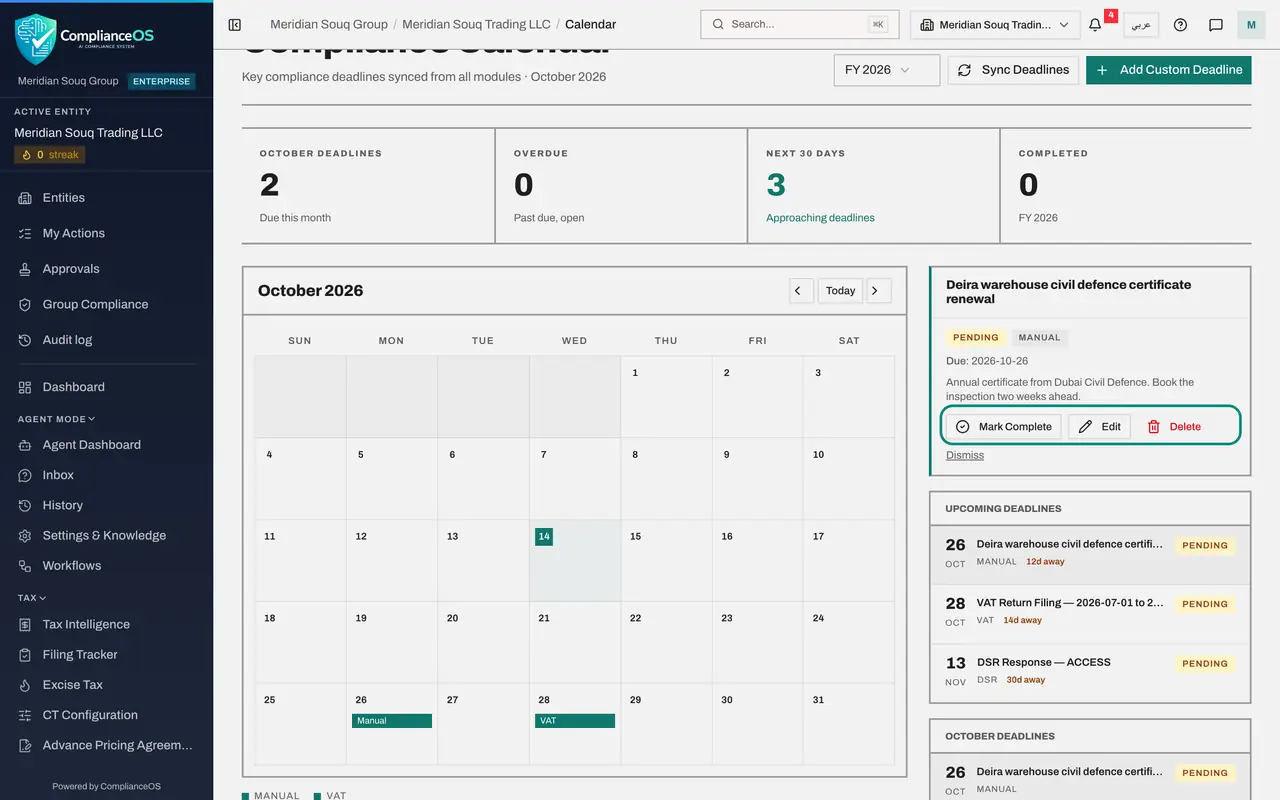
Select the deadline in Upcoming Deadlines. Its detail box opens above the list. Unlike a synced deadline it carries the label Manual and three buttons: Mark Complete, Edit and Delete.
- 7
Select Edit and change the date
Select Edit. The Edit Deadline form holds the same three fields and a fourth, Status. The inspection has been booked earlier, so move the Due Date two days forward.
- Select Edit
- Type Due Date *:
2026-10-24
- 8
Look at the statuses
Open Status. Pending means still to do. Completed means done. Waived means the deadline no longer applies: it stays on the calendar as a record, but is no longer counted as open. Leave it on Pending.
- Select Pending
- Choose Pending
- 9
Select Save Changes
Select Save Changes. A message confirms Entry updated and the deadline moves to its new day.
- Select Save Changes
- 10
Mark the deadline complete
When the certificate has arrived, select the deadline again and select Mark Complete. A message confirms Marked as completed, and in the detail box the status changes to Completed and Mark Complete disappears. The deadline then counts under the Completed tile instead of as open.
- Select Mark Complete
- 11
Select a deadline that is no longer needed
A second custom deadline, Board resolution filing for the new signatory, was added earlier in the same way. The appointment has been withdrawn, so the deadline should go. Select it in Upcoming Deadlines, then select Delete in its detail box.
- Select Delete
- 12
Confirm the deletion
The window asks Delete Deadline? and warns that this cannot be undone. Select Delete to confirm. A message confirms Custom deadline deleted and the deadline leaves the calendar. Only custom deadlines can be deleted; synced ones belong to their module.
- Select Delete
How to check it worked
The civil defence certificate deadline is on the calendar with the label Manual and the status Completed, and the board resolution deadline you deleted is gone.
Common mistakes
- Adding by hand a deadline that a module already tracks, such as a VAT return. It will appear twice. Use Sync Deadlines for those and keep custom deadlines for things no module knows about.
- Deleting a deadline that was met. Mark it complete instead, so the calendar keeps the record and the Completed tile counts it.
- Leaving Description empty. The title tells you what is due; the description should tell the next person what to do about it.
Check your understanding
1. Which two fields does Add Custom Deadline require?
- A.Title and Due Date
- B.Title and Description
- C.Due Date and Status
- D.Owner and Due Date
Show answer
Answer: A. Title and Due Date
Title and Due Date are marked with a star. Description is optional but recommended.
2. Which statuses can you give a custom deadline in Edit Deadline?
- A.Open and Closed
- B.Pending, Completed and Waived
- C.Draft and Final
- D.Low, Medium and High
Show answer
Answer: B. Pending, Completed and Waived
Pending means still to do, Completed means done, and Waived means it no longer applies. A waived deadline is kept, not deleted.