Lesson 21 of 21
How this connects: from a risk, a deadline and a score back to their source
What you will be able to do
This closing lesson is for everyone who took the course. Nothing in the risk register, the calendar or the group view stands alone: each figure comes from a record in another module. You will trace one risk back to the breach that raised it, one deadline back to its tax return, one automatic check back to the records it read, and one module score up to the entity score and the group view.
Before you start
- You are signed in with the Compliance officer role for the entity.
- You have followed the earlier lessons, so the register holds imported risks, the calendar holds synced deadlines and the compliance tasks exist.
Steps
- 1
Start from a risk in the register
Open Risk Register. The risk that begins Data breach, HIGH, was not typed by anyone. Its Source column carries the red label Data Breach, which tells you which module it came from. Its score, sixteen, was worked out from the breach's severity.
- Select Collapse section list
- Select Hide insights panel
- 2
Open the breach it came from
In the left menu, under Legal and Privacy, choose Data Protection, then Breach Log. Here is the source: the breach Courier handheld lost with customer delivery list, logged by the Data Protection Officer with the severity High and still open. The risk's description repeats this breach's status, the number of records affected and whether the regulator must be told.
- 3
Know what closes the risk
The link runs one way, from the breach to the risk. When the Data Protection Officer closes this breach, the next sync, by the Sync Modules button or overnight, sets the risk to CLOSED and adds a note that the source issue was resolved. The same holds for the other sources: an approved impact assessment, an ended contract, a cleared sanctions screening or a regulatory alert marked as read. Changing the risk in the register never changes the breach.
- 4
Now start from a deadline
Open Calendar and select VAT Return Filing, 2026-07-01 to 2026-09-30, in Upcoming Deadlines. Its detail box carries the label VAT and the button View Source. The title names the tax period, so you know exactly which return this deadline belongs to.
- 5
Select View Source
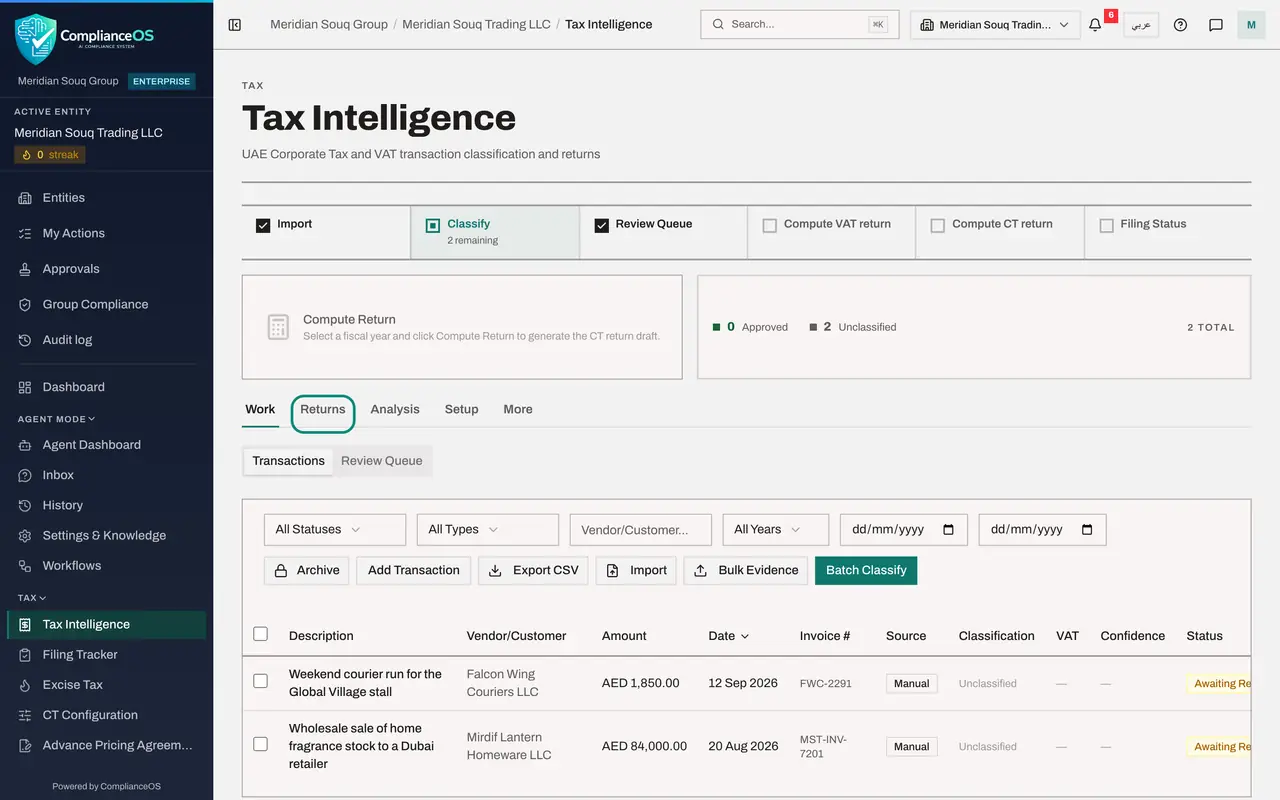
Select View Source. Tax Intelligence opens, the module that owns the return. The return for July to September was prepared there by the tax manager, under Returns, and that is where it is reviewed and filed. When it is filed, or its filing is recorded in the Filing Tracker, the deadline in the calendar becomes Completed, and a later sync does not reopen it.
- Select View Source
- 6
See a compliance check read another module
Open Frameworks and select Tasks. Scroll to UAE Data Protection. Under Automated Checks, Data Subject Requests Within SLA reads Record Found. Nobody typed that. The check looked in Data Protection, found the request logged there and saw that it is still within its deadline. Every automated check reads a module in this way: the tax registration number from the entity's profile, returns from Tax, staff records from Workforce.
- Select Tasks51 (51)
- 7
Read the entity's score on its dashboard
Now the scores. Choose Dashboard in the left menu. The entity's compliance score is here, with the line Based on a number of modules. Each module works out its own score from its own records, and the entity's score is the average of the modules in use. The health score beside it lists each module in use with its own score. Which modules count, and the bands for each risk level, are chosen in the Modules and risk levels window, which the Getting started course walks through.
- 8
Find the same score in the group view
Choose Group Compliance. The same entity is listed with the same overall score, the same line, Based on a number of modules, and the same module scores beside it. The group score at the top is the average of the entities shown. So the chain is: a record in a module moves that module's score, the module's score moves the entity's score, and the entity's score moves the group's.
- 9
Carry the chain back to the work
Top Risk Areas closes the loop. It names the entity and the module with the lowest scores. Open that module for that entity, deal with what it flags, and the improvement travels back up: the module score, the entity score, the group score, and at the next sync the risk register and the calendar. That is the whole of this course in one sentence: these pages show you where to look, and the modules are where the work is done.
How to check it worked
You can name, for a risk, a deadline and a score on these pages, the module and the record it came from, and say what has to change there for it to change here.
Common mistakes
- Fixing the copy instead of the source. Editing an imported risk or wishing a deadline away changes nothing for long. Close the breach, file the return or answer the request, and the register and the calendar follow at the next sync.
- Arguing with a score on the group view. Open the entity, open the module with the low score, and work what it flags. The score is only the sum of that work.
- Forgetting the direction of travel. Records flow from the modules into these pages. These pages do not write back to the modules.
Check your understanding
1. A risk in the register has the source Data Breach. What makes it close?
- A.Deleting it from the register
- B.The Data Protection Officer closing the breach in Data Protection; the next sync then sets the risk to CLOSED
- C.Marking it reviewed
- D.Exporting the register
Show answer
Answer: B. The Data Protection Officer closing the breach in Data Protection; the next sync then sets the risk to CLOSED
An imported risk follows its source record. When the breach is closed, the next sync, by the button or overnight, closes the risk and notes that the source issue was resolved.
2. The group view shows 25 percent for Data Protection in one entity. Where do you go to raise it?
- A.Group Compliance, Reports
- B.That entity's Data Protection module, to work the open items it flags
- C.The risk register
- D.The Custom Builder
Show answer
Answer: B. That entity's Data Protection module, to work the open items it flags
Module scores are worked out inside each module from its own records. They roll up to the entity's score and from there to the group view.