Lesson 18 of 21
The group view for a compliance officer of one entity
What you will be able to do
This lesson is for a compliance officer whose role covers some of the organisation's entities, not all of them. Group Compliance shows the compliance score of several entities side by side. You will see what the page shows when your access is limited, how each entity's score is built from the modules in use, and how to read the risk matrix and the consolidated report.
Before you start
- You are signed in with the Compliance officer role for one entity of the group.
- The entity has records in a few modules, so it has a score.
Steps
- 1
Open Group Compliance
In the left menu, near the top, choose Group Compliance. This page belongs to the organisation, not to one entity. The list at the top right sets the financial year.
- 2
Read what you are shown
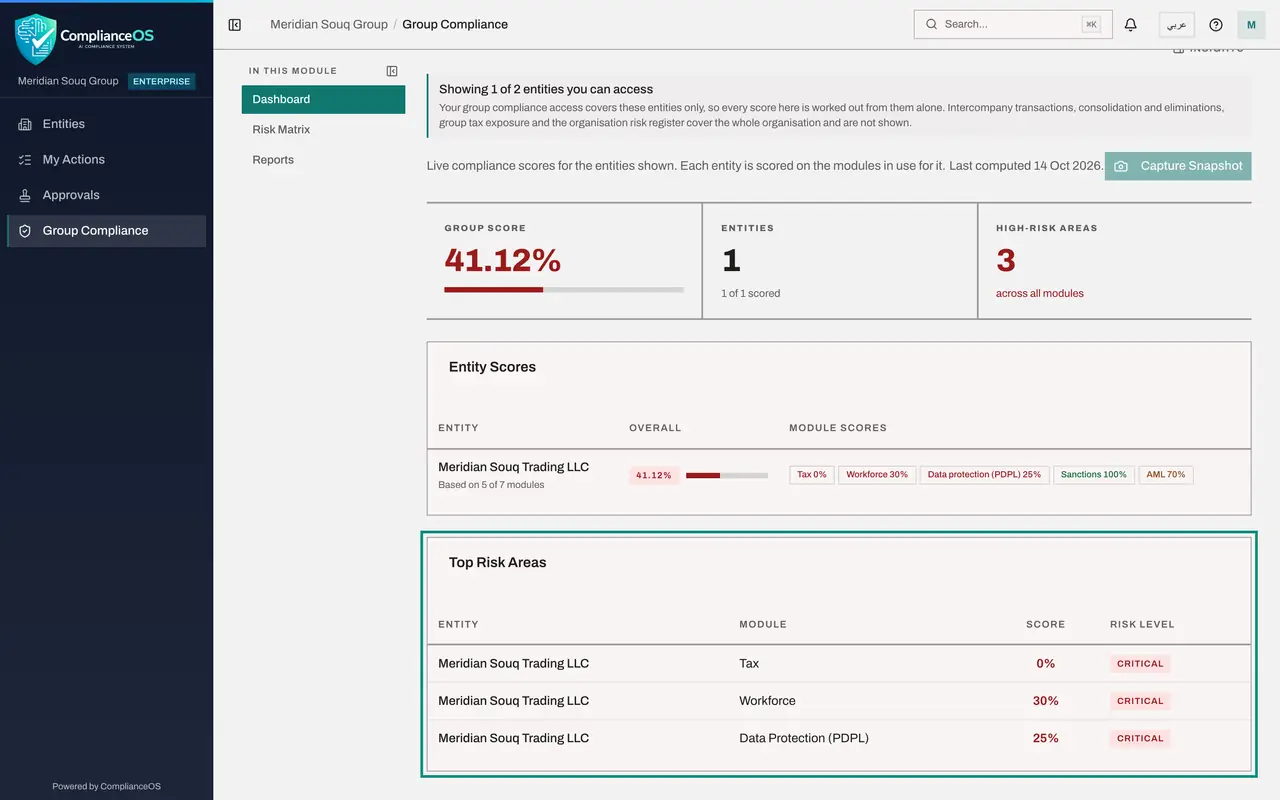
The first line says Showing 1 of 2 entities you can access. Your role covers one of the group's two entities, so every score here is worked out from that entity alone. The text under it lists what is left out because it covers the whole organisation: intercompany transactions, consolidation, group tax exposure and the organisation risk register.
- 3
Read the three tiles
Group Score is the average of the entities shown. Entities counts them and says how many have a score. High-Risk Areas counts the modules, across those entities, whose score is in the high or critical band.
- 4
Read the entity's score
Entity Scores has one row for each entity. Under the name, Based on 5 of 7 modules tells you how the overall score was built: only the modules in use for this entity are counted, here five of the seven. Overall is their average, and Module Scores shows each one. A module is in use when it holds records or has been switched on for the score. That choice, and the bands that decide the risk level, are set in the Modules and risk levels window on the entity's dashboard, which the Getting started course covers.
- 5
Read Top Risk Areas
Top Risk Areas lists the weakest modules first, with the entity, the module, its score and its risk level. This is the short list to act on: open that module for that entity and work through what it flags.
- 6
See why Capture Snapshot is switched off
Capture Snapshot, at the top right of the scores, saves today's group scores as a record. It is greyed out for you. Rest the pointer on it and the reason appears: it needs the permission to edit group compliance across the organisation. An administrator captures snapshots.
- 7
Select Risk Matrix
In the list on the left, select Risk Matrix. It is a grid with a row for each entity and a column for each of the seven modules that can be scored: Tax, Contracts, Workforce, Data Protection, Sanctions, Free Zone and AML. Each square holds the module's score and its risk level in colour, or Not in use.
- Select Risk Matrix
- 8
Select Reports
Select Reports. The Consolidated Compliance Report puts the same figures on one page for management: the overall score, a bar for each module, a summary line for each entity, and the risk matrix as a list from weakest to strongest. It is rebuilt each time you open it and covers only the entities you can access.
- Select Reports
- 9
Scroll to the entity summaries
Further down, Entity Summaries gives each entity's score, and Risk Matrix Summary lists every module in use with its score and level. Critical modules come first.
- 10
Note the views you do not have
Your list on the left holds three views: Dashboard, Risk Matrix and Reports. An administrator sees four more: Intercompany, Consolidated Financials, the organisation Risk Register, and Privacy policies and training. The next lesson shows them.
How to check it worked
The page states Showing 1 of 2 entities you can access. You can read the entity's overall score, the line Based on a number of modules under its name, the score of each module in use, and the same figures in the Risk Matrix and Reports views.
Common mistakes
- Reading the group score as the whole organisation's. When the line at the top says you are shown some of the entities, every figure on the page is worked out from those entities alone.
- Reading Not in use as a failure. A module that is not in use for an entity is left out of its score. Which modules count is chosen on the entity's dashboard, as the Getting started course shows.
- Looking for Intercompany or the organisation's risk register. Those views cover the whole organisation and are shown only to people whose access covers all of it.
Check your understanding
1. Under an entity's name the page reads Based on 5 of 7 modules. What does that mean?
- A.Five modules have failed
- B.The entity's overall score is the average of the five modules in use for it; the other three are left out
- C.Five people have access
- D.Five reports were generated
Show answer
Answer: B. The entity's overall score is the average of the five modules in use for it; the other three are left out
The compliance score counts only the modules in use for the entity. A module nobody uses neither helps nor harms the score.
2. A compliance officer for one entity opens Group Compliance. Which views does she get?
- A.All seven, like an administrator
- B.Dashboard, Risk Matrix and Reports, limited to her entities
- C.None; the page is refused
- D.Only Intercompany
Show answer
Answer: B. Dashboard, Risk Matrix and Reports, limited to her entities
Intercompany, Consolidated Financials and the organisation Risk Register cover the whole organisation, so they are hidden from someone whose access covers part of it.