Lesson 13 of 21
Follow regulatory updates: alerts, the full feed and its sources
What you will be able to do
This lesson is for the compliance officer. ComplianceOS watches the regulators for you. You will learn what arrives by itself and what an alert is, browse every update in the feed, open one to read its summary and who it applies to, and see which sources are watched.
Before you start
- You are signed in with the Compliance officer role for the entity.
- Nothing needs to be set up: the feed is shared by every organisation and is maintained by ComplianceOS.
Steps
- 1
Open Regulatory Intelligence
In the left menu, under Risk and Governance, choose Regulatory. Four tiles sum up this entity's alerts: the total, the unread, the critical ones, and Last Refreshed, the date the feed last brought something in. In this module lists three views: My Alerts, All Updates with the number of updates in the feed, and Sources.
- 2
Read My Alerts
My Alerts holds the updates that matter to this entity. It is empty: No alerts found, alerts will appear when regulatory updates match your entity profile. This company was created today, and no update has been matched to it yet. When alerts arrive, each one shows the update's title, its impact, how relevant it is to you, and two buttons: Mark Read and Dismiss.
- 3
Know what arrives by itself
Everything here arrives without you. Every night ComplianceOS reads the regulators' websites. The AI summarises each new item, gives it a category, an impact from Low to Critical, and a triage label. It then scores the item against each entity's profile, and a relevant one becomes an alert for that entity. The buttons above the list filter alerts by impact, and the list beside them by year.
- 4
Select All Updates
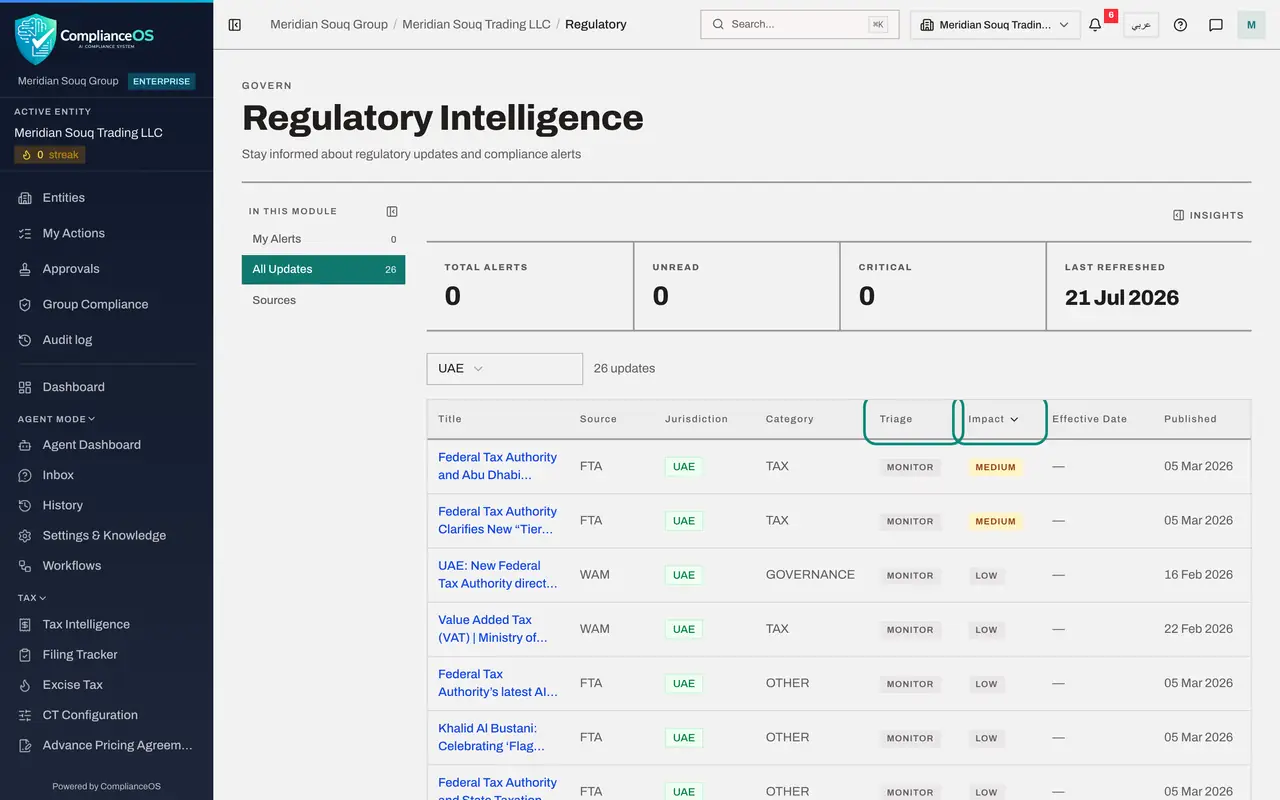
Select All Updates. This is the whole feed, whether or not it was matched to you: thirty-six updates. The columns are the Title with its keywords, the Source, the Jurisdiction, the Category, the Triage label, the Impact, the Effective Date when the item states one, and the date it was Published.
- Select All Updates36 (36)
- 5
Filter by jurisdiction
Above the table, open All Jurisdictions and choose UAE to hide updates from other countries. The count beside it changes. The other choices are KSA, for Saudi Arabia, and Both.
- Select All Jurisdictions
- Choose UAE
- 6
Sort by impact
Select the heading Impact to sort the list, so the Critical and High items come together. Triage reads Material where an update changes what a business must do, and Monitor where it is only worth knowing. Read the Material ones first.
- Select Impact
- 7
Find an update that matters
Scroll to UAE Corporate Tax: Small Business Relief Threshold Update for FY 2026. Under the title are its keywords and, after Affects, the kinds of business it applies to. The title is a link.
- 8
Open the update
Select the title. The update opens on its own page. At the top are its jurisdiction, category and impact, the source, its status, and how confident the AI was in its own reading of the update; here it reads AI confidence not assessed. Below are the published and effective dates and a Summary in two or three sentences.
- 9
Read the full text
Under the summary is the Full Text as the regulator published it, with the effective date and the key changes. Where the source provides them, the page also lists keywords, the kinds of business and industries the update applies to, and a link, View Original Source, to the regulator's own page, which is the version to rely on. Back to Regulatory, at the top right, returns to the list.
- 10
Go back and select Sources
Select Back to Regulatory, then Sources. This table lists the regulators that are watched: the Federal Tax Authority, the Ministry of Finance, the Ministry of Human Resources, the Central Bank, the securities and free zone regulators, and the official legislation site. For each you see its type, its address, how often it is read in hours, its health and when it was last polled. Here every source reads Not checked yet: the training environment does not poll the regulators.
- Select Back to Regulatory
- Select Sources
- 11
Know who maintains the sources
The line above the table says it: these sources are shared by every organisation and are maintained by ComplianceOS; contact support to suggest a new one. That is why you see no button to add a source, poll one or refresh the feed. Show inactive adds sources that have been switched off.
- 12
Open the insights panel
Select Insights at the top right. Needs attention repeats the unread and critical alert counts. Corpus shows how many updates are active in the feed and when it was last refreshed. Close the panel with the cross.
- Select Show insights panel
How to check it worked
You can say what the three views hold: My Alerts, the updates matched to this entity; All Updates, the whole feed with its impact and triage labels; and Sources, the regulators that are watched and how often.
Common mistakes
- Reading an empty My Alerts as nothing new from the regulators. Alerts are only the updates matched to this entity. Check All Updates for the whole feed, and the date under Last Refreshed.
- Looking for a refresh or an add source button. The feed and its sources are shared by every organisation and run by ComplianceOS, so those controls are not shown to an organisation's own people.
- Leaving high impact alerts unread. An unread alert with High or Critical impact is brought into the risk register at the next sync, and it closes there only when the alert is marked as read.
Check your understanding
1. What makes an update appear under My Alerts?
- A.Every update appears there
- B.The AI scores it as relevant to this entity's profile
- C.An administrator forwards it by hand
- D.It is more than a year old
Show answer
Answer: B. The AI scores it as relevant to this entity's profile
Each new update is scored against every entity's profile: its jurisdiction, legal form, industry, registrations and size. An update that is relevant enough becomes an alert for that entity.
2. In All Updates, what is the difference between the triage labels Material and Monitor?
- A.Material updates are older
- B.Material means it changes what a business must do; Monitor means worth knowing, with no action yet
- C.Monitor updates are from other countries
- D.There is no difference
Show answer
Answer: B. Material means it changes what a business must do; Monitor means worth knowing, with no action yet
Triage separates the updates that need a response from news to keep an eye on. Material ones usually also carry High or Critical impact.