Lesson 3 of 21
Bring in risks from other modules with Sync Modules
What you will be able to do
This lesson is for the compliance officer. You will pull the risks that other modules have already found into the register, and learn exactly what is pulled in, from where, how it is scored, and when such a risk closes by itself.
Before you start
- You are signed in with the Compliance officer role for the entity.
- Other teams have been working in their modules. Here the Data Protection Officer has logged two personal data breaches in Data Protection.
Steps
- 1
Find Sync Modules
Open Risk Register. Sync Modules, at the top right, looks through this entity's other modules and adds what they have found as risks. So far the register holds only the two risks typed by hand.
- 2
Know what a sync brings in
Ten kinds of finding are brought in. From Contracts: active contracts rated High or Critical, and failed contract compliance checks. From Data Protection: impact assessments rated High or Very High, every data breach that is not closed, and cross-border transfers rated High or Very High. From Sanctions: screenings that are matched, escalated or still pending. From Regulatory: unread alerts with High or Critical impact. From Tax: one risk when more than ten transactions are waiting to be classified. From Disputes: every unresolved dispute with an amount at stake. And from the Audit Hub: every open audit finding.
- 3
Select Sync Modules
Select Sync Modules. After a few seconds a message reports how many risks were new, how many were updated and how many were closed. Here it reads Synced: 2 new, 0 updated, 0 closed. The same check also runs by itself every night, so you need the button only when you want the register up to date now.
- Select Sync Modules
- 4
Read the summary line and the tiles
Above the heat map, a blue line now reads 2 auto-imported from Data Breach. It always names the modules the imported risks came from. The tiles and the heat map include them: Critical Risks shows one.
- 5
Find the imported risks in the list
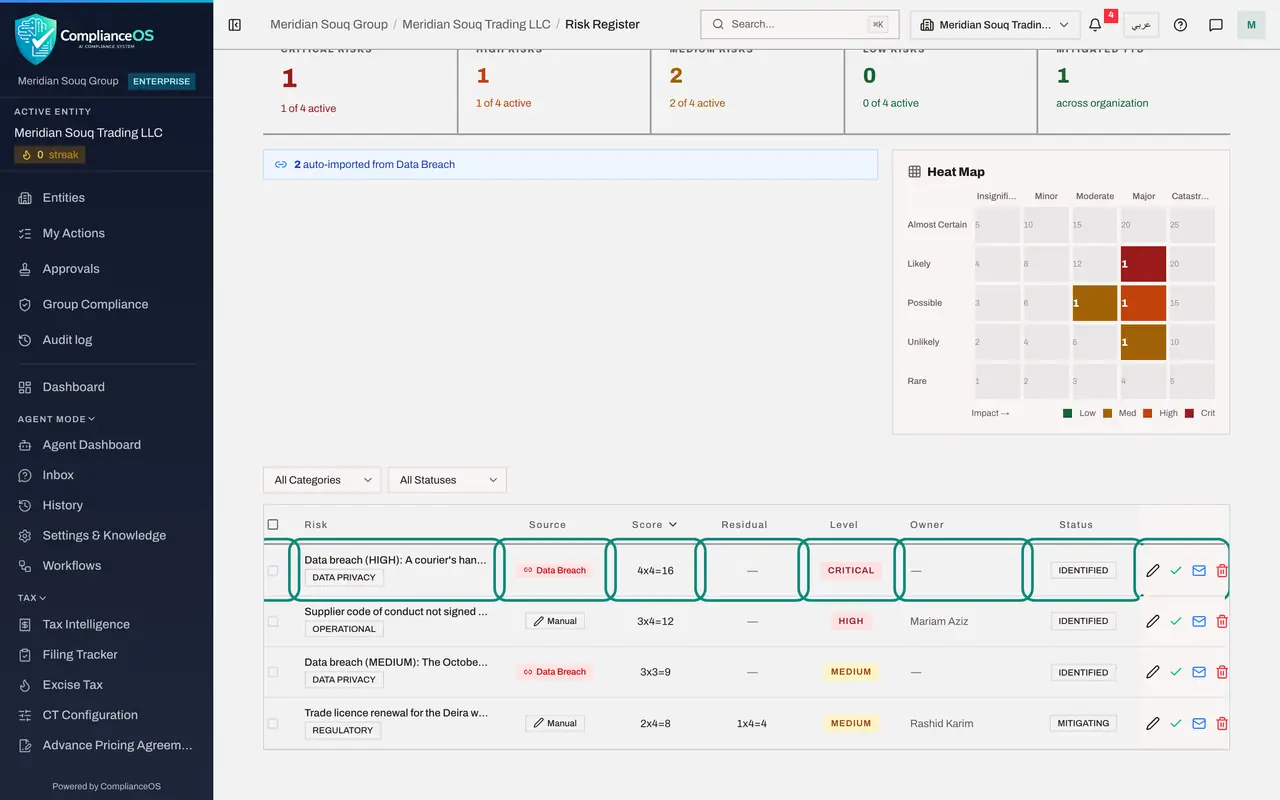
Select the collapse icon beside In this module, and Hide above the insights panel, to give the list room. Your own risks say Manual under Source. The two new rows carry a red label, Data Breach. Each title starts with Data breach and the severity, followed by the description the Data Protection Officer wrote, and the category is DATA PRIVACY. The title, the description, the category and the score are written for you from the breach record.
- Select Collapse section list
- Select Hide insights panel
- 6
Read the scores
A breach is scored from its severity: High is four times four, sixteen, which is in the CRITICAL band. Medium is three times three, nine, MEDIUM. A Critical breach would score five by five and a Low one two by two. Owner shows a dash: an imported risk has no owner until you give it one.
- 7
Open the imported risk
Select the pencil on the High breach. The form is the same Edit Risk form, already holding the score of sixteen, CRITICAL. Under Treatment Plan, the sync has written the containment measures recorded on the breach, as a first plan. Owner Name and Owner Email are empty: the sync brings the finding, and you decide who owns it. The tags data-breach, pdpl and auto-generated mark where it came from.
- Select Edit
- 8
Give it an owner and a due date
Type the owner's name and email under Risk Ownership. A breach belongs to the Data Protection Officer. Set Treatment Due Date to the day the follow-up must be finished.
- Type Owner Name:
Sara Ahmed - Type Owner Email:
sara.ahmed@c12.example.com - Type Treatment Due Date:
2026-10-28
- Type Owner Name:
- 9
Select Update Risk
Select Update Risk. The row now shows Sara Ahmed as the owner.
- Select Update Risk
- 10
Sync again and see that your changes are kept
Select Sync Modules once more. This time the message reads Synced: 0 new, 2 updated, 0 closed. Nothing is duplicated, because each imported risk is tied to the record it came from. The owner and the due date you entered are still there: a sync refreshes only the title, the description and the score.
- Select Sync Modules
- 11
Know when an imported risk closes by itself
You do not close these by hand. When the problem is dealt with where it started, the next sync sets the risk to CLOSED and adds a note that the source issue was resolved. That happens when a breach is closed, an impact assessment is approved, a contract is no longer active, a sanctions screening is cleared, a regulatory alert is marked as read, a dispute is resolved or an audit finding is closed. If the source record is deleted or voided, the sync retires the risk and says so in a second message. To list closed risks, choose CLOSED in the All Statuses filter. None is closed yet, so the list reads No risks found.
- Choose Filter by status:
CLOSED
- Choose Filter by status:
How to check it worked
A message reads Synced with the number of new, updated and closed risks. The risks brought in carry a coloured label in the Source column naming the module, instead of Manual, and a blue line above the list counts them.
Common mistakes
- Deleting an imported risk to get rid of it. The next sync finds the same problem and brings it back. Fix the problem in the module it came from, or set the status to ACCEPTED if you have decided to live with it.
- Retyping a module's finding as a new manual risk. You then have the same risk twice, and only the imported one closes when the problem is fixed.
- Expecting every module problem to appear. Only the serious ones listed in this lesson are imported. A low risk contract or a low risk assessment stays in its own module.
Check your understanding
1. A data breach with the severity High was logged in Data Protection and is still open. What does Sync Modules do with it?
- A.Nothing; breaches are never imported
- B.Adds a risk with the source Data Breach, scored four times four equals sixteen, level CRITICAL
- C.Closes the breach
- D.Adds a risk scored one times one
Show answer
Answer: B. Adds a risk with the source Data Breach, scored four times four equals sixteen, level CRITICAL
Every breach that is not closed becomes a register risk scored from its severity: Critical is five by five, High four by four, Medium three by three and Low two by two. Sixteen is in the CRITICAL band, which starts at fifteen.
2. You gave an imported risk an owner, then selected Sync Modules again. What happens to the owner?
- A.It is wiped, because the sync rewrites the whole risk
- B.It is kept; the sync refreshes only the title, description and score
- C.The risk is duplicated
- D.An error appears
Show answer
Answer: B. It is kept; the sync refreshes only the title, description and score
Each imported risk is tied to the record it came from, so a repeat sync updates it instead of adding another. Your owner, status, due date and notes are left alone.