Lesson 17 of 21
Read the compliance maturity score and its history
What you will be able to do
This lesson is for the compliance officer and for management. Compliance Maturity turns the state of every module into one score and a maturity level, keeps a history of it, and compares it with other organisations in your industry. You will read the score and the breakdown by module, record today's score and open the history.
Before you start
- You are signed in with the Compliance officer role for the entity.
- The modules hold some records, so there is something to score.
Steps
- 1
Open Compliance Maturity
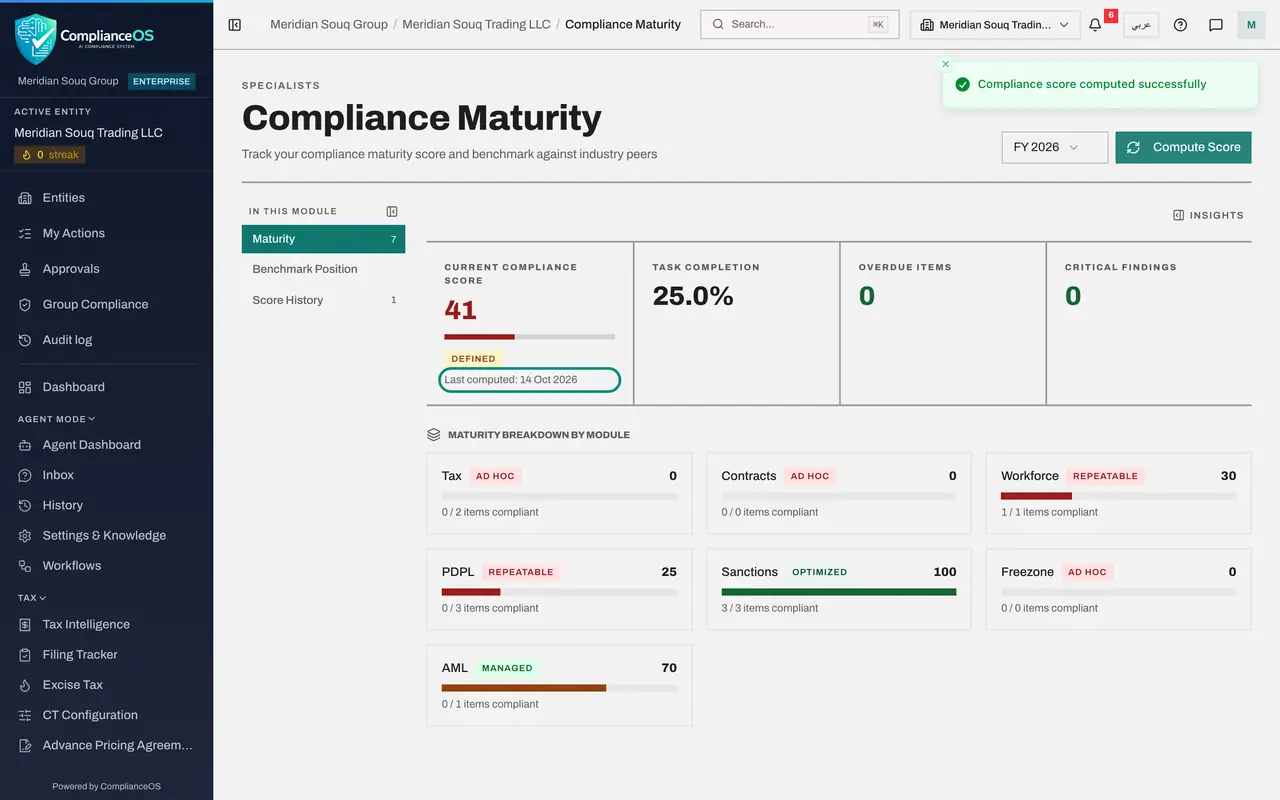
In the left menu, under Risk and Governance, choose Compliance Maturity. The large figure is the Current Compliance Score out of one hundred, with a maturity level beside it. The levels run from Ad hoc, through Repeatable, Defined and Managed, to Optimized. Three more tiles give the share of tasks completed, the overdue items and the critical findings.
- 2
Read the breakdown by module
Maturity Breakdown by Module has one card for each of seven modules: Tax, Contracts, Workforce, PDPL, Sanctions, Freezone and AML. Each card shows the module's own level, its score, and how many of its items are compliant. A card reading Ad hoc, zero, with zero of zero items, is a module nobody has used yet.
- 3
Select Compute Score
Select Compute Score at the top right. The score is worked out again from the records as they stand now, and saved. Under the score, Last computed shows today's date.
- Select Compute Score
- 4
Select Score History
In the list on the left, select Score History. Each line is one computed score: the date, the score, the change since the line before, the maturity level, the task completion, and the overdue and critical counts. Compute at the same point every month and this table becomes your trend.
- Select Score History1 (1)
- 5
Select Benchmark Position
Select Benchmark Position. It compares your score with other organisations in the same industry. The comparison is worked out periodically from many organisations' scores. In this training environment there is nothing to compare with yet, so it reads No benchmark data available.
- Select Benchmark Position
- 6
Change the financial year
The list at the top right, FY 2026, sets the financial year the score covers. Open it to look at an earlier year.
- Select Year
How to check it worked
The page shows a current compliance score with a maturity level and the date it was last computed, and Score History holds a line for today.
Common mistakes
- Comparing this score with the score on the dashboard as if they were the same figure. The dashboard score counts only the modules you have chosen to use. Maturity looks at every module and at how complete the work in each one is.
- Selecting Compute Score many times a day. One line a day is kept; compute after real work has been done, for example at month end, so the history shows a trend.
- Reading No benchmark data available as an error. The comparison with other organisations is worked out periodically and needs scores to compare.
Check your understanding
1. What does Compute Score do?
- A.Changes the module scores
- B.Works out the score from the current records and saves it as a line in Score History
- C.Sends the score to the regulator
- D.Resets the history
Show answer
Answer: B. Works out the score from the current records and saves it as a line in Score History
The score is recalculated from what the modules hold now and stored with today's date, so that the history shows how it moves.
2. A module in the breakdown reads AD HOC with a score of 0 and 0 of 0 items compliant. What does that mean?
- A.The module has failed an audit
- B.Nothing has been recorded in that module yet, so there is nothing to measure
- C.The module is switched off for good
- D.The module is perfect
Show answer
Answer: B. Nothing has been recorded in that module yet, so there is nothing to measure
Ad hoc is the lowest maturity level. With no items at all, the module has simply not been used.