Lesson 1 of 21
Tour the risk register and add a risk
What you will be able to do
This lesson is for the compliance officer. You will open the risk register, read the empty page, and record one risk with every field: what could go wrong, how likely it is, how bad it would be, who owns it and what will be done about it.
Before you start
- You are signed in with the Compliance officer role for the entity.
- You know what could go wrong, who should own it and what will be done about it.
Steps
- 1
Open the Risk Register
In the left menu, under Risk and Governance, choose Risk Register. This is the single list of things that could go wrong for this entity, whichever module they come from. At the top right are three buttons: Export CSV, Sync Modules and Add Risk.
- 2
Read the empty register
Nothing has been recorded yet, so the page says No risks registered yet and offers two ways to start: Sync from Modules, which a later lesson uses, and Add Risk. On the left, In this module lists the three views of this page: Register, AI Insights and Benchmarks.
- 3
Select Add Risk
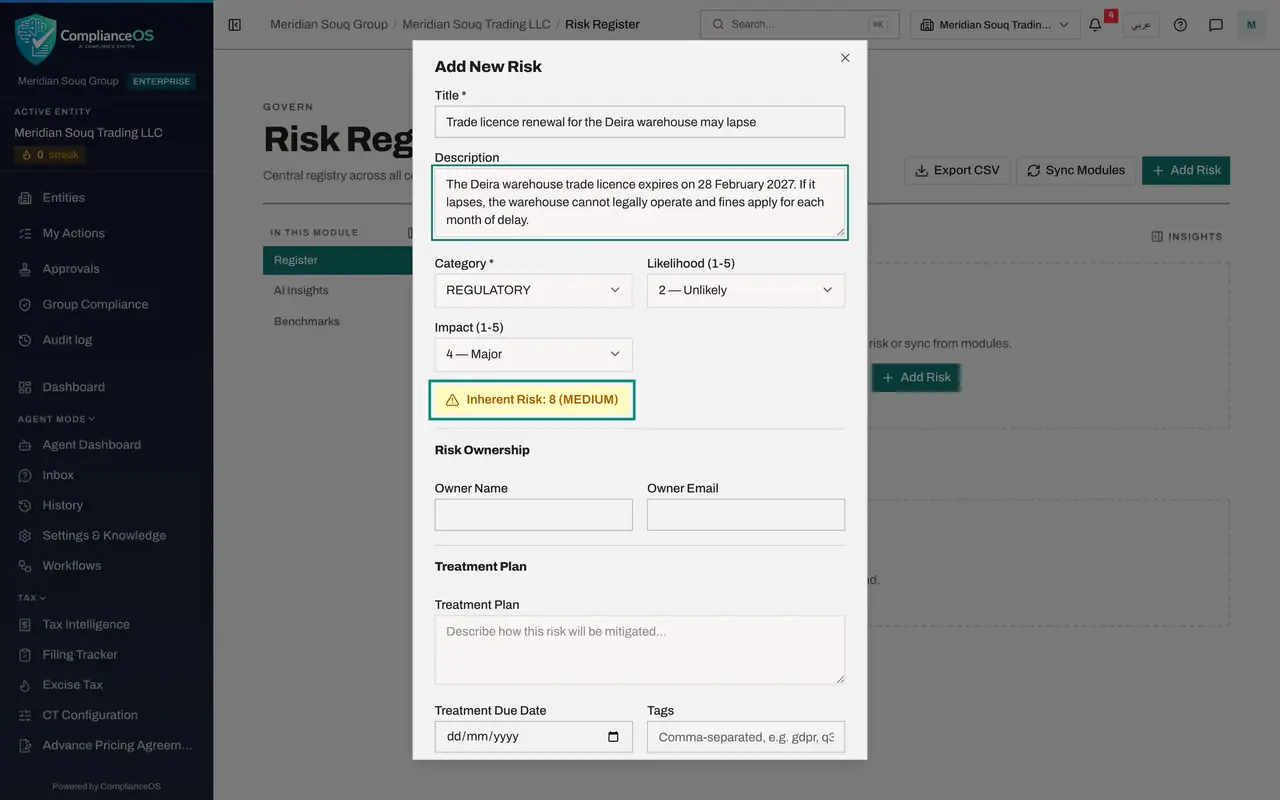
Select Add Risk. The Add New Risk form opens. Only Title is required, and it is marked with a star.
- Select Add Risk
- 4
Type the title
In Title, say what could go wrong in a few words, starting with the subject. Here the trade licence for a warehouse could expire before it is renewed.
- Type Title *:
Trade licence renewal for the Deira warehouse may lapse
- Type Title *:
- 5
Describe the risk
In Description, add what would happen and why it matters. A good description names the date or the trigger and the consequence. If you leave it blank, the risk is saved with its title only.
- Type Description:
The Deira warehouse trade licence expires on 28 February 2027. If it l…
- Type Description:
- 6
Choose the category
Category is the kind of risk. The choices are Regulatory, Financial, Operational, Reputational, Strategic, Legal, Data Privacy and Tax. A licence that could lapse is a Regulatory risk, which is also the value the form starts with. The category is shown under the title in the list and is one of the two filters.
- Choose Category *:
REGULATORY
- Choose Category *:
- 7
Score the likelihood and the impact
Likelihood is how probable the problem is, from 1, Rare, to 5, Almost Certain. Impact is how bad it would be, from 1, Insignificant, to 5, Catastrophic. Choose 2 for Likelihood and 4 for Impact. The form multiplies them and shows Inherent Risk 8, MEDIUM. Inherent means the risk as it stands today, before any treatment.
- Choose Likelihood (1-5):
2 — Unlikely - Choose Impact (1-5):
4 — Major
- Choose Likelihood (1-5):
- 8
Name the owner
Under Risk Ownership, type the name and the work email of the person accountable for this risk. Here it is the finance manager, who pays for licence renewals. Left blank, the risk is counted as having no owner.
- Type Owner Name:
Rashid Karim - Type Owner Email:
rashid.karim@c12.example.com
- Type Owner Name:
- 9
Describe the treatment and set its due date
Treatment is what you will do about the risk. In Treatment Plan, type the plan in a sentence or two. In Treatment Due Date, set the day the plan must be finished. A plan whose date has passed is counted as an overdue treatment.
- Type Describe how this risk will be mitigated...:
Start the renewal 60 days before expiry, add the deadline to the compl… - Type Treatment Due Date:
2026-11-28
- Type Describe how this risk will be mitigated...:
- 10
Add tags and the next review date
Tags are optional words that help you find the risk later; separate them with commas. Next Review Date is the day you will look at this risk again.
- Type Comma-separated, e.g. gdpr, q3:
licence, warehouse - Type Next Review Date:
2026-11-13
- Type Comma-separated, e.g. gdpr, q3:
- 11
Add a note
Notes is free text for anything else a colleague or an auditor should know, such as where the current licence is filed.
- Type Notes:
Current licence copy is in the Evidence Vault. Renewal fee is in the 2…
- Type Notes:
- 12
Select Create Risk
Select Create Risk at the bottom of the form. The form closes and a message confirms Risk created.
- Select Create Risk
- 13
Read the tiles and the heat map
The page now has content. Five tiles count the active risks by level: Critical, High, Medium and Low, and those Mitigated this year. Medium Risks shows one. The Heat Map is a grid of likelihood against impact. Your risk sits in the square where Unlikely meets Major, which holds the score eight.
- 14
Find the risk in the list
Below the two filters is the list. Select the small collapse icon beside In this module, and then Hide above the insights panel if it opens on the right, so the list gets the full width. Each row shows the risk with its category, the Source, which is Manual for a risk you typed, the Score as two times four equals eight, the Residual score, a dash until you assess it, the Level, the Owner and the Status, which starts as IDENTIFIED. The treatment due date is kept on the risk and counted in the insights panel. The four small icons at the end of the row are edit, mark reviewed, escalate and delete.
- Select Collapse section list
- Select Hide insights panel
How to check it worked
The risk is in the Register list with the source Manual, the score two times four equals eight, the level MEDIUM, the owner's name and the status IDENTIFIED. The Medium Risks tile and the heat map both count it.
Common mistakes
- Scoring the risk as it will be after the fix. Likelihood and Impact describe the risk today, before treatment. You record the improved, residual score later, when you edit the risk.
- Leaving Owner Name empty. The risk is saved, but it is counted under Unassigned owner in the insights panel and nobody is accountable for it.
- Writing a title that only makes sense to you. The title is what management sees in the list, on the heat map and in the group view, so start with the subject.
Check your understanding
1. You set Likelihood to 2, Unlikely, and Impact to 4, Major. What does the register show?
- A.A score of 6, level LOW
- B.A score of 8, level MEDIUM
- C.A score of 24, level CRITICAL
- D.No score until someone reviews it
Show answer
Answer: B. A score of 8, level MEDIUM
The score is likelihood multiplied by impact: two times four is eight. Scores from 5 to 9 are MEDIUM, 10 to 14 are HIGH, and 15 or more are CRITICAL.
2. Which field must be filled before Create Risk will save?
- A.Title
- B.Owner Email
- C.Treatment Plan
- D.Next Review Date
Show answer
Answer: A. Title
Only the title is required. Category, likelihood and impact always hold a value. The other fields are optional, but they are what makes the record useful.