Lesson 5 of 21
Ask the AI for cross-module insights and read the benchmarks
What you will be able to do
This lesson is for the compliance officer and for management. You will open the two other views of the risk register: AI Insights, where the assistant looks across every module for risks that belong together, and Benchmarks, which compares how the register is kept with an industry average.
Before you start
- You are signed in with the Compliance officer role for the entity.
- The register holds a few risks, and other modules hold some records, so the AI has something to compare.
- The AI service is available. An analysis takes up to two minutes.
Steps
- 1
Select AI Insights
Open Risk Register and, in the list on the left called In this module, select AI Insights. The tiles and the heat map stay at the top. Below them the page reads AI-powered cross-module risk correlations, with a severity filter, Show Dismissed and the button Run AI Analysis. Until an analysis has been run it says No AI insights yet.
- Select AI Insights
- 2
Select Run AI Analysis
Select Run AI Analysis. The button reads Analyzing while the assistant looks at this entity's scores and open items in the modules it uses, such as tax, data protection, workforce, sanctions, contracts and the calendar. Modules the company does not use are left out. It takes up to two minutes. A message confirms AI risk analysis complete.
- Select Run AI Analysis
- 3
Read an insight
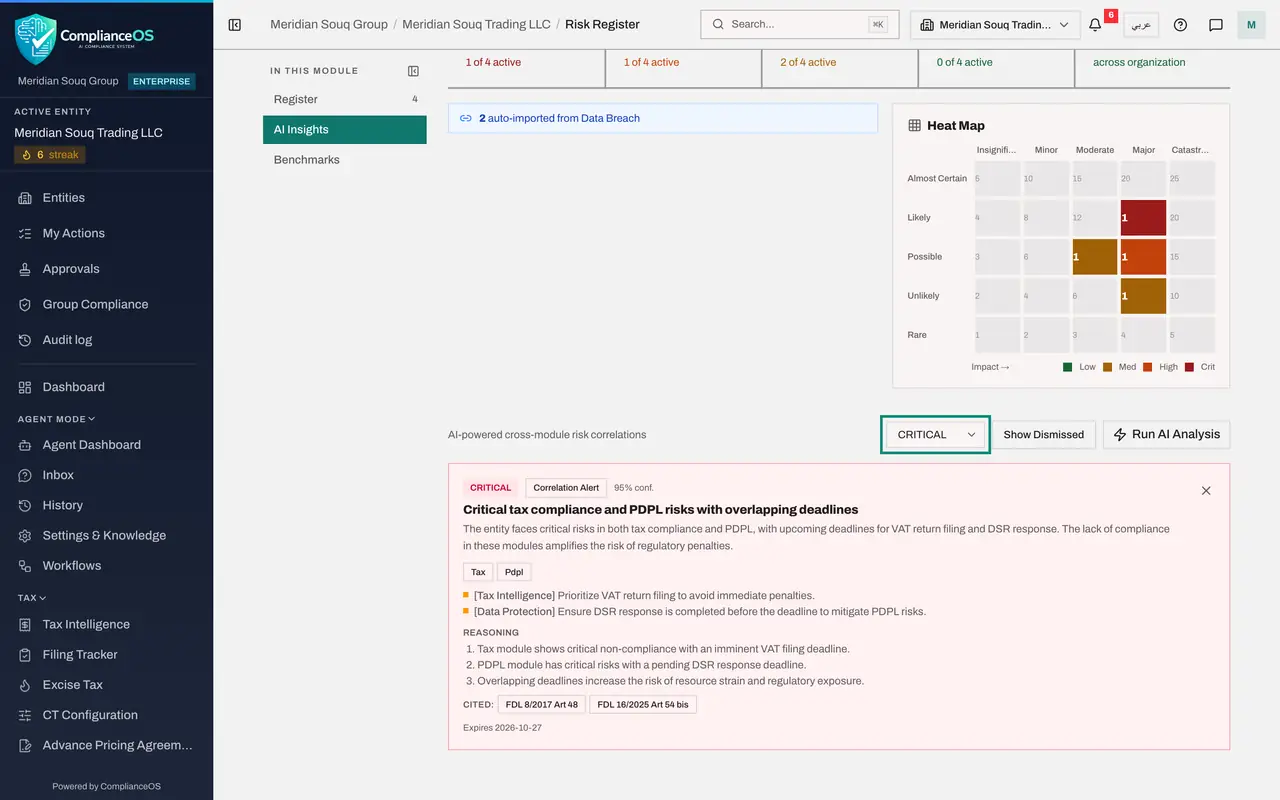
Each card is one finding. The first line has the severity, the kind of finding, such as a correlation alert or an emerging risk, and the AI's confidence. Then come a title and a short explanation, the modules involved, and one recommended action for each module. The wording is written by the AI from your own records, so it differs from one analysis to the next.
- 4
Read the reasoning and the expiry date
Under Reasoning the AI lists the facts it relied on, so you can check them in the module. Where a law is relevant it is named after Cited. Each insight also carries an expiry date, a week ahead, after which it is dropped and a new analysis is due.
- 5
Filter by severity
The list All Severities narrows the cards to CRITICAL, HIGH, MEDIUM or LOW. Choose CRITICAL to see only the critical findings, then set it back to All Severities.
- Choose Filter by severity:
CRITICAL
- Choose Filter by severity:
- 6
Dismiss an insight you have dealt with
The small cross at the top right of a card dismisses it. Select it on the last card. A message confirms Insight dismissed and the card leaves the list. Nothing is deleted: select Show Dismissed to bring dismissed cards back into view, and Hide Dismissed to hide them again.
- Select Dismiss
- 7
Select Benchmarks
Now select Benchmarks in the list on the left. The large figure is the Overall Risk Management Percentile, with a label, Above Average, Average or Below Average, and the comparison group, here the general industry in the United Arab Emirates. It describes how completely the register is kept, not how risky the company is.
- Select Benchmarks
- 8
Read the table of measures
The table has seven measures: the number of risks documented, the average inherent score, the share of risks with a treatment plan, the share rated critical, the share with an owner, the share of treatments that are overdue, and the average residual score. You is your figure, Avg is the industry average, Best is the best in the group, and the bar under Pctl shows where you stand.
- 9
Read the insights under the table
Under the table, Insights turns the weakest measures into plain advice. Here it points out that the share of risks rated critical, 25 percent, is above the industry average of 18 percent, and suggests checking that the likelihood and impact scores are accurate. Acting on these lines is the quickest way to raise the percentile.
How to check it worked
AI Insights lists cards, each with a severity, a confidence figure, the modules involved, recommended actions and its reasoning. Benchmarks shows one overall percentile and a table of seven measures with your figure beside the average and the best.
Common mistakes
- Treating an insight as a risk on the register. An insight is a suggestion. If you agree with it, add a risk or fix the cause in the module it names.
- Dismissing an insight because it is uncomfortable. Dismiss only what is wrong or already dealt with. Dismissed insights stay available under Show Dismissed.
- Reading a low percentile as a compliance failure. The benchmark measures how completely the register is kept, for example owners assigned and treatment plans written, not whether the company is compliant.
Check your understanding
1. An insight card shows 95% conf. What does that figure mean?
- A.95 percent of the risk is mitigated
- B.How confident the AI is in that finding
- C.The compliance score of the module
- D.The share of risks that have an owner
Show answer
Answer: B. How confident the AI is in that finding
Each insight carries the AI's own confidence in it. Read the reasoning underneath before you act, whatever the figure.
2. On Benchmarks, Risk Owner Assignment reads 60 in the You column and 55 under Avg. What does it tell you?
- A.60 risks have no owner
- B.60 percent of your risks have an owner, slightly above the industry average of 55 percent
- C.You have 60 risks
- D.The owners have completed 60 percent of the treatments
Show answer
Answer: B. 60 percent of your risks have an owner, slightly above the industry average of 55 percent
The You column is your own figure for that measure, Avg is the industry average and Best is the best in the comparison group.