Lesson 8 of 21
Set up the entity's compliance tasks and run the automatic checks
What you will be able to do
This lesson is for the compliance officer. A compliance framework is a law or standard broken into tasks. You will create the task list for the entity from the frameworks that apply to it, let the system check what it can from the entity's own records, and learn to read a framework line and a task.
Before you start
- You are signed in with the Compliance officer role for the entity.
- The entity's profile is filled in: its tax registration number, legal form and activity decide which frameworks apply.
Steps
- 1
Open Compliance Frameworks
In the left menu, under Risk and Governance, choose Frameworks. The first tile, Frameworks in use, counts the frameworks that apply, and says how many were mapped automatically and how many assigned by hand. The others count the tasks, the tasks verified and those pending approval. In this module lists three views: Assignments, Tasks and Custom Builder. Nothing is set up yet.
- 2
Select Tasks
Select Tasks in the list on the left. There are no tasks yet. Two buttons are offered: Run Auto-Checks, and Full Task Manager, which opens the page where the tasks are created and worked.
- Select Tasks0 (0)
- 3
Select Full Task Manager
Select Full Task Manager. The page Compliance Audit opens. The banner states the rule for everything that follows: compliance requires evidence. The page is empty and offers one button, Initialize Compliance Tasks.
- Select Full Task Manager
- 4
Select Initialize Compliance Tasks
Select Initialize Compliance Tasks. The system reads the entity's profile, decides which frameworks apply to it, creates their tasks and runs the automatic checks once. This takes up to a minute.
- Select Initialize Compliance Tasks
- 5
Read the frameworks that were mapped
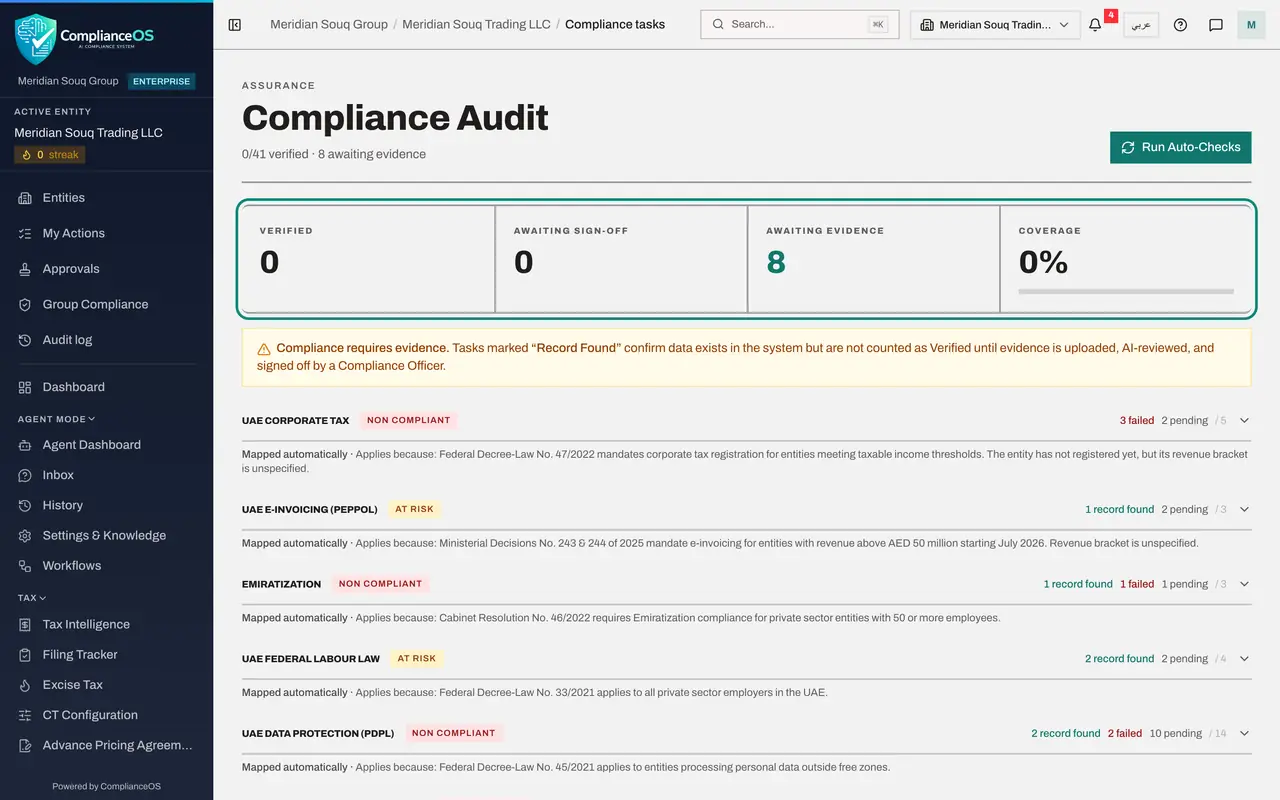
Seven frameworks now apply to this entity, each on one line with its name: UAE Corporate Tax, UAE E-Invoicing, Emiratization, UAE Federal Labour Law, UAE Data Protection, Ultimate Beneficial Owner and UAE VAT. Forty-one tasks were created in all. The number at the end of each line is the number of tasks in that framework. Under each name, Mapped automatically, Applies because, gives the reason the framework applies, with the law it comes from.
- 6
Read the four tiles
At the top, Verified counts tasks a person has signed off. Awaiting Sign-off counts tasks whose evidence passed the AI review and now need a second person. Awaiting Evidence counts tasks where a record was found and proof is still to be uploaded. Coverage is the share of all tasks that are verified. It is zero percent now.
- 7
Read a framework line
Each line also carries a status tag and a count by status. At risk means the checks found records and other tasks are still waiting. Non compliant means at least one automatic check failed. Beside the tag, the counts read record found, failed and pending.
- 8
Open UAE VAT
Select the line UAE VAT to open it. Its ten tasks are listed. A recurring task shows how often it comes round, the period it covers and its due date: for example VAT Return Filing, Quarterly, the fourth quarter of 2026, due 31 December 2026. The tag on the right is the task's status, here Pending.
- 9
Read a task where a record was found
Scroll down to VAT Registration, TRN. This is an automatic check: it looked for a tax registration number on the entity and found one, so it reads Record Found and shows the number. The arrow underneath reminds you to upload evidence, and the grey line says exactly what to upload: the registration certificate from the tax authority's portal.
- 10
Read a task where no record was found
The next task, VAT Return Filed, Current Quarter, reads Record Not Found, with the reason: no VAT return filed for 1 October to 31 December 2026. That is expected, because the quarter has not ended. When the return is filed in Tax Intelligence, the next check will find it.
- 11
Select Run Auto-Checks
Select Run Auto-Checks at the top right whenever records have changed in the modules. Every automatic check is repeated and a message confirms Auto-checks complete. Tasks that need a document from you are not touched. The checks can be run once a minute for each entity: until then the button reads Try again in, with the seconds left.
- Select Run Auto-Checks
- 12
Open a task's history
The small clock at the right of a recurring task opens Compliance History. It lists every period of that task, newest first, with its due date and status, so you can show an auditor that last quarter's check was done. Select Close.
- Select View history
How to check it worked
Compliance Audit lists seven frameworks by name with forty-one tasks. Tasks the system could check read Record Found or Record Not Found, the others read Pending, and Coverage is still zero percent because nothing has been verified by a person yet.
Common mistakes
- Treating Record Found as done. It only means the system found matching data. The task is not counted until evidence is submitted, reviewed and signed off.
- Ignoring Record Not Found. It names exactly what is missing, for example no VAT return filed for the quarter. Fix it in the module, then run the checks again.
- Looking for Compliance Audit in the left menu. It is opened from Frameworks, with the button Full Task Manager on the Tasks view.
Check your understanding
1. A task reads Record Found. Is it counted in Coverage?
- A.Yes, the system has verified it
- B.No. Coverage counts only tasks that are Verified after evidence, an AI review and a sign-off
- C.Yes, after 24 hours
- D.Only if it is marked Critical
Show answer
Answer: B. No. Coverage counts only tasks that are Verified after evidence, an AI review and a sign-off
The banner on the page says it: Record Found confirms that data exists in the system, but a task is not counted as Verified until evidence is uploaded, AI-reviewed and signed off by a compliance officer.
2. What does Run Auto-Checks do?
- A.Files the returns with the tax authority
- B.Looks in the entity's own records and marks the checkable tasks Record Found or Record Not Found
- C.Signs off every pending task
- D.Deletes tasks that do not apply
Show answer
Answer: B. Looks in the entity's own records and marks the checkable tasks Record Found or Record Not Found
Automatic checks read what the modules already hold, such as the tax registration number or a filed return. Tasks that need a document from you stay Pending.