Lesson 19 of 21
The group view for an administrator: every entity, snapshots and consolidation
What you will be able to do
This lesson is for the administrator and for group management. With access to the whole organisation, Group Compliance shows every entity and four more views. You will read the group dashboard, capture a snapshot, and tour the risk matrix, intercompany detection, the consolidated report, consolidated financials and the organisation's risk register.
Before you start
- You are signed in as an administrator, or with another role that covers the whole organisation.
- The group has at least two entities. Here it has two: Meridian Souq Trading LLC and Meridian Souq E-Commerce FZ-LLC.
Steps
- 1
Open Group Compliance as the administrator
Signed in as the administrator, choose Group Compliance in the left menu. There is no line limiting what you see: the page covers the whole organisation. The list on the left holds seven views: Dashboard, Risk Matrix, Intercompany, Reports, Consolidated Financials, Risk Register, and Privacy policies and training.
- 2
Read the group dashboard
The line above the tiles says these are live scores, that each entity is scored on the modules in use for it, and when they were last computed. Group Score is the average of the scored entities. Entities shows two, with one of two scored. Under Entity Scores, Meridian Souq Trading LLC has its overall score and module scores, and Meridian Souq E-Commerce FZ-LLC reads Not scored, no module in use: nothing has been recorded for it yet, so it is left out of the group score.
- 3
Capture a snapshot
Select Capture Snapshot, at the right above the tiles. A message confirms Compliance snapshot captured. Today's group and entity scores are now stored with the date. Capture one at each month end or before a board meeting, so that you can show how the position has moved.
- Select Capture Snapshot
- 4
Select Risk Matrix
Select Risk Matrix. Both entities have a row, and each of the seven modules a column: Tax, Contracts, Workforce, Data Protection, Sanctions, Free Zone and AML. A square shows the module's score and its level in colour. Every square of the free zone company reads Not in use.
- Select Risk Matrix
- 5
Select Intercompany
Select Intercompany. This view finds transactions between the group's own entities, which must be priced at arm's length and removed when the accounts are consolidated. Select Detect Intercompany to search the entities' transactions. None of the two entities has traded with the other, so the list stays at No intercompany transactions.
- Select Intercompany
- Select Detect Intercompany
- 6
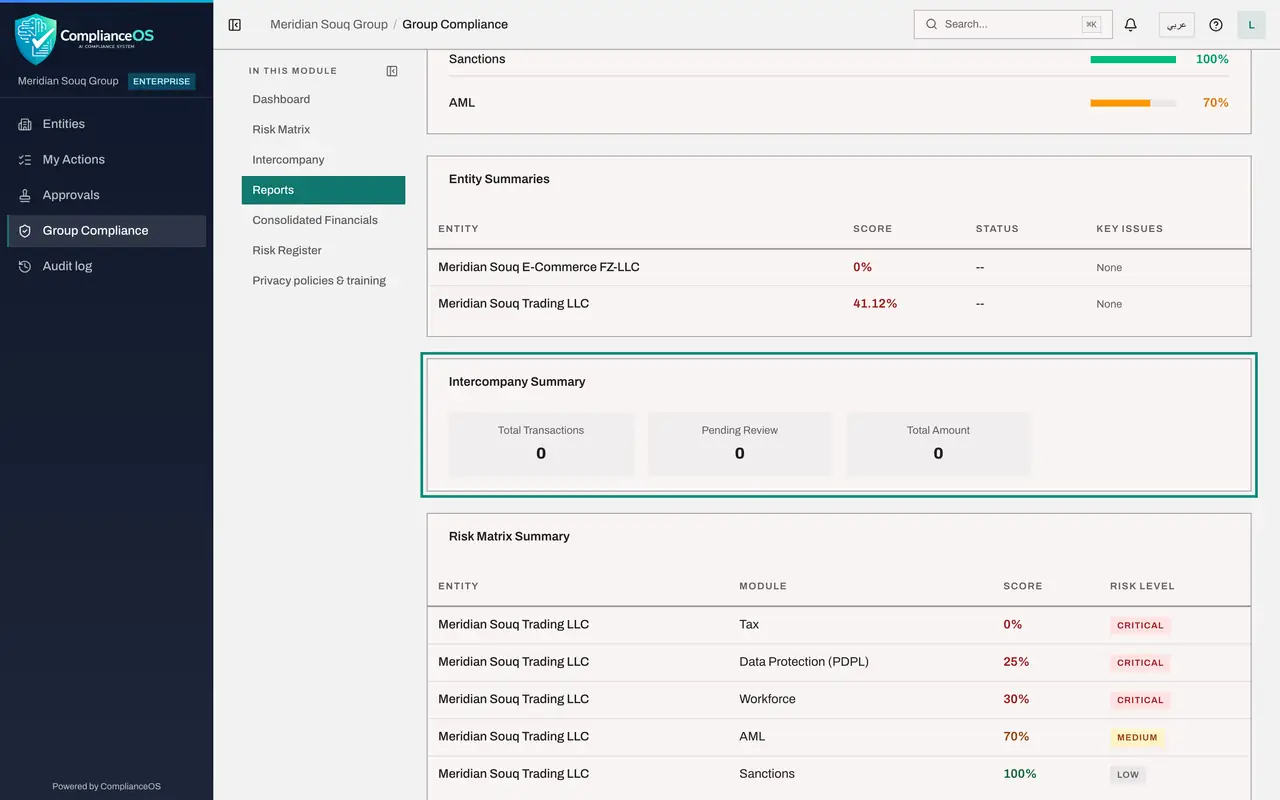
Select Reports
Select Reports. The Consolidated Compliance Report covers both entities: the overall score, the breakdown by module, a summary for each entity, an intercompany summary, and the risk matrix as a list. The intercompany summary is the part a single-entity officer does not get.
- Select Reports
- 7
Select Consolidated Financials
Select Consolidated Financials. Set Period Start and Period End, which start as the current year. Detect Matches looks for pairs of intercompany transactions to eliminate, first by exact rules and then with the AI. Compute Consolidated P and L adds the entities' profit and loss together and removes the matched pairs.
- Select Consolidated Financials
- 8
Compute the consolidated profit and loss
Select Compute Consolidated P and L. The tiles show consolidated revenue, expenses, the elimination total, net profit, taxable income and corporate tax, and a table gives each entity's figures before elimination. They are zero here, because this training company has no accounting entries. The note under the tiles matters: consolidated tax is a simulation, and the actual liability depends on a tax group being formally registered with the Federal Tax Authority.
- Select Compute Consolidated P&L
- 9
Select Risk Register
Select Risk Register. This is the organisation's risk overview: the total number of risks, the critical and high ones, and the overdue treatments, then a row for each entity with its counts by level and its top risk, and the risks By Category and By Treatment Status. The risks themselves are kept in each entity's own risk register; this view only adds them up.
- Select Risk Register
- 10
Open the insights panel
Select Insights at the top right. Group readiness repeats the group score, the entities scored and the high-risk areas. Exposure shows the group tax exposure from the latest consolidation. Weakest entities ranks the entities, and Repeating risks names a risk area that shows up in more than one entity. Close the panel with the cross.
- Select Show insights panel
- 11
Know the last view
The last entry in the list, Privacy policies and training, opens the group overview of data protection governance, which the course on vendors, breaches and governance covers. It is listed here so that everything a group lead reviews is reached from one page.
How to check it worked
Both entities are listed under Entity Scores, a message confirmed Compliance snapshot captured, and the Risk Register view counts the risks of the whole organisation by entity, category and status.
Common mistakes
- Treating an entity that reads Not scored as compliant. It means no module is in use for it yet, so nothing has been measured.
- Reading the consolidated tax figure as a liability. The page says it is a simulation: the real liability depends on a tax group being registered with the tax authority.
- Forgetting to capture a snapshot before a board meeting. The live scores move every day; a snapshot is what lets you say what the position was on a given date.
Check your understanding
1. An entity's row reads Not scored: no module in use. How does it affect the group score?
- A.It counts as zero and drags the score down
- B.It is left out; the tile reads 1 of 2 scored
- C.It counts as one hundred
- D.The group score cannot be shown
Show answer
Answer: B. It is left out; the tile reads 1 of 2 scored
An entity with no module in use has no score, so the group score is built from the entities that do. The Entities tile says how many were scored.
2. What does Capture Snapshot do?
- A.Takes a picture of the screen
- B.Saves today's group and entity scores as a dated record
- C.Emails the scores to every entity
- D.Recalculates the scores
Show answer
Answer: B. Saves today's group and entity scores as a dated record
The dashboard is live. A snapshot stores the scores as they are today so that a later comparison or a report can refer to them.