Lesson 4 of 21
Escalate a risk, change several at once, and delete one
What you will be able to do
This lesson is for the compliance officer. You will hand a risk to the person who must act on it with Escalate, change the status of several risks in one go, and delete a risk that was entered by mistake.
Before you start
- You are signed in with the Compliance officer role for the entity.
- The register holds the risks from the earlier lessons, including the two imported from Data Protection.
Steps
- 1
Find the envelope on the risk
Open Risk Register and give the list room with the collapse icon and Hide. The Medium breach, the marketing email sent to the wrong list, has no owner and nothing has started. The blue envelope at the end of its row is Escalate.
- Select Collapse section list
- Select Hide insights panel
- 2
Select Escalate
Select the envelope. The Escalate Risk window opens. At the top it repeats the risk and its score, nine, MEDIUM, so you can check you picked the right one.
- Select Escalate
- 3
Look at who you can choose
The list People who can open this register names everyone whose role lets them open the risk register for this entity, so the person you choose can act on the risk inside ComplianceOS. The last choice, Someone else, lets you type any name and email; the window then warns that this person cannot open the register.
- 4
Choose the person who must act
Choose Yusuf Rahman, the second Data Protection Officer, who will handle the follow-up with the customers who were emailed. Escalate and Notify becomes available once a person is chosen.
- Choose People who can open this register:
Yusuf Rahman · yusuf.rahman@c12.example.com
- Choose People who can open this register:
- 5
Add a message
Message is optional. Say what you need and by when. It is included in the email.
- Type Please review and action this risk...:
Please confirm the 58 customers have been told and the opt-out list is…
- Type Please review and action this risk...:
- 6
Read the warning before you send
The line above the buttons says what will happen. Escalating sends an email to this address straight away, records this person as the risk owner and moves an Identified risk to Mitigating. The email cannot be recalled. Select Cancel if any of that is not what you want.
- 7
Select Escalate and Notify
Select Escalate and Notify. A message confirms Risk escalated, email sent to owner. In this training company outgoing email is switched off, so nothing left the system. In a live system the email goes out at this moment.
- Select Escalate & Notify
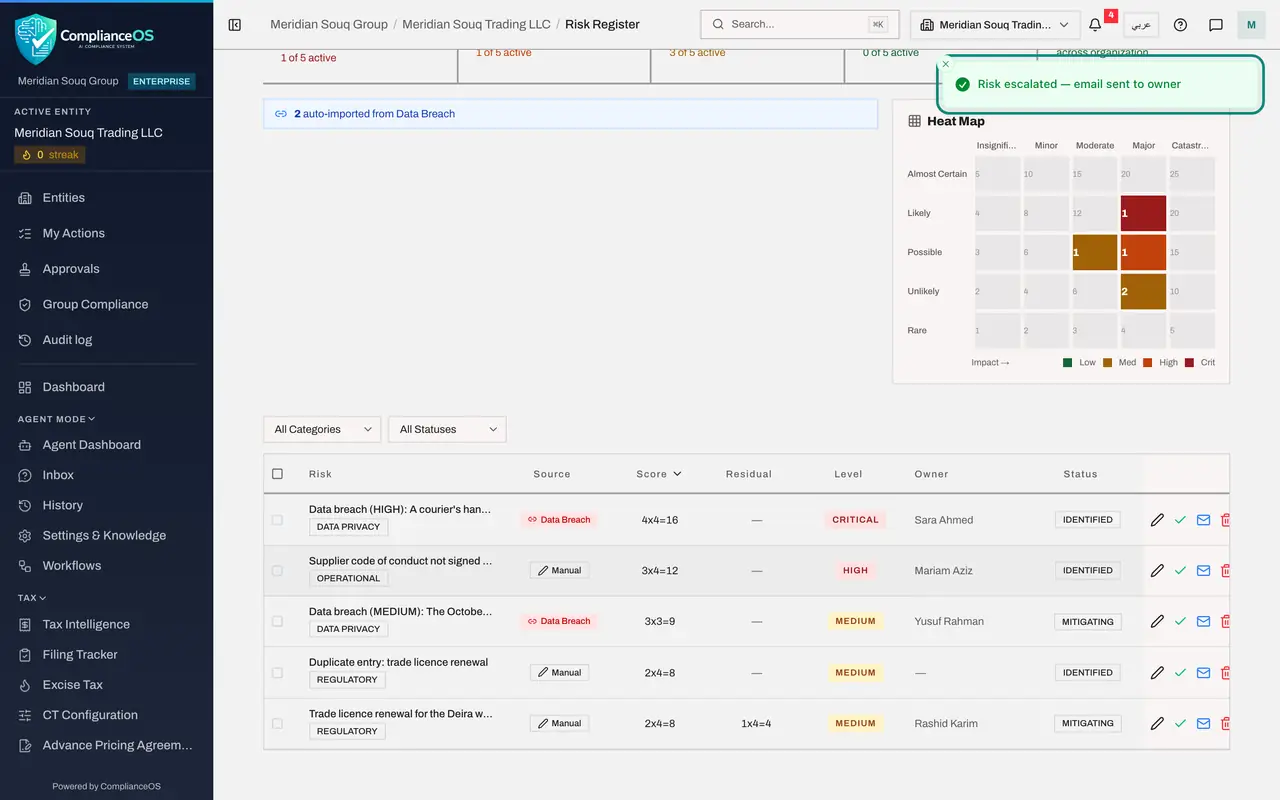
- 8
Check the owner and the status
The row now shows Yusuf Rahman under Owner, and Status has moved from IDENTIFIED to MITIGATING.
- 9
Tick two risks
To change several risks together, tick the box at the start of each row. Tick the High breach and the supplier code of conduct risk; work has started on both. A bar appears above the list. It reads 2 selected and offers Set Status, Delete and Clear. The box in the heading row ticks every risk in the list.
- 10
Set one status for all of them
Open Set Status in the bar and choose MITIGATING. Both risks change at once and a message confirms Updated 2 risks. The Status column shows MITIGATING on both.
- Choose Set the status of the selected risks:
MITIGATING
- Choose Set the status of the selected risks:
- 11
Find the risk entered by mistake
The last row, Duplicate entry, repeats the trade licence risk and should not be here. The red bin at the end of a row deletes that one risk. In the bar, Delete removes every ticked risk, after the same confirmation.
- 12
Select the bin
Select the red bin on the duplicate. A small window asks you to confirm: Please confirm, Delete this risk? Cancel leaves the risk where it is.
- Select Delete
- 13
Select Confirm
Select Confirm. A message confirms Risk deleted and the row is gone. Use delete only for mistakes; a risk that is finished should be set to CLOSED so its history is kept.
- Select Confirm
How to check it worked
The escalated breach risk shows Yusuf Rahman as owner and the status MITIGATING. The High breach and the supplier risk read MITIGATING after one bulk change, and the duplicate is gone from the list.
Common mistakes
- Escalating to someone outside the list. They receive the email but cannot open the register to act on the risk; choose from People who can open this register where you can.
- Using Delete to tidy away a risk that is finished. Set the status to CLOSED instead, so the history stays in the register. Delete is for mistakes.
- Forgetting which rows are ticked. The bar above the list says how many are selected; select Clear before you start a new selection.
Check your understanding
1. You escalate a risk whose status is IDENTIFIED. What changes on the risk?
- A.Nothing; only an email is sent
- B.The person you named becomes the owner and the status moves to MITIGATING
- C.The risk is closed
- D.The score is raised by one level
Show answer
Answer: B. The person you named becomes the owner and the status moves to MITIGATING
Escalating records the person as the risk owner, moves an Identified risk to Mitigating and emails them the risk with your message.
2. Two risks are ticked. Which actions does the bar above the list offer?
- A.Export and print
- B.Set Status, Delete and Clear
- C.Escalate and Review
- D.Merge and Split
Show answer
Answer: B. Set Status, Delete and Clear
The bar shows the number selected, a Set Status list that applies one status to all of them, Delete, and Clear to untick everything.