Lesson 9 of 21
Work a compliance task: evidence, the AI review and a waiver request
What you will be able to do
This lesson is for the compliance officer and for anyone asked to provide proof. You will take one task from Pending to the point of sign-off: describe the evidence, attach the document, and have the AI check it. You will also attach a picture as evidence, see what an unsuccessful review looks like, and ask for a waiver on a task that does not apply.
Before you start
- You are signed in with the Compliance officer role for the entity.
- The entity's compliance tasks exist, from the lesson Set up the entity's compliance tasks.
- You have the proof for the task, ideally as a document: a policy, a certificate, a return or a working paper.
Steps
- 1
Open the task manager
Open Frameworks, select Tasks in the list on the left, then select Full Task Manager at the top right of the task list. Compliance Audit opens with the seven frameworks.
- Select Tasks41 (41)
- Select Full Task Manager
- 2
Open UAE VAT and find the task
Select the line UAE VAT. Find VAT Records Retention, an annual task for the financial year 2026: retain VAT records and supporting documents for five years. It reads Pending. Under it are a box for describing the evidence, the link Attach file, and the button Submit Evidence, which stays grey until you have typed something.
- 3
Describe the evidence
In the box, say what the proof is, its reference or date, and what it shows. A reviewer should be able to find the document from your words alone.
- Type Paste certificate reference, confirmation number, URL, or describe the:
VAT records retention policy version 2.1, approved by the finance mana…
- Type Paste certificate reference, confirmation number, URL, or describe the:
- 4
Attach the document
Select Attach file and choose the document from your computer; here it is the retention policy as a PDF. PDF and Word documents and pictures are accepted. A message confirms the file is attached and its name appears under the box.
- Upload Attach file (PDF, DOCX, image):
vat-records-retention-policy-v2-1.pdf
- Upload Attach file (PDF, DOCX, image):
- 5
Select Submit Evidence
Select Submit Evidence. A message confirms Evidence submitted and the status changes to Under Review. Your description and the attachment are now shown as part of the task, and a new button appears: Request AI Review. Nothing is verified yet.
- Select Submit Evidence
- 6
Select Request AI Review
Select Request AI Review. The AI reads your description and the attached file against what the law asks for. This takes up to two minutes. A message confirms AI review complete, task is awaiting Compliance Officer sign-off.
- Select Request AI Review
- 7
Read the result of the review
The status is now Awaiting Sign-off, and a blue box reads AI Review Passed, Compliance Officer Sign-off Required, with the AI's confidence. Under it is the AI's feedback in a sentence or two and, after Cited, the articles of law it relied on. At the bottom of the box are Sign-off notes and two buttons, Reject and Approve and verify.
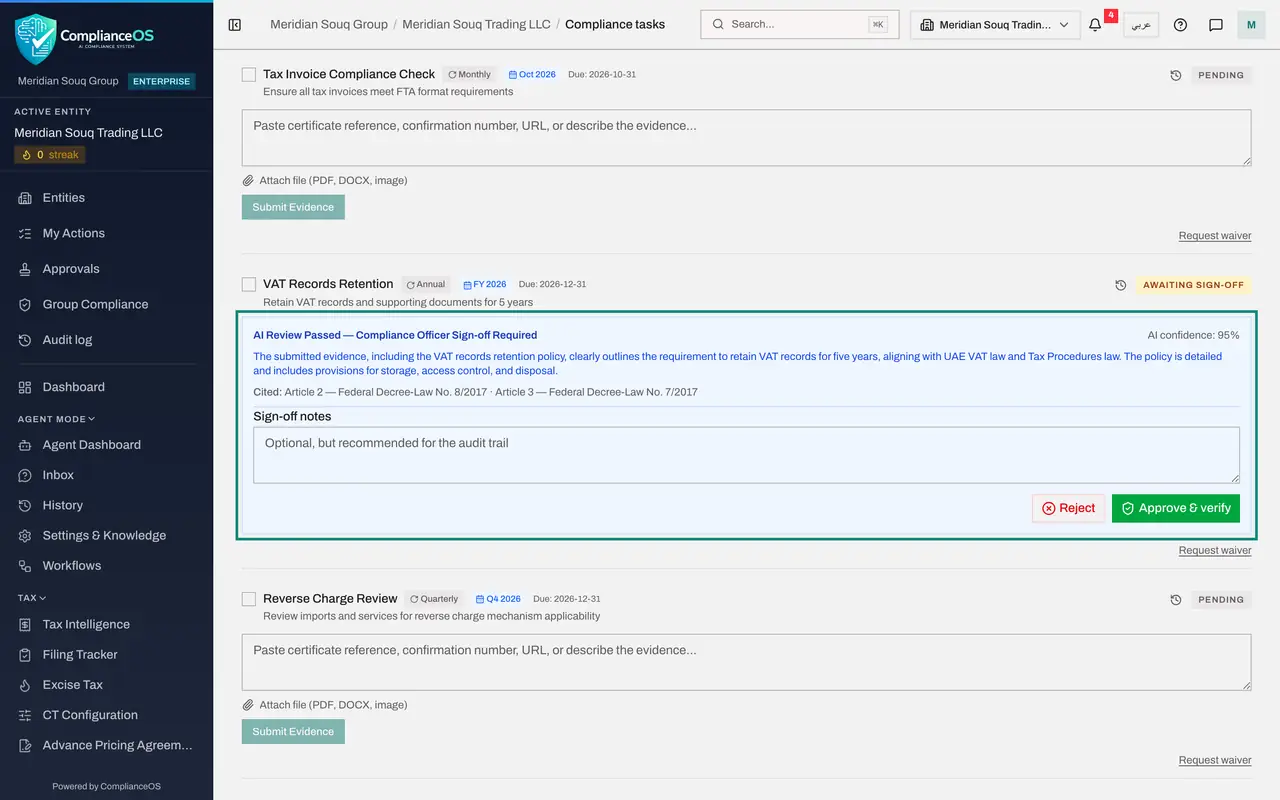
- 8
See why you cannot sign off your own evidence
Select Approve and verify on the task you have just submitted. The sign-off is refused, and a line appears in the box: You created or edited this record, so someone else has to approve it. A second person with the right to approve must sign it off. The next lesson shows that person doing it.
- Select Approve & verify
- 9
Attach a picture as evidence
Evidence can also be a picture, such as a scan or a photograph of a certificate. Scroll down to VAT Registration Certificate. Type what the picture shows, select Attach file and choose the scan; here it is a PNG picture. The file is accepted like a document and its name appears under the box.
- Type Paste certificate reference, confirmation number, URL, or describe the:
Scan of the VAT registration certificate issued by the Federal Tax Aut… - Upload Attach file (PDF, DOCX, image):
vat-registration-certificate-scan.png
- Type Paste certificate reference, confirmation number, URL, or describe the:
- 10
Submit the picture and request the review
Select Submit Evidence, then Request AI Review, exactly as before. The AI answers in one of two ways. If the evidence is enough, the task reads AI Review Passed. If not, as here, the status reads Evidence Rejected and a red box headed Insufficient Evidence says what is missing, names the article of law, gives next steps and offers Re-submit Evidence. The picture used in this lesson is a plain stand-in for a scan, so the AI rightly asks for more.
- Select Submit Evidence
- Select Request AI Review
- 11
Select Request waiver on a task that does not apply
Every open task has a small Request waiver link at its bottom right. Open UAE Corporate Tax and find Transfer Pricing Documentation, which asks for a transfer pricing policy for dealings with related parties above three million dirhams. This entity has none, so the task does not apply. Select Request waiver. The window explains that waiving removes the task from the compliance score, so a second person with the permission to waive tasks must confirm it.
- Select Request waiver
- 12
Give the reason
Type why the requirement does not apply. Be specific, and say when it should be looked at again: the person who confirms reads it, and it is kept with the task for auditors. Send request stays grey until a reason is typed.
- Type Reason for waiving this requirement...:
No transactions with related parties above AED 3 million in the 2026 f…
- Type Reason for waiving this requirement...:
- 13
Select Send request
Select Send request. The task now reads Waiver requested, awaiting confirmation. It still counts until the second person confirms; the next lesson shows that person doing it.
- Select Send request
How to check it worked
VAT Records Retention reads Awaiting Sign-off with the AI's feedback, its confidence and the articles it relied on, and the Awaiting Sign-off tile shows one. The task with the picture shows the AI's answer, here Evidence Rejected with what is missing, and Transfer Pricing Documentation reads Waiver requested, awaiting confirmation.
Common mistakes
- Describing the evidence without attaching it. With nothing to read, the AI review usually answers Insufficient Evidence. Attach the policy, return, certificate or working paper itself.
- Trying to sign off evidence you submitted yourself. The system refuses: the person who provides the evidence and the person who verifies it must be different people.
- Waiving a task because it is hard. Waive only when the obligation really does not apply to the entity, and write the reason: it is kept for auditors.
Check your understanding
1. A task shows AI Review Passed. Is it counted as verified?
- A.Yes, the AI's decision is final
- B.No. A person other than the one who submitted the evidence must still sign it off with Approve and verify
- C.Yes, after 24 hours
- D.Only if the confidence is 100 percent
Show answer
Answer: B. No. A person other than the one who submitted the evidence must still sign it off with Approve and verify
The AI review is a check, not the decision. A second person with the right to approve signs off, and only then is the task Verified.
2. Which kinds of file can you attach as evidence?
- A.Only PDF files
- B.PDF and Word documents and pictures such as PNG or JPEG
- C.Only spreadsheets
- D.Any file, including video
Show answer
Answer: B. PDF and Word documents and pictures such as PNG or JPEG
The attach link reads Attach file, PDF, DOCX, image. A scan or a photograph of a certificate is accepted alongside documents.