Lesson 15 of 21
Schedule a report to be written regularly
What you will be able to do
This lesson is for the compliance officer. A report that is needed every month should not depend on someone remembering it. You will schedule a report to be written on a cadence, without emailing it to anyone, then pause the schedule, resume it and delete it.
Before you start
- You are signed in with the Compliance officer role for the entity.
- You know which report is needed and how often.
Steps
- 1
Find Scheduled Reports
Open Reports and find the block Scheduled Reports, under Request New Report. It reads No recurring schedules yet. Select Schedule at its top right.
- Select Schedule
- 2
Choose the report type
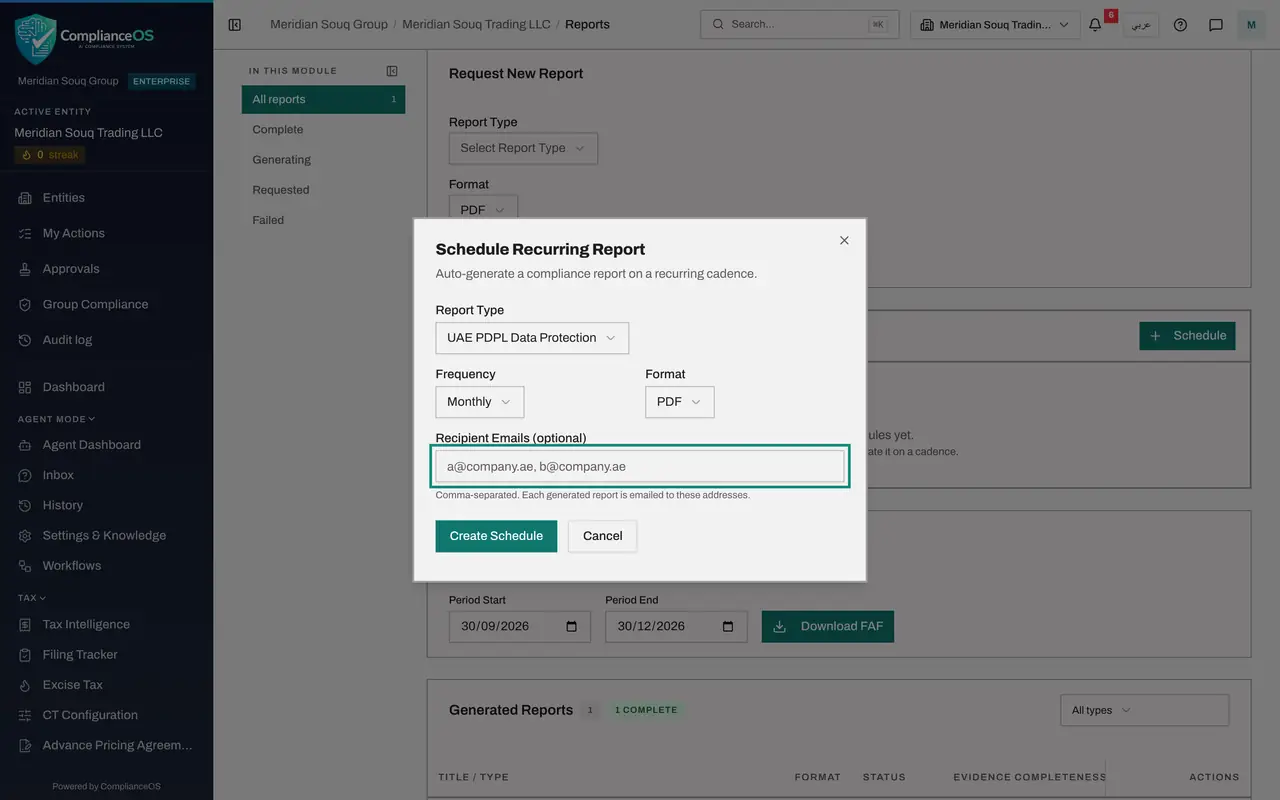
The window Schedule Recurring Report opens. In Report Type, choose the report to be written each time. Here it is UAE PDPL Data Protection, the report on impact assessments, requests from data subjects and breaches.
- Select Select Report Type
- Choose UAE PDPL Data Protection
- 3
Choose the frequency and the format
In Frequency, choose how often: Daily, Weekly, Monthly or Quarterly. Choose Monthly. Format stays on PDF.
- Select Monthly
- Choose Monthly
- 4
Leave the recipients empty
Recipient Emails is optional. Addresses typed here, separated by commas, receive every report the schedule writes. Leave the box empty: the reports will then simply appear under Generated Reports, and nothing is emailed.
- 5
Select Create Schedule
Select Create Schedule. A message confirms Schedule created, reports will generate on cadence. The schedule is listed with its type, Monthly, the date of the next run and the label Enabled.
- Select Create Schedule
- 6
Pause the schedule
The first icon at the end of the line is Pause schedule. Select it. The label changes from Enabled to Paused and no report is written until you resume.
- Select Pause schedule
- 7
Resume the schedule
The same icon is now Resume schedule. Select it and the label returns to Enabled.
- Select Resume schedule
- 8
Delete the schedule
The bin beside it is Delete schedule. Select it. The schedule is removed at once and a message confirms Schedule removed. Reports it has already written stay under Generated Reports.
- Select Delete schedule
How to check it worked
Scheduled Reports lists the schedule with its report type, its frequency, the date of the next run and the label Enabled. After you delete it, the block reads No recurring schedules yet.
Common mistakes
- Adding recipients without checking the addresses. Every report the schedule writes is emailed to them automatically. Leave Recipient Emails empty to keep the reports in the list only.
- Deleting a schedule when a pause would do. Pause stops the runs and keeps the schedule; delete removes it.
- Scheduling everything daily. A daily full report mostly repeats itself. Match the cadence to how often the figures change: monthly for most, quarterly for tax.
Check your understanding
1. You leave Recipient Emails empty when you create a schedule. What happens to the reports it writes?
- A.They are emailed to every administrator
- B.They appear under Generated Reports and are emailed to nobody
- C.They are not written at all
- D.They are sent to the regulator
Show answer
Answer: B. They appear under Generated Reports and are emailed to nobody
Recipients are optional. Without them the schedule still writes the report on its cadence, and it is listed like one you requested by hand.
2. Which cadences can a schedule have?
- A.Hourly and daily
- B.Daily, weekly, monthly and quarterly
- C.Monthly only
- D.Yearly only
Show answer
Answer: B. Daily, weekly, monthly and quarterly
Frequency offers Daily, Weekly, Monthly and Quarterly.