Lesson 10 of 21
Sign off a task as the second person, and confirm a waiver
What you will be able to do
This lesson is for the second person: someone other than the one who submitted the evidence, who holds the right to approve compliance tasks. Here it is the administrator. You will find the task that is waiting, read the evidence and the AI's review, sign it off, and then confirm a waiver the compliance officer asked for.
Before you start
- You are signed in as a person who can approve compliance tasks: a second compliance officer, or an administrator with full access. The finance manager and the other specialist roles cannot.
- A task reads Awaiting Sign-off and another has a waiver request, from the lesson Work a compliance task: evidence, the AI review and a waiver request.
Steps
- 1
Open the task manager
Signed in as the administrator, open Frameworks, select Tasks, then Full Task Manager. Compliance Audit opens. The tile Awaiting Sign-off shows one: a task whose evidence passed the AI review and now needs you.
- Select Tasks41 (41)
- Select Full Task Manager
- 2
Find the task that is waiting
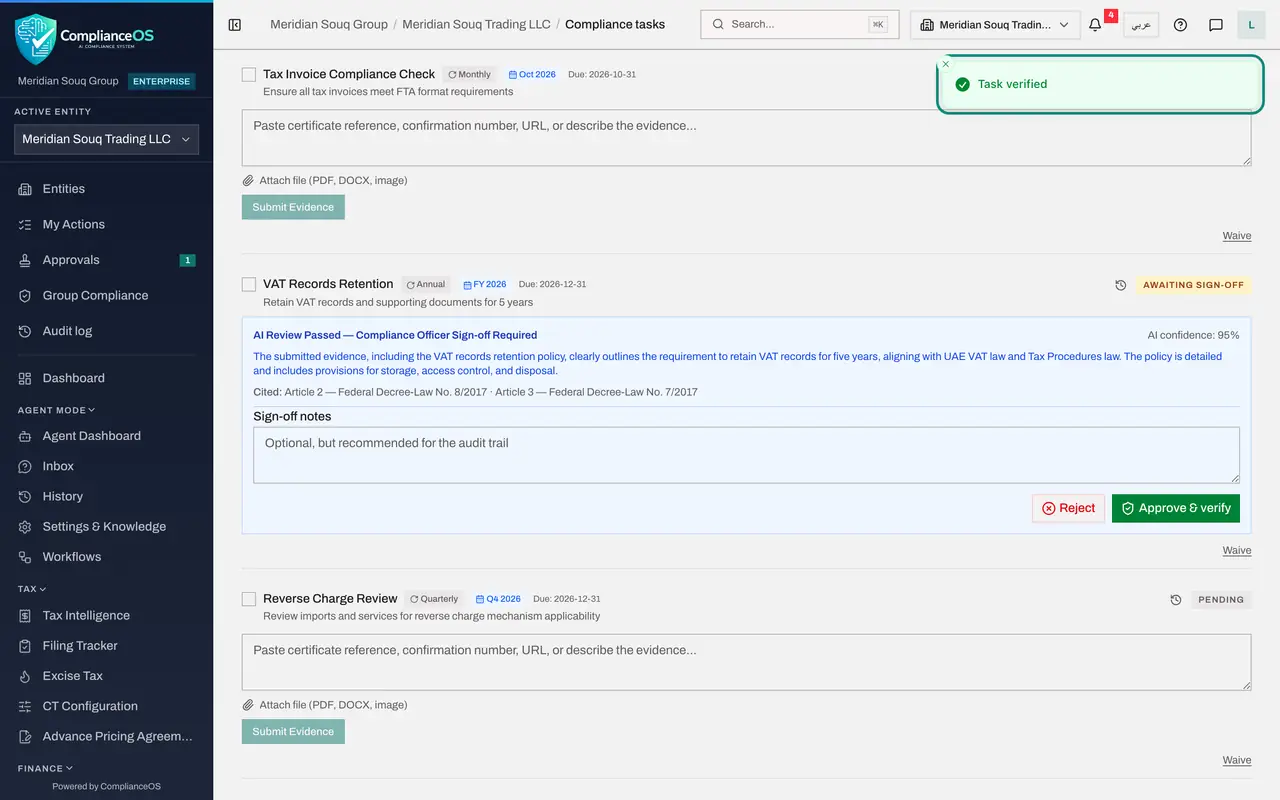
The line UAE VAT counts one task awaiting sign-off. Select the line to open it and scroll to VAT Records Retention. Its tag reads Awaiting Sign-off.
- 3
Read the review before you decide
The blue box holds what you need: the AI's verdict and confidence, its feedback, and the articles it cited. Read the evidence itself as well: in Frameworks, on the Tasks view, Show details on the task gives the submitter's description and the link View attached file. You are confirming that the proof is real and sufficient, not that the AI said so.
- 4
Type your sign-off notes
In Sign-off notes, say what you checked. The notes are optional, but they are recommended, because they are kept with the task for the audit trail.
- Type Sign-off notes:
Policy version 2.1 read in full. The retention period matches the five…
- Type Sign-off notes:
- 5
Select Approve and verify
Select Approve and verify. A message confirms Task verified. Reject, beside it, would instead send the task back to the submitter for new evidence.
- Select Approve & verify
- 6
Check the verified task
The task now reads Verified, with a green box: Verified by Compliance Officer, your notes, and the date of approval. This is the only state that counts towards the score.
- 7
Check the tiles
At the top, Verified shows one, Awaiting Sign-off is back to zero, and Coverage has moved above zero percent. The line under the page title reads one of forty-one verified.
- 8
Find the waiver that was requested
Now the waiver. Open UAE Corporate Tax and find Transfer Pricing Documentation. The compliance officer asked for it to be waived, and the task shows her reason: no transactions with related parties above three million dirhams this year. Two buttons follow: Refuse and Confirm waiver. The same request is also listed in Approvals, under To decide, with an Open record link.
- 9
Select Confirm waiver
The reason holds, so select Confirm waiver. The task now reads Waived and shows the reason, and it no longer counts for or against the score. Refuse would leave the task open, to be evidenced as usual.
- Select Confirm waiver
How to check it worked
VAT Records Retention reads Verified by Compliance Officer, with your notes and today's date. The Verified tile shows one and Coverage has moved above zero. Transfer Pricing Documentation reads Waived with its reason.
Common mistakes
- Approving on the strength of the AI's verdict alone. Open the attachment and read it. Your name goes on the sign-off.
- Leaving Sign-off notes empty. They are optional, but they are what an auditor reads to see that a person looked at the evidence.
- Rejecting without saying why. Reject sends the task back for new evidence; say in the notes what is missing so the submitter can fix it.
Check your understanding
1. Who can sign off a task that is Awaiting Sign-off?
- A.The person who submitted the evidence
- B.Anyone who can open the page
- C.A different person who holds the right to approve compliance tasks
- D.Only the AI
Show answer
Answer: C. A different person who holds the right to approve compliance tasks
The submitter is refused, and roles without the approve right do not see the tasks at all. The second person is another compliance officer or an administrator.
2. What does waiving a task do?
- A.Deletes the task and its history
- B.Marks it verified
- C.Takes it out of the compliance score and keeps your reason with it for auditors
- D.Postpones it by one period
Show answer
Answer: C. Takes it out of the compliance score and keeps your reason with it for auditors
A waived task stays on the list with the reason, but no longer counts for or against the score.