Lesson 12 of 21
Administrator: build a custom framework
What you will be able to do
This lesson is for the administrator. Building the organisation's own frameworks in the Custom Builder needs the permission to manage frameworks for the whole organisation. You will build a small framework of internal store checks, make it active and find it in the library.
Before you start
- You are signed in as an administrator, or with a role that can manage frameworks for the whole organisation.
Steps
- 1
Select Custom Builder
Signed in as the administrator, open Frameworks and select Custom Builder in the list on the left. Here you build the organisation's own frameworks, for obligations no standard framework covers, such as internal policies or a landlord's conditions. Templates belong to the whole organisation, so the controls need the permission to manage frameworks granted for the organisation. A compliance officer whose role covers one entity sees New Template greyed out, with a note saying so.
- Select Custom Builder
- 2
Select New Template and give it a code and a name
Select New Template. In Code, type a short identifier in capitals with no spaces; it appears beside the name everywhere, like UAE_VAT does. In Name, type the name people will read. Both are required.
- Select New Template
- Type Code *:
MSG_STORE_SAFETY_2026 - Type Name *:
Meridian store safety checks
- 3
Add the industry, jurisdiction and description
Industry and Jurisdiction are optional labels shown on the library card, so people can tell where the framework applies. Description says what it covers.
- Type Industry:
Retail - Type Jurisdiction:
UAE, Dubai - Type Description:
Internal checks every Meridian Souq store must pass: fire safety and f…
- Type Industry:
- 4
Define the first task
Under Task Definitions, each box is one recurring task. Type the task name, then a description of what must be done. Choose how often it recurs under Frequency: one-time, daily, weekly, monthly, quarterly, semi-annual or annual. Category is an optional label for grouping.
- Type Task name *:
Fire extinguisher inspection - Type Description (optional):
Check that every extinguisher tag is in date and record the store. - Select Frequency
- Choose Quarterly
- Type Category:
Safety
- Type Task name *:
- 5
Add a second task
Select Add task for another box and fill it in the same way. The red bin beside a task name removes that task; a template must keep at least one.
- Select Add task
- Type Task name *:
First aid kit check - Type Description (optional):
Check the contents of each first aid kit against the list and replace… - Type Category:
Safety
- 6
Select Create Template
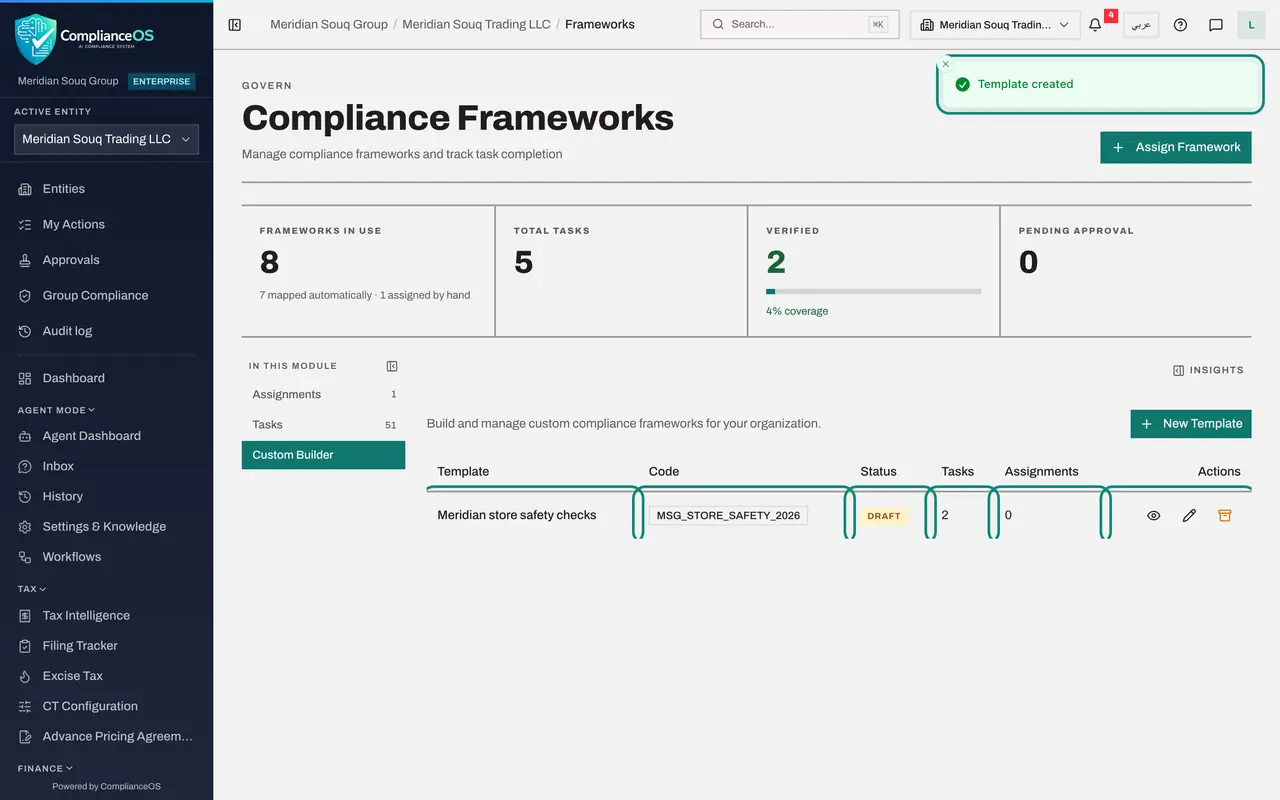
Select Create Template. Saving can take a few seconds. A message confirms Template created, and the template is listed with its code, the status DRAFT, two tasks and no assignments.
- Select Create Template
- 7
View the template
At the end of the row are three icons: view, edit and archive. Select the eye, View template. A window shows the template's version, status, industry and jurisdiction, and a table of its task definitions with their frequency and category. Close it with the cross.
- Select View template
- 8
Edit the template and make it active
Select the pencil, Edit template. The form opens with one more field, Status. A draft cannot be assigned: open Status and choose Active. The line under it reads Set a draft to Active to make it assignable.
- Select Edit template
- Select Status
- Choose Active
- 9
Select Save Changes
Select Save Changes. A message confirms Template updated and the status in the list reads ACTIVE.
- Select Save Changes
- 10
Find it in the Framework Library
Select Assignments, then Assign Framework. The library now offers Meridian store safety checks beside the standard frameworks, with its two tasks. From here it is assigned to an entity like any other framework, and its tasks are worked in the task manager.
- Select Assignments1 (1)
- Select Assign Framework
- 11
Know what archive does
Back in Custom Builder, the third icon on a template's row is Archive template. It asks you to confirm, then retires the template so that it can no longer be assigned. Use it when a framework of your own is no longer needed.
- Select Custom Builder
How to check it worked
Custom Builder lists Meridian store safety checks with the status ACTIVE and two tasks, and the Framework Library offers it for assignment.
Common mistakes
- Leaving a new template as a draft. A draft cannot be assigned. Edit it and set Status to Active when it is ready.
- Archiving a template that entities still use. Check the Assignments column first: archiving stops it being offered, so entities that need it must keep their existing assignment.
- Writing task names that are not actions. A task definition becomes a task people must evidence, so name the check and say how often it recurs.
Check your understanding
1. A new custom template shows the status DRAFT. Can it be assigned to an entity?
- A.Yes, at once
- B.No. Edit it and move it from Draft to Active first
- C.Only by the compliance officer
- D.Only after an auditor approves it
Show answer
Answer: B. No. Edit it and move it from Draft to Active first
The edit form says it: move a draft to Active to make it assignable. Until then it is not offered in the Framework Library.
2. What must every template have before Create Template will save?
- A.A code, a name and at least one task with a name
- B.An industry and a jurisdiction
- C.A description of at least 100 words
- D.An assigned entity
Show answer
Answer: A. A code, a name and at least one task with a name
Code, Name and Task Definitions carry a star. Industry, Jurisdiction and Description are optional.