Lesson 6 of 21
Read the compliance calendar and sync deadlines from the modules
What you will be able to do
This lesson is for the compliance officer and anyone who must not miss a filing date. You will open the compliance calendar, pull in the deadlines the other modules already know about, and read them in the month view, the upcoming list and the detail of one deadline.
Before you start
- You are signed in with the Compliance officer role for the entity.
- Other teams have been working in their modules. Here the tax manager has prepared the VAT return for July to September 2026 and the Data Protection Officer has logged a request from a data subject.
Steps
- 1
Open the Compliance Calendar
In the left menu, under Assurance, choose Calendar. The page is headed Compliance Calendar. At the top right are the financial year, Sync Deadlines and Add Custom Deadline. Some deadlines may already be listed, because a return adds its deadline the moment it is computed and the calendar also syncs by itself once a day.
- 2
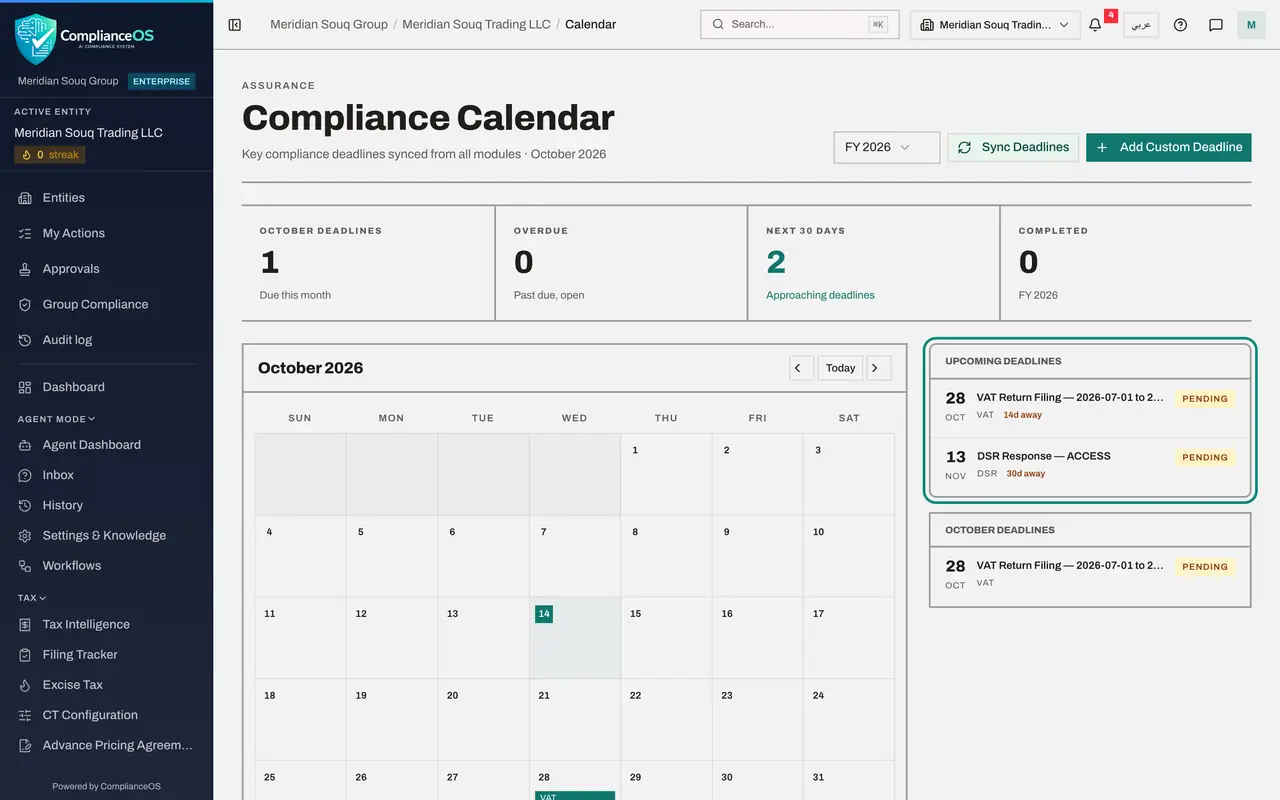
Read the four tiles
The first tile counts the deadlines due in the month on screen. Overdue counts those past their date and still open. Next 30 Days counts those approaching. Completed counts those finished in the financial year.
- 3
Select Sync Deadlines
Select Sync Deadlines. The calendar reads every module of this entity and adds or updates one deadline for each record that has a date: VAT, corporate tax and excise returns, contract expiry dates, requests from data subjects, payroll payment dates, the trade licence and free zone licences, free zone filings, customer due diligence reviews, dispute deadlines, the review dates of impact assessments and transfer assessments, and Audit Hub deadlines. A message says how many were synced. The same sync also runs by itself once a day, so the button is for when you want the calendar current now.
- Select Sync Deadlines
- 4
Read the month
The month grid shows a small coloured label on each day that has a deadline. The label is the kind of deadline. Here VAT sits on the 28th of October. The arrows move a month back or forward, and Today returns to the current month.
- 5
Read Upcoming Deadlines
Beside the grid, Upcoming Deadlines lists the next ten in date order. Each line gives the day and month, the title, the kind, how many days away it is, and its status. The first is VAT Return Filing, 2026-07-01 to 2026-09-30: a deadline that comes from a return keeps the tax period in its title, so the July to September return is not mistaken for an October one. The second is DSR Response, Access: the reply to a data subject's access request.
- 6
Select a deadline to see its detail
Select the VAT return in the list. A detail box opens above the list. It shows the full title, the status Pending, the kind, the due date and a description. View Source opens the module the deadline came from, here Tax Intelligence. There is no Edit or Delete, because a synced deadline follows its source record.
- 7
Know what a sync will not undo
A sync updates the title, the date and the status from the source record, with two exceptions. A deadline you have set to Waived stays waived. And a deadline whose filing has been recorded in the Filing Tracker stays Completed, even while the return itself is still a draft: a recorded filing is never reopened by a sync. Select Dismiss to close the detail box.
- Select Dismiss
- 8
Move to the next month
Select the right arrow above the grid, Next month. November opens with the DSR label on the 13th, thirty days after the request arrived. The first tile and the list at the bottom of the page change to November too.
- Select Next month
- 9
Read the month's list
At the bottom of the page, the list headed with the month's name shows every deadline of that month, however many there are. Select a line to open the same detail box; select it again to close it.
- 10
Return to today and change the financial year
Select Today to come back to the current month. The list at the top right sets the financial year the calendar and the tiles cover. It offers the years that hold deadlines, and All Years to see every deadline at once.
- Select Today
- Select Year
How to check it worked
The calendar shows the VAT return on 28 October with the tax period in its title, and the data subject request in November. The tiles count what is due this month, what is overdue, what falls in the next 30 days and what is completed.
Common mistakes
- Looking for Edit on a synced deadline. A deadline that came from a module follows its source record. Change the return, the contract or the request, and the calendar follows at the next sync.
- Reading the VAT return's title as the due date. The title names the tax period, July to September. The date it must be filed, 28 October, is the day it sits on.
- Forgetting the financial year filter. The calendar shows one financial year at a time. Choose All Years if a deadline you expect is missing.
Check your understanding
1. A VAT return for 1 July to 30 September 2026 is due on 28 October 2026. What title does its calendar deadline carry?
- A.VAT Return, October 2026
- B.VAT Return Filing, 2026-07-01 to 2026-09-30
- C.Tax deadline
- D.Q4 filing
Show answer
Answer: B. VAT Return Filing, 2026-07-01 to 2026-09-30
A deadline synced from a return keeps the tax period in its title, so nobody mistakes the July to September return for an October one. The due date is shown separately.
2. A filing was recorded against a deadline in the Filing Tracker, so it reads Completed. You then select Sync Deadlines while the return itself is still a draft. What happens?
- A.The deadline goes back to Pending
- B.The deadline stays Completed, because a recorded filing is not reopened by a sync
- C.The deadline is deleted
- D.The return is filed again
Show answer
Answer: B. The deadline stays Completed, because a recorded filing is not reopened by a sync
Recording a filing completes the deadline without changing the return. The sync checks for a recorded filing and leaves that deadline alone.