Lesson 14 of 21
Request a compliance report, read it, finalise it and download it
What you will be able to do
This lesson is for the compliance officer and for management. You will ask for a compliance report, see why the button is switched off while one is being written, open the finished report to read its score, findings and recommendations, lock it for audit, and download it as a PDF. You will also download the audit file the tax authority can ask for.
Before you start
- You are signed in with the Compliance officer role for the entity. The tax manager, the finance manager and the HR director can also request reports; an auditor can only read them.
- The modules hold some records, so the report has something to say.
- The AI service is available. A full report takes a few minutes to write.
Steps
- 1
Open Reports
In the left menu, under Assurance, choose Reports. The tiles count the reports made, those completed, those that failed, the average compliance score across them, and the schedules that are running. Below are four blocks: Request New Report, Scheduled Reports, the FTA Audit File, and Generated Reports.
- 2
Open Report Type
In Request New Report, open Report Type. There are eight kinds. Corporate Tax Annual and VAT Period Report cover the tax returns. Contract Portfolio covers contracts and their expiry. Regulatory Compliance covers alerts. UAE PDPL Data Protection is written for the data protection regulator. Workforce and Emiratization covers staff and payroll. AML and Sanctions Screening covers screening results. Full Compliance Report covers every module in one document.
- Select Select Report Type
- 3
Choose Full Compliance Report
Choose Full Compliance Report. Format stays on PDF, the version for reading and sharing; the other choice, JSON, is for loading into another system.
- Choose Full Compliance Report
- 4
Set the period
Period Start and Period End are optional. Left empty, the report covers everything on record. Here, set them to the financial year so far: 1 January 2026 to 30 September 2026.
- Type Period Start (optional):
2026-01-01 - Type Period End (optional):
2026-09-30
- Type Period Start (optional):
- 5
Select Generate Report
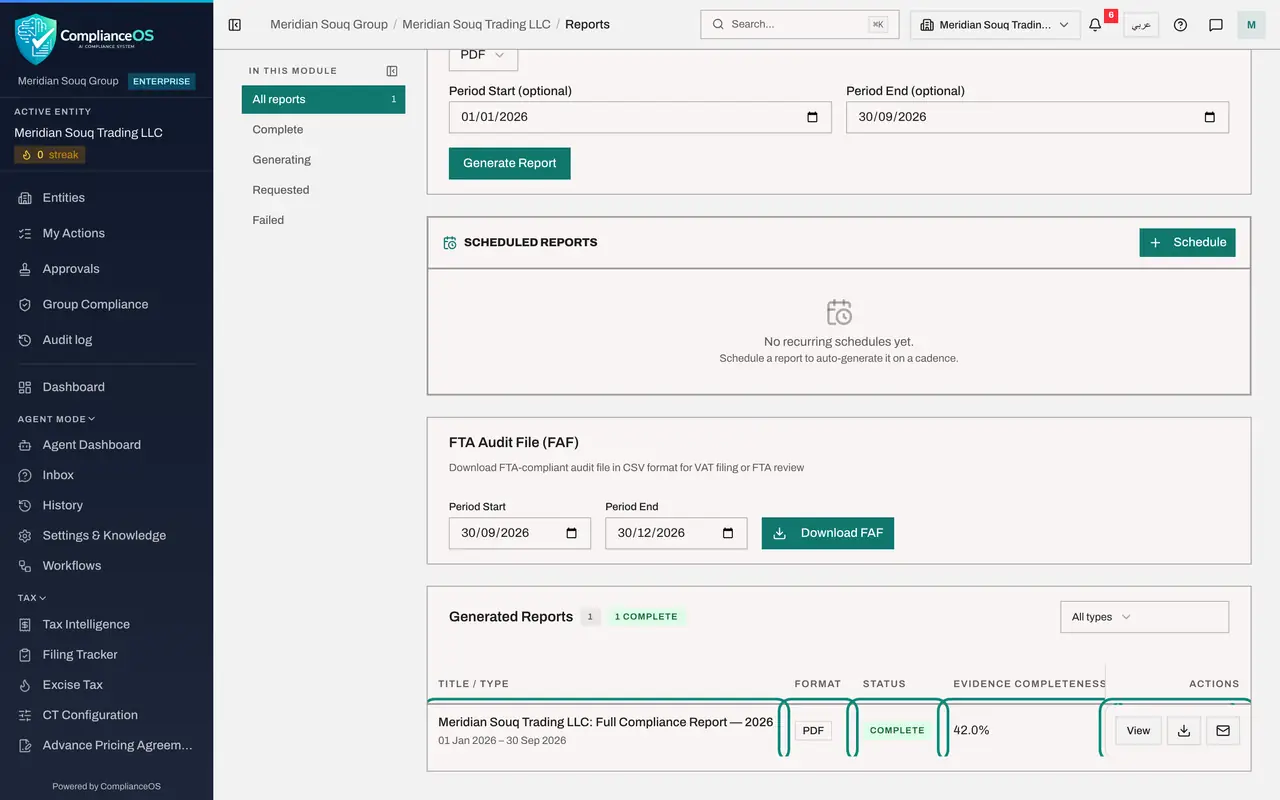
Select Generate Report. A message says the report is being generated and will appear in the list below when ready. The button is now switched off, and the line beside it gives the reason: a report of this type and period is already being generated, and you can request another when it finishes.
- Select Generate Report
- 6
Watch it in Generated Reports
Scroll down to Generated Reports. The new report is at the top with the status Requested, then Generating. The list refreshes by itself every five seconds, so there is nothing to select. A full report takes a few minutes.
- 7
Wait for the report to complete
When the report is written, the status changes to Complete and the column Evidence Completeness shows a percentage: the share of the evidence the report looked for that it found. A report scoring 85 or more also earns the label Audit-Ready. Three actions appear at the end of the row: View, Download and Email Report.
- 8
Select View
Select View. The report opens in a window. At the top are its title, the compliance score with a label, Compliant, Needs Attention or At Risk, the type, the period and when it was generated. The Executive Summary puts the position in a paragraph.
- Select View
- 9
Read a section
Below the summary the report has one section for each area it covers. A section gives its own figures, then Findings, what was observed, Recommendations, what to do about it, and the regulations cited. Scroll through them all before you rely on the report.
- 10
Finalise the report for audit
Under the summary a line reads This report has not been finalized yet, with the button Finalize for Audit. When you have read the report and agree with it, select the button. A message confirms Report finalized and locked for audit, and the line changes to say so. A locked report is the version an auditor can rely on.
- Select Finalize for Audit
- 11
Download the PDF
Close the window with the cross. In the row, select the download icon, Download as PDF. The file is saved to your computer and a message confirms Report downloaded. This is the copy to hand to management or an auditor.
- Select Download as PDF
- 12
Look at Email Report
The envelope beside it is Email Report. It asks for a recipient's address and an optional message, and sends a copy of the report. In this training company outgoing email is switched off, so select Cancel. In a live system, check the address twice: the report shows the entity's weaknesses.
- Select Email Report
- 13
Filter the list
In this module, on the left, narrows Generated Reports by status: All reports, Complete, Generating, Requested and Failed. A failed report shows a Retry button. The list All types above the table narrows it to one kind of report.
- Select Complete
- 14
Download the FTA Audit File
The block FTA Audit File, or FAF, makes the file of transactions the Federal Tax Authority can ask for during a VAT audit. Set Period Start and Period End, here the third quarter of 2026, and select Download FAF. A comma separated file is saved and a message confirms FAF downloaded.
- Type Period Start:
2026-07-01 - Type Period End:
2026-09-30 - Select Download FAF
- Type Period Start:
How to check it worked
Generated Reports lists the Full Compliance Report with the status Complete and an evidence completeness figure. Opened, it reads This report has been finalized and locked for audit, and the PDF is in your downloads folder.
Common mistakes
- Selecting Generate Report again because nothing seems to happen. The report is written in the background. While it is, the button is switched off and a line beside it says a report of this type and period is already being generated.
- Finalising a report before reading it. Finalize for Audit locks it. Read the findings first; if something is wrong, fix the records and request a new report.
- Using Email Report to share with an outsider without thinking. The report holds the entity's weaknesses. Download the PDF and send it yourself when you are sure of the recipient.
Check your understanding
1. You requested a Full Compliance Report a moment ago and Generate Report is greyed out. Why?
- A.Your role may only request one report a day
- B.A report of the same type and period is already being generated; you can request another when it finishes
- C.The AI service is down
- D.The report failed
Show answer
Answer: B. A report of the same type and period is already being generated; you can request another when it finishes
The button is switched off only for the same type and period, and the line beside it gives the reason. Choosing another type switches it on again.
2. What does Finalize for Audit do?
- A.Sends the report to the regulator
- B.Locks the report so that the version an auditor sees cannot change
- C.Deletes the draft
- D.Raises the compliance score
Show answer
Answer: B. Locks the report so that the version an auditor sees cannot change
After finalising, the report reads finalized and locked for audit. Nothing is sent anywhere.