Lesson 11 of 21
Frameworks: read the task tables, assign, pause and remove a framework
What you will be able to do
This lesson is for the compliance officer. You will read every framework's tasks in one table, open a task's details to see its evidence, add a framework from the library that the automatic mapping did not include, look at its task definitions, pause it, and remove a framework assigned by mistake.
Before you start
- You are signed in with the Compliance officer role for the entity.
- The entity's compliance tasks exist, from the lesson Set up the entity's compliance tasks.
Steps
- 1
Open Frameworks and select Tasks
In the left menu, under Risk and Governance, choose Frameworks, then select Tasks in the list on the left. The line at the top says how many of the forty-one tasks are verified across the seven frameworks. Each framework has a block with its name, its code, a status tag, its own count of verified tasks, and the line Applies because, which gives the reason the framework applies to this entity.
- Select Tasks41 (41)
- 2
Read the two tables of a framework
Inside each block are two tables. Automated Checks are verified from your own data when you run the automatic checks. Evidence to Provide are the tasks where you upload proof. The columns are the Task, with a Critical mark on the important ones, the Type, the Status, the AI Confidence once a review has run, and the Actions open to you, such as Submit Evidence, AI Review, Resubmit or Request waiver.
- 3
Open a task's details
Scroll to UAE VAT and find VAT Registration Certificate, which reads Needs Attention after its review. Select the small arrow at the start of the row, Show details. The details give the task's type and key, the AI's confidence, the evidence as the submitter described it, the link View attached file, which opens the file itself, and the AI's feedback. This is where a reviewer reads the evidence before signing off.
- Select Show details
- 4
Select Assignments
Scroll back to the top and select Assignments. This view lists the frameworks added by hand. It is empty, because the seven frameworks in use were mapped automatically from the entity's profile. The first tile, Frameworks in use, says the same: seven mapped automatically, none assigned by hand.
- Select Assignments0 (0)
- 5
Select Assign Framework
Select Assign Framework at the top right. The Framework Library opens with every framework ComplianceOS knows: tax, labour, data protection, anti-money laundering, free zone, financial regulators, and environmental and sustainability reporting. Each card gives the name, the code, a description with the law it comes from, the number of tasks, the industry and the place it applies.
- Select Assign Framework
- 6
Assign a framework
The company's Dubai stores sell food items, so the municipality's rules apply and the automatic mapping did not include them. Scroll to Dubai Municipality Compliance, five tasks, and select Assign on its card. A message confirms Framework assigned, the library closes and the framework is listed under Assignments.
- Select Assign
- 7
Assign a second one
For this lesson, add one more. Select Assign Framework again. In the library, Dubai Municipality Compliance now reads Assigned and cannot be added twice. Scroll to KHDA Education Compliance, the framework for schools, and select Assign. It does not apply to a retailer; it is here so that you can see a removal.
- Select Assign Framework
- Select Assign
- 8
Read the assignment
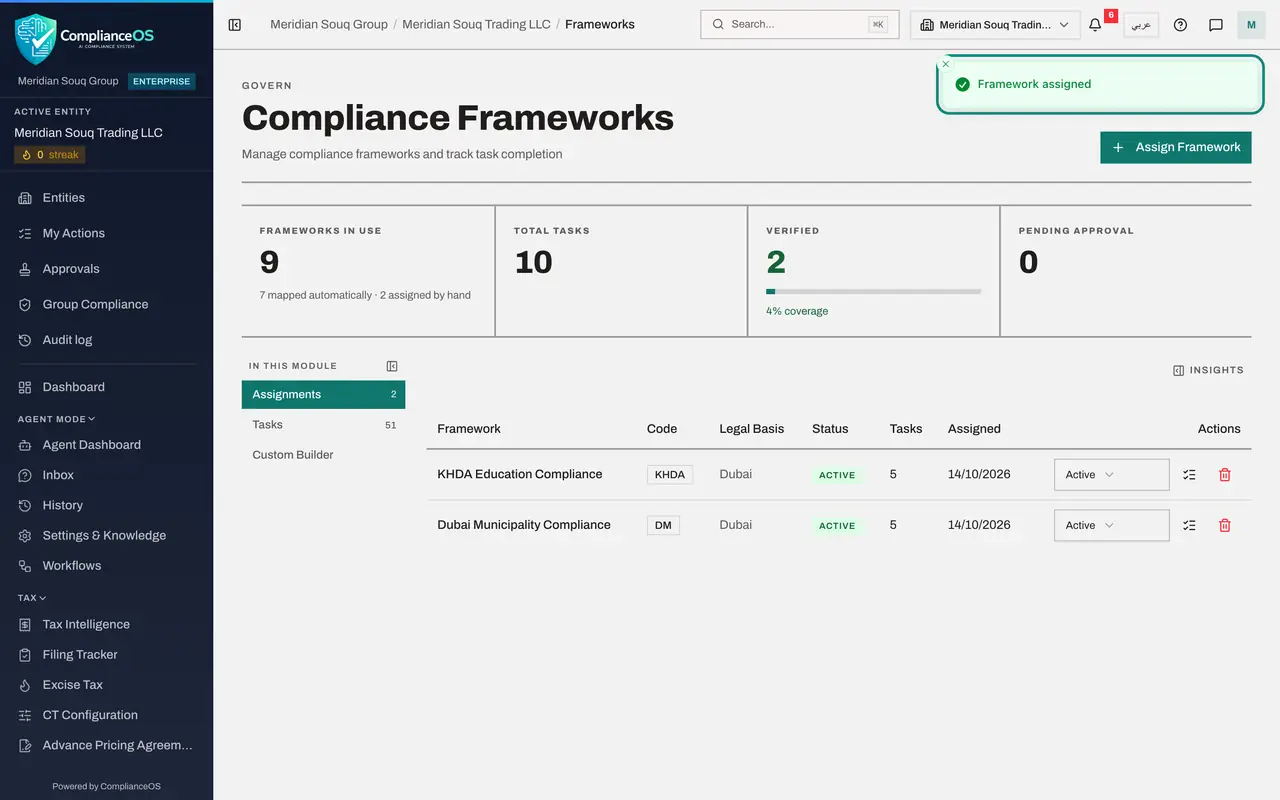
Both frameworks are now listed. Each row shows the Framework, its Code, the Legal Basis, the Status, the number of Tasks and the date it was Assigned. At the end are the status list and two icons: View task definitions and Remove assignment. Frameworks in use now counts nine, two of them assigned by hand.
- 9
View the task definitions
Select the list icon on the Dubai Municipality row, View task definitions. A window lists the five tasks the framework brings, each with how often it recurs. These are the definitions; the tasks themselves, with their periods and due dates, are created in the task manager.
- Select View task definitions
- 10
Pause the framework
Open the status list on the Dubai Municipality row. Active means the framework is being worked. Paused means work has stopped for now, and Completed means it is finished. Choose Paused: the food licence inspection is not until next quarter. A message confirms Assignment updated.
- Select Active
- Choose Paused
- 11
Select Remove assignment
On the KHDA Education row, select the red bin, Remove assignment. A window asks you to confirm, naming the framework, and warns that its open tasks will no longer count for this entity.
- Select Remove assignment
- 12
Confirm the removal
Select Remove assignment in the window. A message confirms Framework removed and the row leaves the list. Removal is for mistakes; for work that has merely stopped, use Paused.
- Select Remove assignment
- 13
Open the insights panel
Select Insights at the top right of the list. Coverage by framework shows a bar for each framework with its verified tasks. Needs attention counts the tasks pending approval, the failing checks and the frameworks at risk. Close the panel with the cross.
- Select Show insights panel
How to check it worked
Assignments lists Dubai Municipality Compliance with the code DM and the status Paused, and the framework you removed is gone.
Common mistakes
- Removing the wrong row. The confirmation names the framework: read it before you select Remove assignment.
- Removing a framework to hide unfinished tasks. Use the status Paused if work has stopped for a reason.
- Expecting the seven mapped frameworks under Assignments. Assignments lists only the frameworks you add by hand from the library. The frameworks mapped from the entity's profile appear on the Tasks view.
Check your understanding
1. Where do you open the file a colleague attached as evidence for a task?
- A.In Frameworks, on the Tasks view: Show details on the task, then View attached file
- B.In the risk register
- C.In the calendar
- D.It cannot be opened after it is submitted
Show answer
Answer: A. In Frameworks, on the Tasks view: Show details on the task, then View attached file
Show details opens the task's type, its key, the AI's confidence, the evidence description, the link View attached file and the AI's feedback.
2. Work on a framework has stopped for a few months. What should you do with its assignment?
- A.Remove it
- B.Set its status to Paused
- C.Waive every task
- D.Nothing
Show answer
Answer: B. Set its status to Paused
Paused keeps the assignment and its history. Removing takes the obligations out of tracking altogether.