Lesson 16 of 21
See who has access to an entity, and who can read the audit log
What you will be able to do
This lesson is for administrators and for anyone who answers an auditor's questions. You will open the Team tab of an entity, which lists everyone who can reach that company and how each role reaches it. Then you will check which people hold the permission to read the audit log, and find the access changes from this course in the audit log itself.
Before you start
- The grants, the group and the delegation from the earlier lessons exist.
- You hold a role that includes Audit log, View, such as Security administrator.
Steps
- 1
Open an entity's settings on the Team tab
On the Entities screen select Meridian Souq Trading LLC. Open the account menu at the top right, choose Entity settings and select the Team tab. The number on the tab counts the people who have access to this company.
- Select Account menu
- Select Entity settings
- Select Team13
- 2
Read the list
The card is named Who has access. Each row is a person, with every role that reaches this entity and one line under each role saying how. Most rows here read Direct, granted on this entity. The list is read-only: access is granted and revoked in Access control.
- 3
Find a role held through a department and one covered by a delegation
Ahmed Saleh holds Tax analyst as a member of the department Finance and Tax. Noura Salem has a line marked Delegation: she is covering for Mariam Aziz until the date shown. The two administrators carry a Full access badge and the words Organisation-wide.
- 4
Switch to another entity
Use the Active Entity box at the top of the left menu to switch to Meridian Souq E-Commerce, then open Entity settings and the Team tab again.
- Select Switch entity
- Select Meridian Souq E-Commerce FZ-LLC
- Select Account menu
- Select Entity settings
- Select Team6
- 5
Read how roles reach this entity
Nobody here was granted a role on the company directly. Mariam Aziz is compliance officer through the unit: Org unit, inherited from UAE Operations. Ahmed Saleh and Rashid Karim are accountants through the group Month-end close team.
- 6
Select Manage in Access control
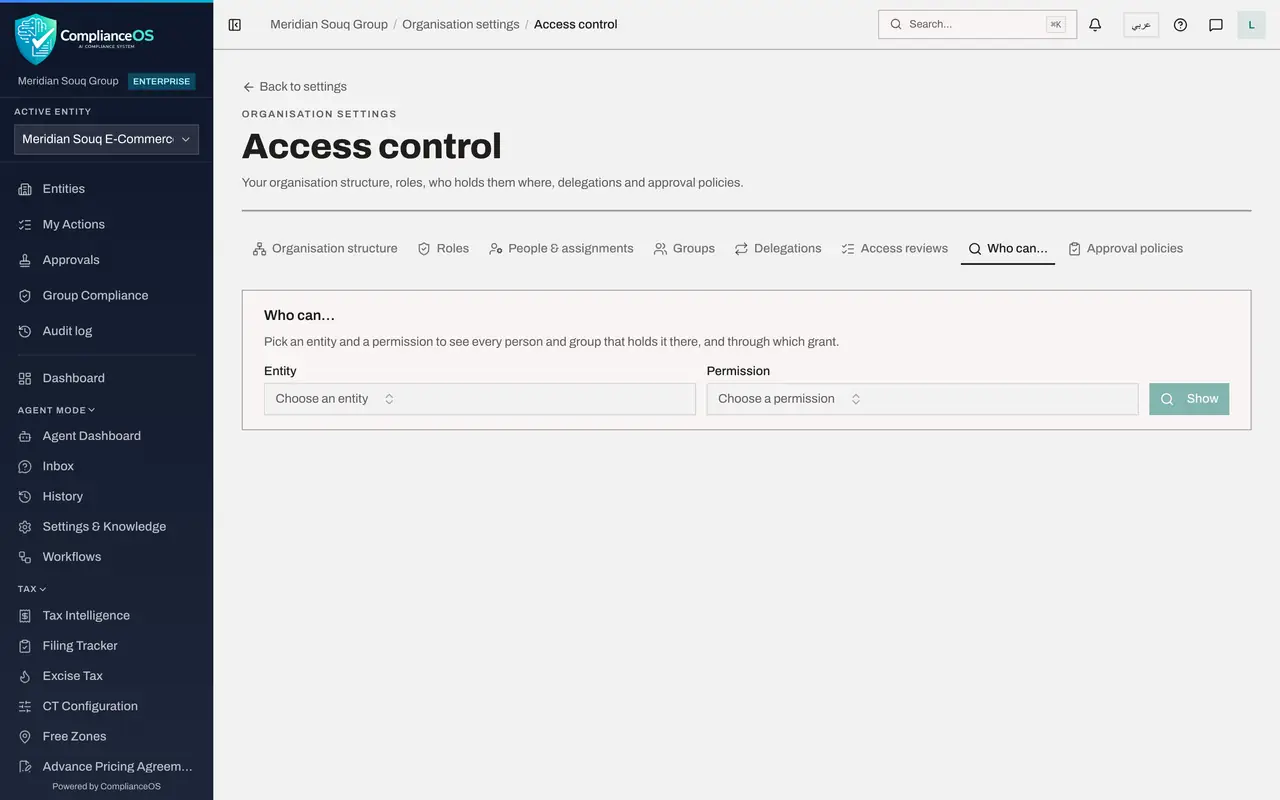
To change any of this, select Manage in Access control at the top of the card. It opens Access control, where roles are granted and revoked. Then select the Who can tab.
- Select Manage in Access control
- Select Who can…
- 7
Ask who can read the audit log
Under Entity choose Meridian Souq Trading LLC. Under Permission type audit log and choose Audit log, View. Select Show.
- Select Choose an entity
- Type Search…:
Trading - Choose Meridian Souq Trading LLC
- Select Choose a permission
- Type Search permissions…:
audit log - Choose Audit log · Viewaudit_log:view
- Select Show
- 8
Read who holds the permission
The result lists every grant that lets someone read the audit log for this company: the two administrators, the compliance officer, the auditor, and Daniel Brooks a second time through the custom role Access register viewer. People with other roles, such as the tax manager, are not listed and cannot open the audit log.
- 9
Select Audit log in the left menu
Select Audit log in the left menu. Every change made in this course is listed with its time, the action in plain words, the type of record, the entity and the actor, newest first. Access changes are recorded against the organisation.
- Select Audit log
- 10
Filter by resource type
Open the Resource Type box above the table and choose Role assignment. The list now shows only grants, changes and revocations of roles.
- Select Resource Type
- Choose Role assignment
- 11
Search for an action and open its details
The box Search by action name narrows the list further. Type revoke to find the grant you revoked in the lesson on time-limited access, then replace it with update. Select Details on the first row. It shows the Action key, the technical name of the action, and the Fields line names what was changed, here the end date, the read-only switch and the reason.
- Type Search by action name:
update - Select Details
- Type Search by action name:
How to check it worked
The entity's Team tab shows each person with their roles and one line saying how the role reaches the entity. The Who can result for Audit log, View lists the people who can read the audit log, and the Audit log shows a row for each role you granted, with you as the actor.
Common mistakes
- Looking for Add, Edit or Remove on the entity's Team tab. The list is read-only; select Manage in Access control to change anything.
- Assuming everyone who can see an entity can read its audit log. Audit log, View is a separate permission, and the Viewer role does not include it.
- Reading only the Roles tab to answer who can reach a company. Roles can arrive through a unit, a group, a department or a delegation; the entity's Team tab shows them all in one place.
Check your understanding
1. On an entity's Team tab a role shows the line Org unit, inherited from UAE Operations. What does it mean?
- A.The role was granted on this entity directly
- B.The role was granted on the unit that holds this entity, and so reaches it
- C.The role comes through a group
- D.The role has expired
Show answer
Answer: B. The role was granted on the unit that holds this entity, and so reaches it
A role granted on a unit covers the entities placed in it. The line under each role says how it reaches the entity.
2. An auditor asks who is able to read the audit log for Meridian Souq Trading LLC. How do you answer?
- A.Open Who can, choose the entity and the permission Audit log, View
- B.Count the administrators
- C.Open the audit log and look at the Actor column
- D.Ask each person
Show answer
Answer: A. Open Who can, choose the entity and the permission Audit log, View
Who can lists every person holding a permission on an entity, with the role behind it, and the result can be exported.