Lesson 8 of 21
Read the built-in roles and create a custom role
What you will be able to do
This lesson is for access administrators. You will read what a built-in role allows, including the Organisation administrator role and Full access, then create a custom role that lets someone see the access set-up and read the audit log without changing anything. You will also copy a template, edit the copy and archive it.
Before you start
- You are signed in as an administrator who can manage access for the whole organisation.
- You know what the new role is for and which permissions it needs.
Steps
- 1
Open Access control on the Roles tab
In Access control select the Roles tab. Custom roles are the ones your organisation has made; there are none yet. Templates are the built-in roles, such as Accountant or Data protection officer. Each row shows what the role is for, how many permissions it holds and how many times it is assigned.
- 2
Search for the administrator roles
Type admin in the Search roles box. The list narrows to the roles with that word in their name or description, including the three administrator roles: Organisation administrator, Security administrator and Org unit administrator.
- Type Search roles…:
admin
- Type Search roles…:
- 3
Select View on Organisation administrator
Select View on the Organisation administrator row. The window shows the role's permissions as a grid: one row for each module, which is an area of the product, and one column for each action. The first rows show that this role can view and edit entities and use Integrations.
- Select View Organisation administrator
- 4
Read its organisation-level permissions
Scroll to Organisation-level permissions at the bottom. These apply to the organisation as a whole. This role may register a new legal entity, edit approval policies and manage organisation settings, but it holds none of the access permissions: it cannot give roles to people. Select Close.
- 5
Select View on Full access
Close the window, clear the search box and select View on the Full access row. Full access is every permission in the place it is granted for, including permissions added later. It cannot be copied. Give it to very few people.
- Select Close
- Select View Full access
- 6
Close it and select New role
Select Close, then New role at the top right. The editor opens. Here you choose what the role allows; where it applies is decided later, when you grant it to someone.
- Select Close
- Select New role
- 7
Name and describe the role
Enter a name people will recognise and a one-line description of what the role is for. The Key fills itself in from the name; it is a short label the system uses and cannot be changed later.
- Type Name *:
Access register viewer - Type Description:
See who holds which roles and read the audit log. Cannot change anythi…
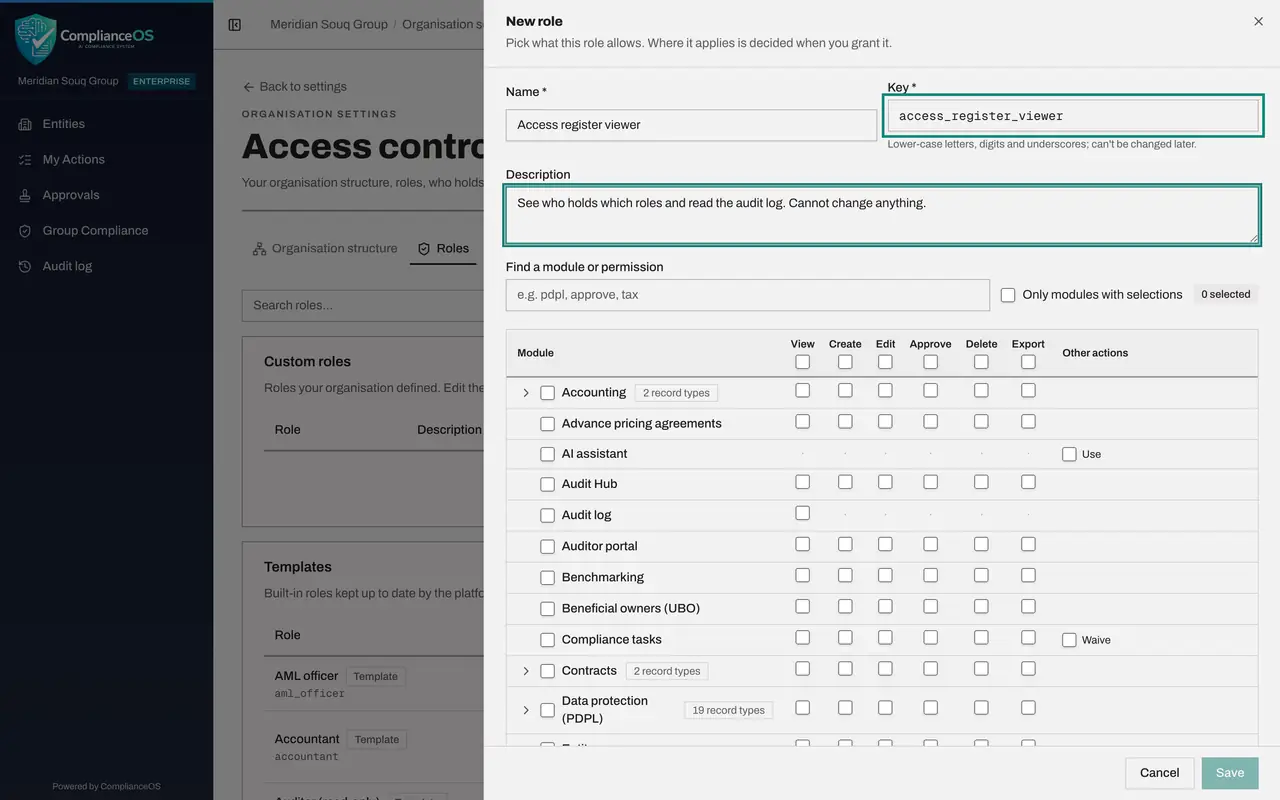
- Type Name *:
- 8
Find and tick the audit log permission
The grid is long, so type audit log in the box Find a module or permission. Tick View on the Audit log row. Reading the audit log is a permission of its own, and the Viewer template does not include it.
- Type Find a module or permission:
audit log - Select Audit log · View
- Type Find a module or permission:
- 9
Tick the organisation-level permissions
Clear the search box and scroll down to Organisation-level permissions. Tick access view, which shows users, roles, units, groups and assignments, and org view, which shows organisation settings. The counter shows 3 selected. The note at the bottom says you can only include permissions you hold yourself.
- 10
Select Save
Select Save. The editor closes, a message confirms the role was created, and it is listed under Custom roles with 3 permissions and 0 under Assigned. It does nothing until you grant it to someone.
- Select Save
- 11
Copy a template
The quicker way to make a role is to copy a template. Select Copy on the Viewer row. The editor opens with all of Viewer's permissions ticked. Change the name to Finance viewer.
- Select Copy Viewer
- Type Name *:
Finance viewer
- 12
Open a module's record types and save the copy
Some modules can be granted one record type at a time. Select the small arrow beside Accounting to show its record types, journal entries and accounting periods. A tick on the module row covers them all. Select Save to keep the copy.
- Select Show record types for Accounting
- Select Save
- 13
Edit the custom role
Custom roles can be changed at any time. Select the pencil button on the Finance viewer row, type workforce in the search box and untick View on the Workforce row, so this role no longer shows employee records. Select Save. Everyone who holds the role is affected at once.
- Select Edit Finance viewer
- Type Find a module or permission:
workforce - Select Workforce · View
- Select Save
- 14
Archive a role that is not needed
Select Archive on the Finance viewer row and confirm with Archive. An archived role can no longer be granted, while existing records keep their history. Archive is only available while nobody holds the role. Access register viewer stays, ready to be granted in the next lesson.
- Select Archive Finance viewer
- Select Archive
How to check it worked
Under Custom roles, the role Access register viewer is listed with 3 permissions and 0 under Assigned.
Common mistakes
- Trying to edit a template. Templates are read-only so that platform updates can add permissions to them. Copy the template and edit your copy.
- Ticking a whole module row when the role needs one record type. Open the record types of the module and tick only what is needed.
- Expecting to add a permission you do not hold. The editor only lets you include permissions you hold yourself, so nobody can create a role more powerful than their own access.
Check your understanding
1. Which permission lets a person read the audit log?
- A.Access control, View
- B.Audit log, View
- C.Organisation, View
- D.Reports, Export
Show answer
Answer: B. Audit log, View
The audit log is its own module with a single action, View. The Viewer template does not include it; Security administrator, Compliance officer and Auditor do.
2. A custom role is no longer needed, and nobody holds it. What do you do?
- A.Delete every permission from it
- B.Select Archive on its row
- C.Ask support to remove it
- D.Rename it to unused
Show answer
Answer: B. Select Archive on its row
Archive retires the role so it can no longer be granted, while existing records keep their history. A role that is still assigned must be revoked first.