Lesson 1 of 21
Find the people and access screens, and check who can do what
What you will be able to do
This lesson is for administrators. You will find the screens that hold your organisation's people and structure, learn what each tab of Access control is for, and answer a common question from managers and auditors: who is able to do a particular thing on a particular company, and which role gives them that right.
Before you start
- You are signed in as an administrator who can see access settings.
- You know which entity, meaning one legal company in your group, and which action you are asking about.
Steps
- 1
Open the menu at the top right and choose Organisation settings
Select the round button with your initial at the top right of the screen, then choose Organisation settings. This is where administration for the whole organisation lives.
- Select Account menu
- Select Organisation settings
- 2
Read the Organisation administrators card
The General section opens first. Scroll down to the card named Organisation administrators. It lists each person who holds an administrator role over the whole organisation, with the names of those roles. These are the people to ask when someone needs access.
- 3
Look at the Settings list on the left
Three entries in the Settings list concern people and structure. Entity holds the profile of each legal company. Team lists everyone who belongs to the organisation. Access control decides who may do what. This course covers all three.
- 4
Select Access control
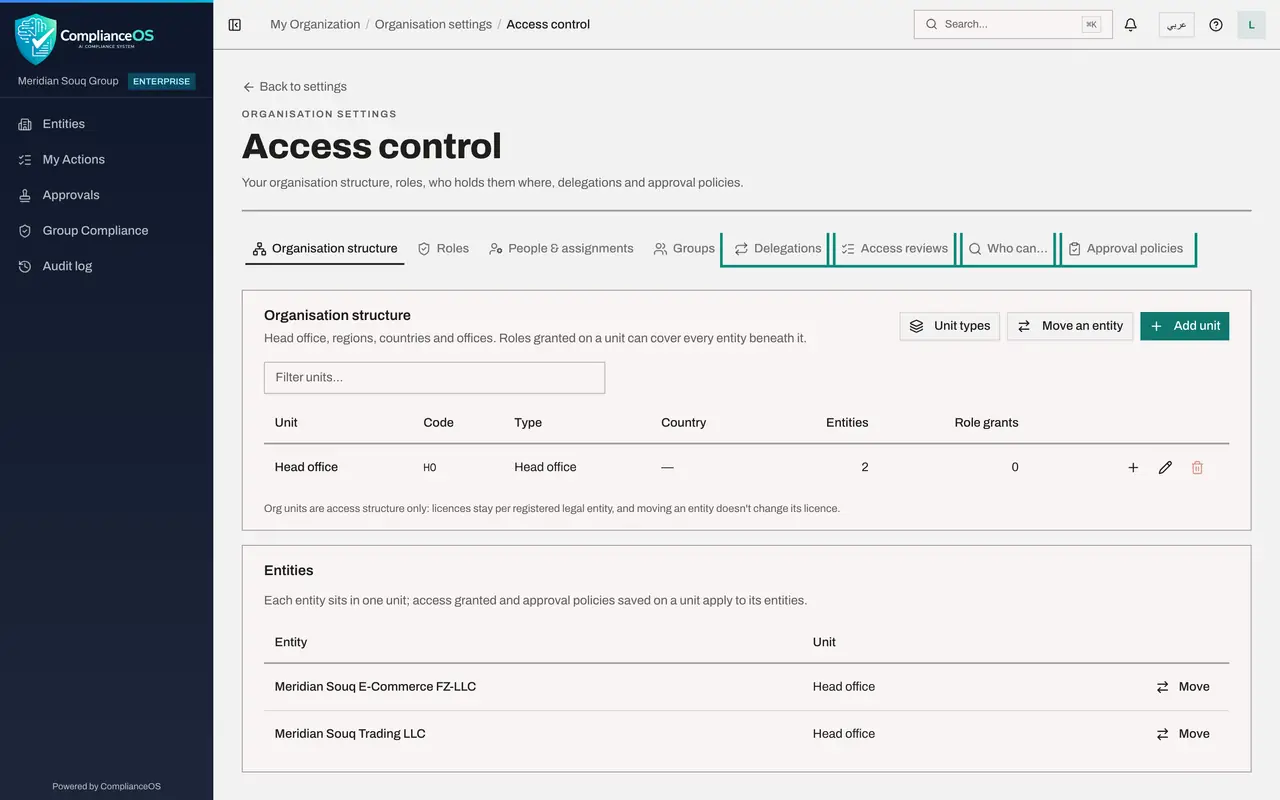
In the Settings list, select Access control. It opens on its own page, with a Back to settings link at the top left.
- Select Access control
- 5
Look at the first four tabs
Each tab is one part of access. Organisation structure is the tree of units and the entities placed in them. Roles are named sets of permissions; a permission is one thing a person may do, such as approve a record. People and assignments shows who holds which role and where. Groups are teams that receive roles together.
- 6
Look at the last four tabs
Delegations let a deputy cover for someone who is away. Access reviews are the regular check of who still needs what. Who can answers a question about one permission. Approval policies decide which changes need a second person. Later lessons open each of them.
- 7
Open the Who can tab
Select the tab named Who can. Use it whenever someone asks who is able to do a particular thing.
- Select Who can…
- 8
Choose the entity
Under Entity, type part of the company name and choose the company you are asking about. Rights are always checked for one entity at a time.
- Select Choose an entity
- Type Search…:
Trading - Choose Meridian Souq Trading LLC
- 9
Choose the permission
Under Permission, type a word to narrow the list, then choose the permission. Each permission is named by its module and its action. Here we choose Data protection, Approve.
- Select Choose a permission
- Type Search permissions…:
PDPL approve - Choose Data protection (PDPL) · Approvepdpl:approve
- 10
Select Show and read the result
Select Show. The card counts the people and the grants. Each row is one grant: the person, the role that gives them the permission, where that role applies, until when, and how it was given. A person with two roles that both include the permission appears twice.
- Select Show
- 11
Select Export CSV
Select Export CSV to save the same list as a spreadsheet file in your downloads folder. This is the file to send when an auditor asks for evidence of who holds a permission. The note under the table reminds you that cover given through a delegation is not listed here.
- Select Export CSV
How to check it worked
A results card appears titled with the permission and the entity. It has a line that counts the people and the grants, and one row for each grant showing the person, the role and where the role applies.
Common mistakes
- Reading the Who can list as everyone who can ever do this. It lists role grants only. A person covering for a colleague through a delegation is not included, as the note under the table says.
- Choosing the wrong entity. Rights are checked for each entity, so a person who can approve on one company may not appear for another.
- Looking for a person instead of a permission. To see everything one person holds, use the People and assignments tab instead.
Check your understanding
1. An auditor asks who can approve data-protection records for Meridian Souq Trading LLC. Where do you look?
- A.Organisation settings, Team
- B.Access control, Who can…
- C.Access control, Roles
- D.The Approvals inbox
Show answer
Answer: B. Access control, Who can…
Who can takes an entity and a permission and lists every person and group holding it there, with the role behind it.
2. A row shows the scope "Meridian Souq Trading LLC · Entity". What does that tell you?
- A.The person has the role in every company in the group
- B.The role was granted for that one company only
- C.The role has expired
- D.The role is read-only
Show answer
Answer: B. The role was granted for that one company only
Scope is where a role applies. An entity scope limits the role to that single company.