Lesson 20 of 21
How this connects: follow one grant through the product
What you will be able to do
This lesson is for administrators. It ties the course together by following a single grant. You will give one person one role on one entity, and then find that grant everywhere it shows up: in the Team list, on the entity's Team tab, in the answer to Who can, and in the audit log. The next lesson signs in as that person to see what changed for her.
Before you start
- You are signed in as an administrator who can manage access.
- Aisha Farouk holds only the Employee self-service role on Meridian Souq Trading LLC.
Steps
- 1
Open the person's card
In Access control, on the People and assignments tab, search for Aisha and select her. She holds one role: Employee self-service on Meridian Souq Trading LLC, which lets her see only her own employee record.
- Type Search people…:
Aisha
- Type Search people…:
- 2
Grant a role on one entity
Select Grant a role. Under Role choose Tax analyst, and under Where choose the entity Meridian Souq E-Commerce. She is joining the tax team for that one company.
- Select Grant a role
- Select Choose a role
- Type Search…:
tax analyst - Select Whole organisation
- Type Search units and entities…:
E-Commerce - Choose Meridian Souq E-Commerce FZ-LLCUAE Operations
- 3
Give a reason and select Grant
Type the reason and select Grant. Tax analyst is not a privileged role, so it takes effect at once and her card lists it. This is the one change we will now follow.
- Type Reason:
Joins the tax team for the e-commerce company - Select Grant
- Type Reason:
- 4
Find it in the Team list
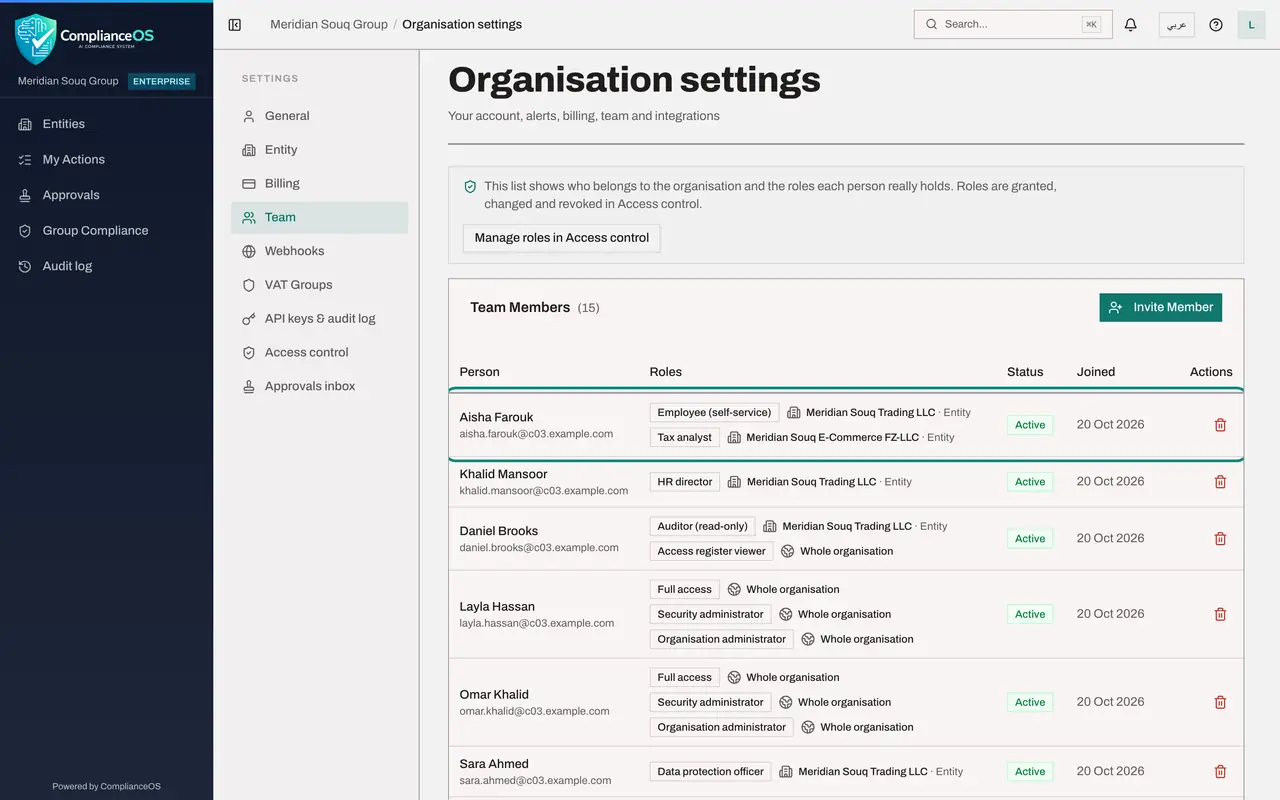
Select Back to settings at the top left, then Team. Her row in Team Members now shows both roles, each with the company it applies to. The Team list always reflects the roles people really hold.
- Select Back to settings
- Select Team
- 5
Find it on the entity's Team tab
Select Entities in the left menu and open Meridian Souq E-Commerce. Open the account menu, choose Entity settings and select the Team tab. She is now in the list of people who have access to this company, with the line Direct, granted on this entity.
- Select Entities
- Select Account menu
- Select Entity settings
- Select Team7
- 6
Find it with Who can
Select Manage in Access control, then the Who can tab. Choose the entity Meridian Souq E-Commerce and the permission Tax, Create, and select Show. She is listed through the role Tax analyst, beside the people who reach this company through the unit, the group and the whole organisation.
- Select Manage in Access control
- Select Who can…
- Select Choose an entity
- Type Search…:
E-Commerce - Choose Meridian Souq E-Commerce FZ-LLC
- Select Choose a permission
- Type Search permissions…:
tax create - Choose Tax · Createtax:create
- Select Show
- 7
Find it in the audit log
Select Audit log in the left menu. The newest row is the grant. The Action column says in plain words that a role was granted, the type is Role assignment, and you are the actor. Select Details to see what was recorded, including the action's technical name.
- Select Audit log
- Select Details
- 8
Remember the other connections
Two more connections were shown earlier in this course. A privileged role waits in the Approvals inbox for a second administrator. And every grant becomes an item in the next access review that covers it. API keys follow the same rule as people: a key can only carry what its creator holds, which the course on connectors covers.
How to check it worked
Aisha Farouk shows the role Tax analyst for Meridian Souq E-Commerce in four places: her card in People and assignments, the Team list in Organisation settings, the Team tab of the entity, and the Who can result for Tax, Create. The audit log has a new row for the grant with you as the actor.
Common mistakes
- Checking a grant in one place only. If a person reports that they cannot see a company, the entity's Team tab tells you at once whether any role reaches it and how.
- Forgetting that a grant is recorded. Every grant, change and revocation is in the audit log with the actor and the time, so give a reason that will make sense to a reader a year from now.
- Granting on the wrong entity. The role applies only where it is granted; the person's other entities do not change.
Check your understanding
1. A colleague says she cannot open Tax for Meridian Souq E-Commerce. Where do you look first?
- A.The Billing screen
- B.The Team tab of that entity, or Who can for that entity and a Tax permission
- C.Her browser settings
- D.The Roles tab
Show answer
Answer: B. The Team tab of that entity, or Who can for that entity and a Tax permission
Both show whether a role that includes Tax reaches that entity for her, and through which grant.
2. Which modules does a role grant affect?
- A.Only Access control
- B.Every module: the role decides which modules the person sees and what they can do in each, on the entities the grant covers
- C.Only the dashboard
- D.None until the next day
Show answer
Answer: B. Every module: the role decides which modules the person sees and what they can do in each, on the entities the grant covers
Roles are sets of permissions for modules and actions, and the scope of the grant limits where they apply.