Lesson 2 of 21
Add a legal entity
What you will be able to do
This lesson is for organisation administrators. You will register a new legal company in the group and learn what every field of the form is for: its identity, legal structure and jurisdiction, its trade licence and tax registrations, its revenue bracket, its tax set-up and its headcount.
Before you start
- You hold the Organisation administrator role, or another role that includes the permission to register a new legal entity.
- You have the company's trade licence and tax registration certificates to hand.
- Your plan has a free entity slot. Each registered entity carries its own licence.
Steps
- 1
Open Entities and select Add entity
Select Entities in the left menu, then Add entity at the top right. The set-up screen opens. Because the organisation already has entities, it first offers to continue with an existing one. Select Add a new entity to open the blank form.
- Select Add entity
- Select Add a new entity
- 2
Enter the entity name and its Arabic name
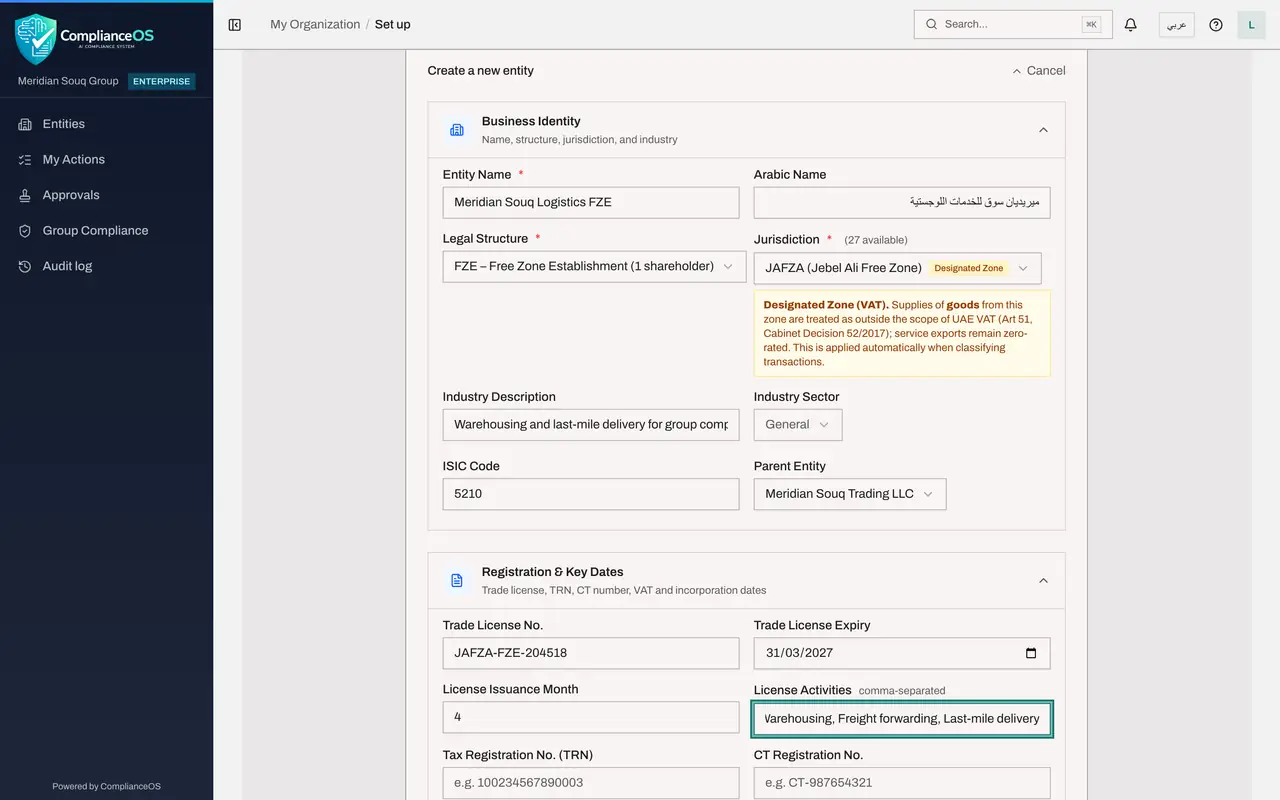
Under Business Identity, type the company's legal name exactly as it appears on the trade licence. The Arabic Name is optional and is printed on bilingual documents such as tax invoices.
- Type Entity Name *:
Meridian Souq Logistics FZE - Type Arabic Name:
ميريديان سوق للخدمات اللوجستية
- Type Entity Name *:
- 3
Choose the legal structure
Under Legal Structure, choose the form of company shown on the licence. Here it is a free zone establishment with one shareholder. The structure decides which jurisdictions are offered next and which rules apply, so choose it with care: it is locked after the entity is created.
- Select Select structure
- Choose FZE – Free Zone Establishment (1 shareholder)
- 4
Choose the jurisdiction
Under Jurisdiction, choose where the company is licensed. The list now shows only free zones. We choose the Jebel Ali Free Zone. A note appears because it is a designated zone for value added tax, which changes how goods supplied from it are treated. Jurisdiction cannot be changed after creation.
- Select Select jurisdiction
- 5
Describe the industry
In Industry Description, say in a few words what the company does. Leave Industry Sector on General unless the company is in oil and gas, mining, banking or insurance, which have their own tax rules. The ISIC Code is the international activity code from the licence and is optional.
- Type Industry Description:
Warehousing and last-mile delivery for group companies - Type ISIC Code:
5210
- Type Industry Description:
- 6
Choose the parent entity
If this company is owned by another company in your group, choose it under Parent Entity. This builds the ownership tree used for group reports. Leave it on None for a standalone company.
- Select None (standalone)
- Choose Meridian Souq Trading LLC
- 7
Enter the trade licence details
Under Registration and Key Dates, enter the trade licence number and its expiry date, the month of the year in which the licence was issued, as a number from 1 to 12, and the licensed activities separated by commas. The expiry date drives the renewal reminder.
- Type Trade License No.:
JAFZA-FZE-204518 - Type Trade License Expiry:
2027-03-31 - Type License Issuance Month:
4 - Type License Activities comma-separated:
Warehousing, Freight forwarding, Last-mile delivery
- Type Trade License No.:
- 8
Enter the tax and commercial registration numbers
The Tax Registration Number, or TRN, is the fifteen-digit number on the value added tax certificate. The CT Registration Number is the one issued for corporate tax. The Commercial Registration Number comes from the licensing authority. Leave any of them empty if the company is not registered yet.
- Type Tax Registration No. (TRN):
100345678900029 - Type CT Registration No.:
100345678900037 - Type Commercial Registration No.:
CN-2045187
- Type Tax Registration No. (TRN):
- 9
Enter the registration dates
Enter the VAT Registration Date from the tax certificate and the Incorporation Date from the licence. The incorporation date is used to work out the deadline for registering for corporate tax.
- Type VAT Registration Date:
2024-05-01 - Type Incorporation Date:
2024-04-08
- Type VAT Registration Date:
- 10
Open Financial Profile and choose the revenue bracket
Select the Financial Profile heading to open it. Under Annual Revenue, choose the bracket that holds the company's yearly revenue; it is used for tax reliefs and readiness checks. Fiscal Year Start Month is 1 for January. Functional Currency stays on dirhams, and the capitalization threshold can be left empty.
- Select Select revenue range
- Choose AED 5M – 25M
- Type Fiscal Year Start Month:
1
- 11
Open Tax Configuration and Elections
Select the Tax Configuration and Elections heading. The defaults suit most companies: a juridical person, which means a company and not an individual, on the accrual accounting method, not exempt from corporate tax. Change these only on your tax adviser's instruction, because some elections cannot be reversed.
- 12
Open Workforce and enter the headcount
Select the Workforce heading. Enter the total number of employees and how many are Emirati nationals. These counts feed the Emiratisation target and the workforce readiness check. Saudi Nationals applies only to companies in Saudi Arabia.
- Type Total Employees:
64 - Type Emirati Employees:
3
- Type Total Employees:
- 13
Open Company Contact and enter the contact details
Select the Company Contact heading. The email, phone and address here are printed on invoices and used on submissions to the tax authority. Enter the email and phone now; the next lesson completes the address.
- Type Email:
accounts@meridiansouq-logistics.example - Type Phone:
+971 4 555 0142
- Type Email:
- 14
Select Create Entity and Continue
Select the button Create Entity and Continue at the bottom of the form. A message confirms the entity was created, and the set-up screen moves to its second step. The next lesson finishes the set-up and completes the profile.
- Select Create Entity & Continue
How to check it worked
The message Entity created appears with the company's name, and the set-up screen moves on to Step 2, Map Compliance Frameworks. The new company is now in the Entities list.
Common mistakes
- Choosing the jurisdiction before the legal structure. The Jurisdiction list stays empty until a structure is chosen, because the structure decides which jurisdictions are offered.
- Picking the wrong legal structure or jurisdiction. Both are locked once the entity is created, and changing the structure afterwards needs a support request.
- Typing the trade licence number into the tax registration box. They are different numbers from different authorities, and the tax modules print the tax registration number on returns and invoices.
Check your understanding
1. The Jurisdiction list says Select a legal structure first. Why?
- A.Your role cannot create entities
- B.The legal structure decides which jurisdictions are offered
- C.The organisation has no free licence
- D.Jurisdiction is filled in later by support
Show answer
Answer: B. The legal structure decides which jurisdictions are offered
A free zone establishment can only sit in a free zone and a mainland company only on the mainland, so the form filters the list by structure.
2. You leave Annual Revenue and the employee counts empty. What happens?
- A.The entity cannot be created
- B.The entity is created; you can complete them later in Entity Settings, and readiness checks flag them until you do
- C.The system fills them with zero employees and blocks payroll
- D.The entity is created as inactive
Show answer
Answer: B. The entity is created; you can complete them later in Entity Settings, and readiness checks flag them until you do
Only the name, legal structure and jurisdiction are required. The other fields feed tax and workforce checks and can be completed afterwards.