Lesson 21 of 21
How this connects: what the person sees after the grant
What you will be able to do
This lesson is for administrators and for anyone who has just been given a role. You will sign in as the person from the previous lesson and see exactly what one grant changed: a second company in her list, a Tax section in the left menu for that company only, working buttons inside Tax, and the role on her profile. You will also see what she still cannot open.
Before you start
- The administrator has granted Aisha Farouk the Tax analyst role on Meridian Souq E-Commerce, in the previous lesson.
- You are signed in as Aisha Farouk.
Steps
- 1
Look at the Entities list
Aisha is signed in. Her Entities list now shows two companies: Meridian Souq Trading LLC, where she is an employee, and Meridian Souq E-Commerce, where she has just been made a tax analyst. The third company in the group is not listed, because no role of hers reaches it.
- 2
Open the first company
Select Meridian Souq Trading LLC. The left menu is short: the dashboard, Workforce, where she can see her own employee record, and Tools. The note at the top says her access on this company covers Workforce. Nothing changed here, because the new role was not granted on this company.
- 3
Switch to the second company
Open the Active Entity box at the top of the left menu and choose Meridian Souq E-Commerce. Before the grant this box did not appear, because she had only one company.
- Select Switch entity
- Select Meridian Souq E-Commerce FZ-LLC
- 4
Read the left menu for this company
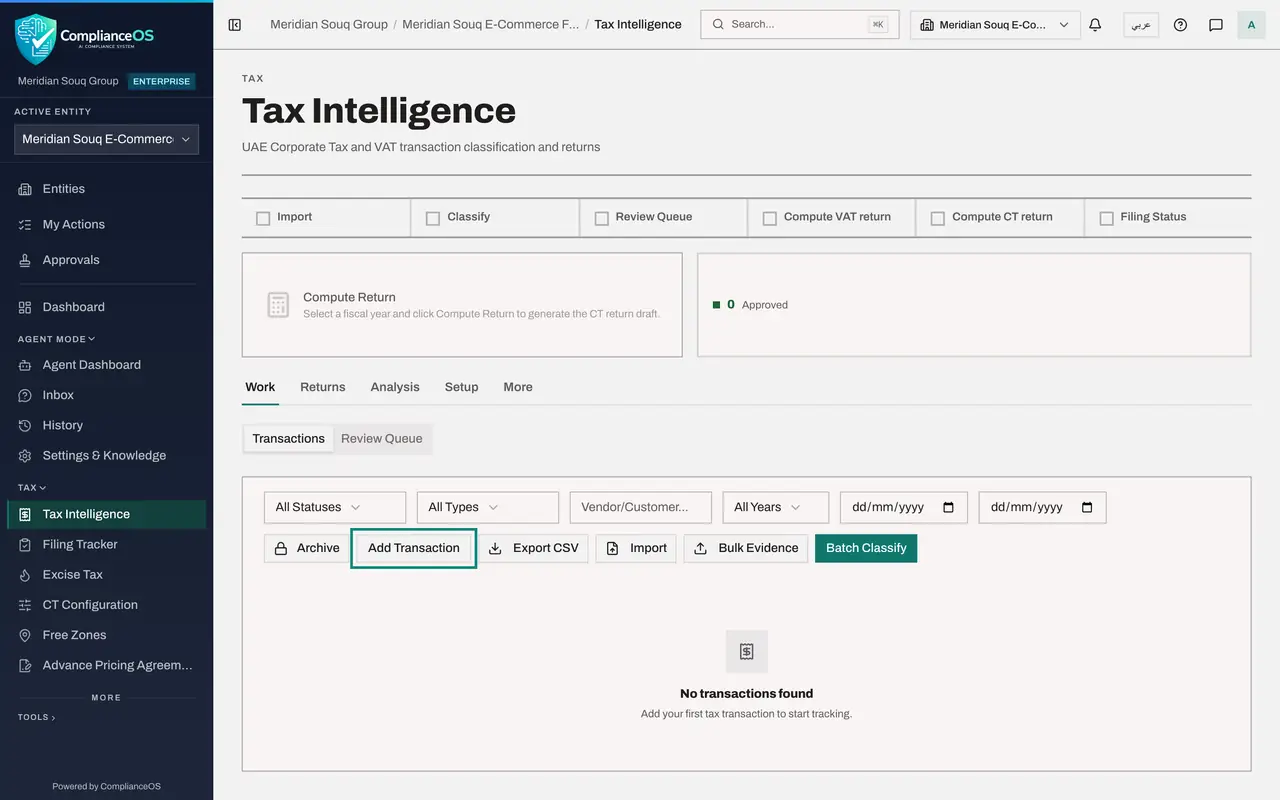
The menu is longer here. A section named Tax has appeared with Tax Intelligence, Filing Tracker, Excise Tax, CT Configuration, Free Zones and Advance Pricing Agreements. These are the modules the Tax analyst role includes. There is no Workforce here, and no Contracts or Data Protection: the role does not include them.
- 5
Open Tax Intelligence
Select Tax Intelligence. The screen opens, and the working buttons are available to her: Import, Add Transaction, Classify and the buttons that compute a draft return. A tax analyst prepares tax work; the role description says it has no approval or deletion.
- Select Tax Intelligence
- 6
Select Add Transaction to confirm she can create
Select Add Transaction. The form opens, which confirms that the permission to create tax records has arrived with the role. Close the form without saving; the tax course covers it.
- Select Add Transaction
- 7
Open Profile and preferences
Close the form. Open the account menu at the top right and choose Profile and preferences. Under Your roles, her profile lists both roles and the company each one applies to. The menu has no Organisation settings entry for her, because she holds no organisation-level permission.
- Select Account menu
- Select Profile & preferences
- 8
Select Team
Select Team in the Settings list. In place of the list of people, a card says You don't have access to this, and names the missing permission: Access control, View. It also names the people who can grant it, here the access administrators Layla Hassan and Omar Khalid, so she knows whom to ask.
- Select Team
- 9
Select Access control
Select Access control. A notice explains that she cannot view access settings. Only two tabs are offered: Delegations, where she can arrange cover for her own work, and Access reviews, for reviews she has been asked to complete. The structure, the roles and other people's grants stay hidden.
- Select Access control
How to check it worked
The Entities list shows two companies. Inside Meridian Souq Trading LLC the left menu offers only the dashboard and Workforce; inside Meridian Souq E-Commerce it also offers the Tax section. Her profile lists both roles, and Team and Access control show that she has no access to them.
Common mistakes
- Expecting the new menus on every company. A role applies only where it was granted, so switch to the right entity with the Active Entity box.
- Reporting a fault when a screen says You don't have access to this. The message names the permission that is missing; ask an access administrator for a role that includes it.
- Assuming the person must sign out and in again. The new company and menus appear the next time a screen loads.
Check your understanding
1. Aisha was granted Tax analyst on Meridian Souq E-Commerce. What does she see inside Meridian Souq Trading LLC?
- A.The Tax section as well
- B.The same as before: only what her Employee self-service role allows there
- C.Nothing at all
- D.Every module
Show answer
Answer: B. The same as before: only what her Employee self-service role allows there
The grant was scoped to one entity. Her access to the other company is unchanged.
2. She opens Team in the settings and reads You don't have access to this. What is missing?
- A.A licence
- B.The permission Access control, View, which her roles do not include
- C.Her manager's approval
- D.A newer browser
Show answer
Answer: B. The permission Access control, View, which her roles do not include
The message names the permission. Seeing people and their roles needs Access control, View.