Lesson 3 of 21
Finish the set-up and edit the entity's profile
What you will be able to do
This lesson is for organisation administrators. You will finish the set-up of the company added in the last lesson, then open Entity settings to edit its profile: the emirate used on tax returns, the headcount, and the contact details printed on invoices. You will also see where the same profile appears in Organisation settings and which fields are locked.
Before you start
- The entity Meridian Souq Logistics FZE exists, from the previous lesson.
- You hold the Organisation administrator role, which can edit legal entities.
Steps
- 1
Open the set-up again and choose the entity
Select Add entity on the Entities screen to return to the set-up. Under Select Entity choose Meridian Souq Logistics, then select the button Next, Map Compliance Frameworks.
- Select Add entity
- Select Next: Map Compliance Frameworks
- 2
Select Run AI Framework Mapping
Select Run AI Framework Mapping. The system reads the entity's profile and lists the regulatory frameworks that apply to it, each with a short reason and a priority. A framework is a set of rules, such as corporate tax or data protection, that the entity must follow.
- Select Run AI Framework Mapping
- 3
Select Next and read the Connect Accounting step
Select the Next button under the list. Step 3 offers to connect an accounting system, so that transactions are imported automatically from the date you choose. This is optional, and the course on connectors covers it.
- Select Next: Connect Accounting
- 4
Select Skip for now, then Go to Dashboard
Select Skip for now. The last step confirms the entity is ready. Because this company is in a free zone, a note suggests registering its free zone licence, which the corporate tax course covers. Select Go to Dashboard to open the new entity.
- Select Skip for now
- Select Go to Dashboard
- 5
Open the account menu and choose Entity settings
You are now inside the entity; its name shows under Active Entity at the top of the left menu. Select the round button with your initial at the top right and choose Entity settings.
- Select Account menu
- Select Entity settings
- 6
Check the details carried over from the form
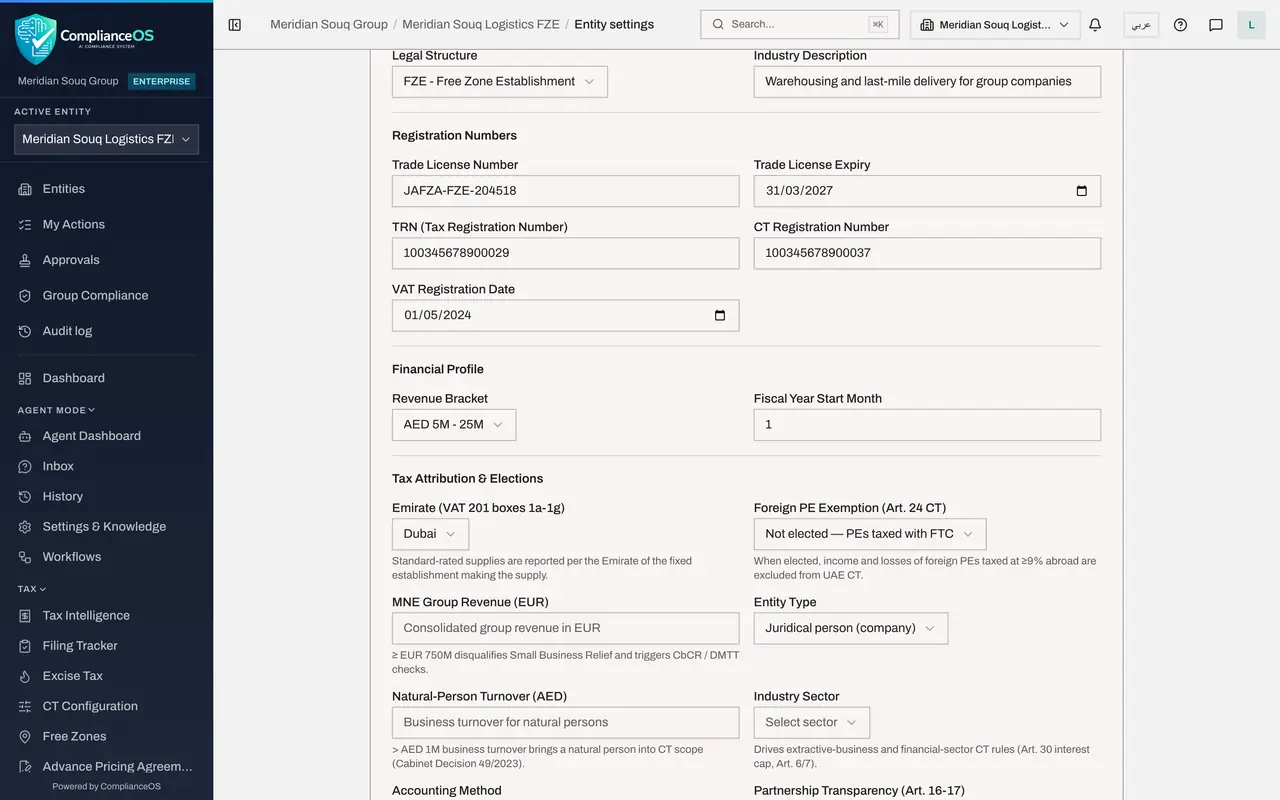
The General tab shows what you entered when creating the entity: the names, the legal structure, the licence and the registration numbers. Every box here can be corrected later, for example when the trade licence is renewed and its expiry date changes.
- 7
Choose the emirate for tax returns
Under Tax Attribution and Elections, open the Emirate box and choose Dubai. Standard-rated sales are reported on the value added tax return under the emirate of the establishment making the supply, so this choice decides which box they land in.
- Select Emirate (VAT 201 boxes 1a-1g)
- Choose Dubai
- 8
Read the other tax fields
The remaining boxes in this group hold elections and thresholds for corporate tax: the group's worldwide revenue, the entity type, the industry sector, the accounting method and the exemption status. Each has a line of explanation under it. Leave them as they are unless your tax adviser instructs otherwise.
- 9
Correct the headcount
Under Workforce, change Employee Count to 66, because two people joined this month. Keep Emirati Count at 3. These numbers feed the Emiratisation target, so update them whenever the headcount changes.
- Type Employee Count:
66
- Type Employee Count:
- 10
Complete the contact and address details
Under Contact and Business Details, enter the website, the payment terms offered to customers, the street address, the city and the postal box. The address is printed as the seller address on tax invoices.
- Type Website:
https://logistics.meridiansouq.example - Type Payment Terms:
Net 30 days - Type Company address:
Warehouse 14, South Zone, Jebel Ali Free Zone - Type City:
Dubai - Type Postal code / P.O. Box:
P.O. Box 261450
- Type Website:
- 11
Select Save Changes
Select Save Changes under the form. A message confirms the entity settings were saved. Nothing on this page is kept until you save.
- Select Save Changes
- 12
Open the Module Readiness tab
Select the Module Readiness tab. It lists what each module needs from the entity's profile before it can work, and ticks each item as you complete it. The Entity Profile card now shows the name, jurisdiction, legal structure, licence number and revenue bracket in place.
- Select Module Readiness5
- 13
Open Organisation settings and select Entity
The same profile can be reached without entering the entity. Open the account menu, choose Organisation settings and select Entity in the Settings list. Under Select Entity, choose the new company.
- Select Account menu
- Select Organisation settings
- Select Entity
- Select Select Entity
- Choose Meridian Souq Logistics FZE
- 14
Note the two locked fields
Legal Structure and Jurisdiction are greyed out. The note under the first says to contact support to change it, and the note under the second says it cannot be changed after creation. Everything else on this screen can be edited and saved with its own Save Changes button.
How to check it worked
The message Entity settings saved appears. On the Module Readiness tab the Entity Profile card shows all its checks passed, and the Entity section of Organisation settings shows the same values, with Legal Structure and Jurisdiction greyed out.
Common mistakes
- Leaving the page without selecting Save Changes. Nothing is saved until you do, and there is no reminder.
- Trying to change the legal structure or the jurisdiction in Organisation settings. They are locked after creation; the structure needs a support request and the jurisdiction cannot be changed at all.
- Entering a headcount that does not match the employee records. The Workforce readiness check compares the two and flags the difference.
Check your understanding
1. Where do you change the address that is printed on an entity's tax invoices?
- A.Access control, Organisation structure
- B.Entity settings, General tab, under Contact and Business Details
- C.Organisation settings, Billing
- D.It cannot be changed
Show answer
Answer: B. Entity settings, General tab, under Contact and Business Details
The company address in Entity settings is described on screen as printed as the seller address on your tax invoices.
2. On the Connect Accounting step of the set-up you are not ready to link the accounting system. What do you do?
- A.Close the browser; the entity is lost
- B.Select Skip for now and connect it later from Integrations
- C.Enter a made-up account
- D.Delete the entity and start again
Show answer
Answer: B. Select Skip for now and connect it later from Integrations
Connecting accounting is optional. Skip for now moves on, and the connection can be made later from the entity's Integrations screen.