Lesson 12 of 21
Give read-only and time-limited access, then change and revoke it
What you will be able to do
This lesson is for access administrators. You will give a colleague a role that is read-only and ends by itself on a set date, see what emergency access is, extend the end date by editing the grant, and then revoke the grant and find it again among the expired and revoked ones.
Before you start
- You are signed in as an administrator who can manage access.
- You know the date on which the person's need for access ends.
Steps
- 1
Select Grant role and choose the person
On the People and assignments tab select Grant role. Under Who, choose Noura Salem. She is legal counsel for the trading company and has been asked to read the contracts of the new logistics company for one month.
- Select Grant role
- Select Choose a person
- Type Search people…:
Noura
- 2
Choose the role and the entity
Under Role, choose Legal counsel. Under Where, choose the entity Meridian Souq Logistics, so the grant covers that one company.
- Select Choose a role
- Type Search…:
legal - Select Whole organisation
- Type Search units and entities…:
Logistics - Choose Meridian Souq Logistics FZEUAE Operations
- 3
Switch on Read-only
Switch on Read-only. For this grant she keeps only the role's view and export permissions, so she can read and download contracts but cannot create, edit or approve them. Her full role on the trading company is not affected.
- 4
Set the end date in Valid until
Leave Valid from empty so that access starts straight away; fill it only when access should begin on a later day. In Valid until, enter the date and time her work ends, 30 days from today. Access stops by itself at that moment.
- Type Valid until:
2026-11-12T18:00
- Type Valid until:
- 5
Look at Emergency access, then switch it off again
Switch on Emergency access to read its warning. Emergency access, also called break-glass access, lasts at most 24 hours, needs a reason, alerts the security administrators and the owner, and appears on access reviews. The end date jumps to 24 hours from now. It is for real emergencies only, so switch it off again and re-enter the end date.
- Select grant-break-glass
- Select grant-break-glass
- Type Valid until:
2026-11-12T18:00
- 6
Give a reason and select Grant
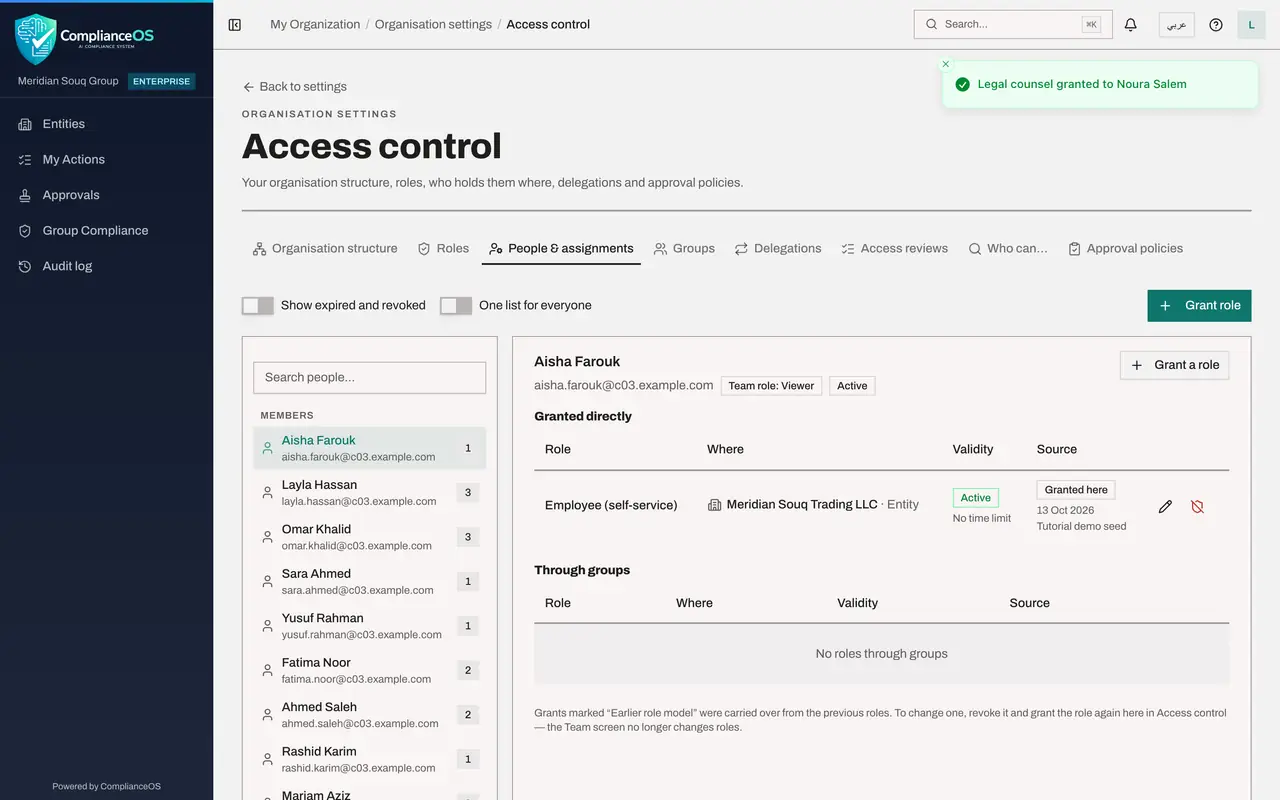
Type why the access is needed, then select Grant. This role is not a privileged one, so it is given immediately and a message confirms it.
- Type Reason:
Reviewing the logistics company's contracts for one month - Select Grant
- Type Reason:
- 7
Select the person and check the grant
Search for Noura and select her. The new grant shows a Read-only badge, the entity, the status Active, and a validity line that runs from now to the end date. Her permanent role on the trading company is listed beside it with No time limit.
- Type Search people…:
Noura
- Type Search people…:
- 8
Edit the grant to extend it
The review is taking longer than planned. Select the pencil button on the grant. In the Edit assignment window you can change Valid until, the Read-only switch and the reason; the role and the place cannot be changed. Set the end date to 45 days from today, update the reason and select Save.
- Select Edit Legal counsel
- Type Valid until:
2026-11-27T18:00 - Type Reason:
Contract review extended by two weeks - Select Save
- 9
Select the revoke button
Later the work is finished early, so the access should end now. Select the shield button at the end of the row, named Revoke. The confirmation says that access ends immediately.
- Select Revoke Legal counsel
- 10
Select Revoke
Select Revoke. A message confirms the assignment was revoked and the row leaves her card. Her role on the trading company remains.
- Select Revoke
- 11
Switch on Show expired and revoked
A revoked grant is not deleted. Switch on Show expired and revoked above the list. The grant is listed again with the status Revoked, so there is always a record of who held what and until when.
How to check it worked
With Show expired and revoked switched on, the person's card lists the role with a Read-only badge, the entity it applied to and the status Revoked. With the switch off, the grant is no longer listed.
Common mistakes
- Granting permanent access for a temporary need. Set Valid until, and the access stops by itself with no further action.
- Setting an end that is in the past, or before the start. The message under the dates says the end must be in the future and after the start, and Grant stays greyed out.
- Using emergency access for ordinary work. It lasts at most 24 hours, needs a reason, alerts the security administrators and the owner, and appears on access reviews.
Check your understanding
1. What does the Read-only switch do to a grant?
- A.It hides the role from the person
- B.It keeps only the role's view and export permissions for this grant
- C.It makes the grant expire after 24 hours
- D.It sends the grant for approval
Show answer
Answer: B. It keeps only the role's view and export permissions for this grant
The line under the switch reads: read-only keeps only the role's view and export permissions.
2. You revoke a grant. When does the person lose the access?
- A.At midnight
- B.Immediately
- C.When they next sign in
- D.After a second administrator approves
Show answer
Answer: B. Immediately
The confirmation says access ends immediately. The grant stays on record and can be seen with Show expired and revoked.