Lesson 18 of 21
Review the whole organisation, and see why you cannot decide your own access
What you will be able to do
This lesson is for access administrators and reviewers. A review of the whole organisation includes the administrators' own roles. You will start one, keep the other grants, and see that the grants about your own access carry the badge Needs another reviewer: you cannot keep or revoke them, and the review cannot be closed until a second person decides them.
Before you start
- You are signed in as an administrator who may run access reviews.
- A second administrator exists who can decide the grants about your own access.
Steps
- 1
Select Start a review and name it
On the Access reviews tab select Start a review. Type a name, and leave Scope on Whole organisation, so that every active grant in the organisation is included.
- Select Start a review
- Type Name *:
Whole organisation access review
- 2
Select Start review
Leave yourself as Reviewer and select Start review. The message gives the number of grants to check, and the review opens.
- Select Start review
- 3
Read the notice at the top
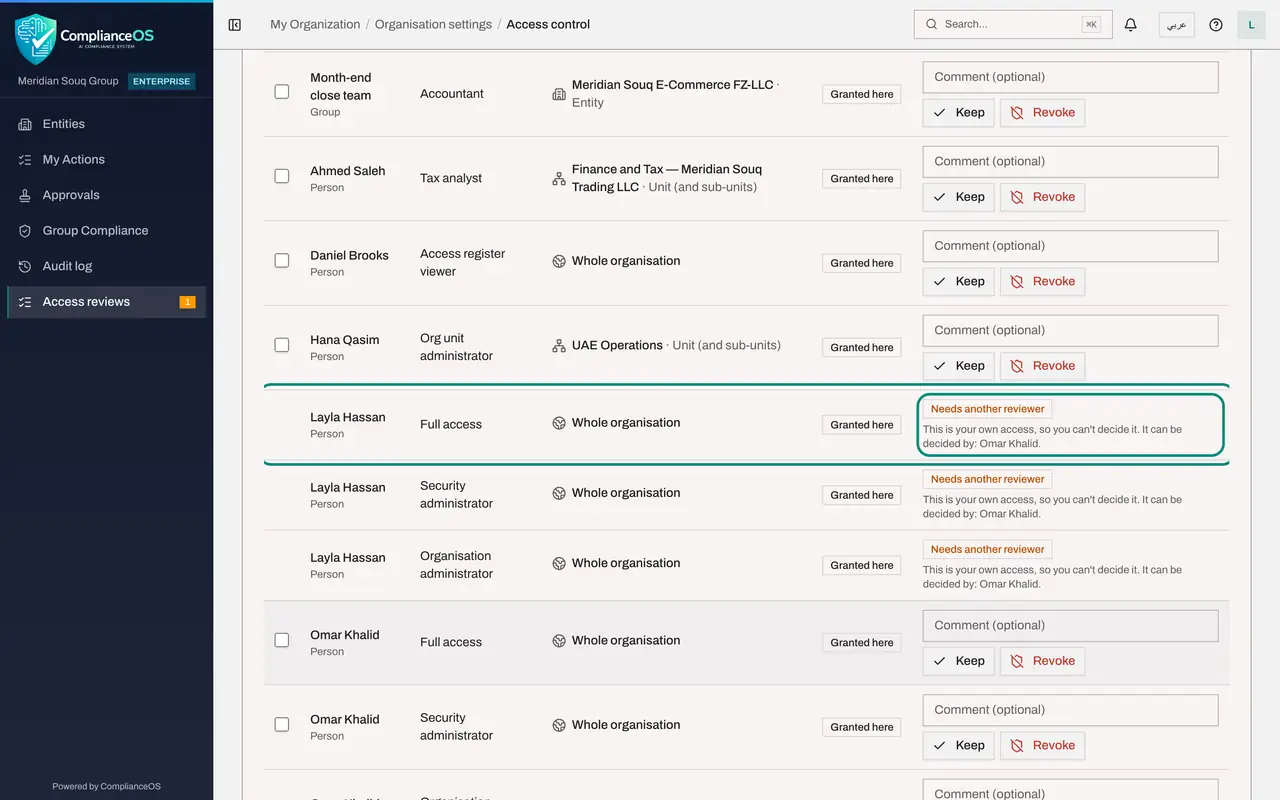
A notice says that 3 assignments are the reviewer's own access. A reviewer cannot decide their own access, so another reviewer has to decide them before the review can be closed.
- 4
Look at your own rows
Scroll down to your three administrator roles. In place of Keep and Revoke, each shows the badge Needs another reviewer and the line: This is your own access, so you cannot decide it. It can be decided by Omar Khalid. Their tick boxes are greyed out as well.
- 5
Filter to a colleague's grants and keep them
You can decide everyone else's grants, including the other administrator's. Type Omar in the filter box. Tick the box in the table header to select the rows shown, then select Keep 3 selected.
- Type Filter by person, role or scope…:
Omar - Select Select all shown
- Select Keep 3 selected
- Type Filter by person, role or scope…:
- 6
Keep the remaining grants
Clear the filter. Read the remaining rows, then select them all with the box in the header and select the Keep selected button. Only the rows you may decide are selected; your own three stay.
- Select Select all shown
- Select Keep 17 selected
- 7
Select Close review
Only your own three grants remain. Select Close review. The window says that 3 grants are still undecided and must be decided first, and its Close review button is greyed out.
- Select Close review
- 8
Cancel and go back to All reviews
Select Cancel, then All reviews at the top left. The review's card shows its progress, the totals for Keep, Revoke and Pending, and the line 3 need another reviewer. The second administrator finishes it in the next lesson.
- Select Cancel
- Select All reviews
How to check it worked
Every grant is decided except your own three, which show Needs another reviewer and the name of the person who can decide them. The Close review window says that 3 grants are still undecided, and the review's card shows the line 3 need another reviewer.
Common mistakes
- Looking for Keep on your own roles. They have no decision buttons for you: nobody reviews their own access.
- Naming yourself as reviewer when you are the only access administrator. The item then says that nobody else can decide it yet, and the review stays open until another person is given the right to review.
- Leaving the review open and forgetting it. Tell the second reviewer, who also sees it under Access reviews in the left menu.
Check your understanding
1. Why do your own roles appear in this review but not in the review of UAE Operations?
- A.Because they were granted today
- B.Because they were granted for the whole organisation, and this review's scope is the whole organisation
- C.Because you are the reviewer
- D.They appear in both
Show answer
Answer: B. Because they were granted for the whole organisation, and this review's scope is the whole organisation
A review lists the grants made within its scope. The administrators' roles are granted for the whole organisation, so only a whole-organisation review includes them.
2. The Close review button is refused with the message that 3 grants are still undecided. What has to happen?
- A.Wait for the due date
- B.Another reviewer decides the three grants about your own access
- C.Revoke your own roles in People and assignments
- D.Start a new review
Show answer
Answer: B. Another reviewer decides the three grants about your own access
A reviewer cannot decide their own access, so another reviewer has to decide those items before the review can be closed.