Lesson 15 of 21
See how the organisation always keeps one full-access administrator
What you will be able to do
This lesson is for access administrators. An organisation must always keep at least one active administrator with Full access over the whole organisation and no end date, otherwise nobody could grant a role again. You will see the system refuse two changes that would break this rule, and you will put everything back as it was.
Before you start
- Two administrators hold Full access over the whole organisation.
- You are signed in as one of them.
Steps
- 1
Open the second administrator's card
On the People and assignments tab, search for Omar and select him. Like you, he holds Full access over the whole organisation with No time limit. Two people hold it, so either could be removed without locking the organisation out.
- Type Search people…:
Omar
- Type Search people…:
- 2
Give his Full access an end date
Suppose Omar hands over his administrator duties at the end of next month. Select the pencil on his Full access, set Valid until to 30 days from today and select Save. This is accepted, because your own Full access remains.
- Select Edit Full access
- Type Valid until:
2026-11-12T18:00 - Select Save
- 3
Open your own card
Now search for your own name and select it. Your Full access is the only one left with No time limit. A grant with an end date does not count as an administrator for this rule.
- Type Search people…:
Layla
- Type Search people…:
- 4
Try to revoke your own Full access
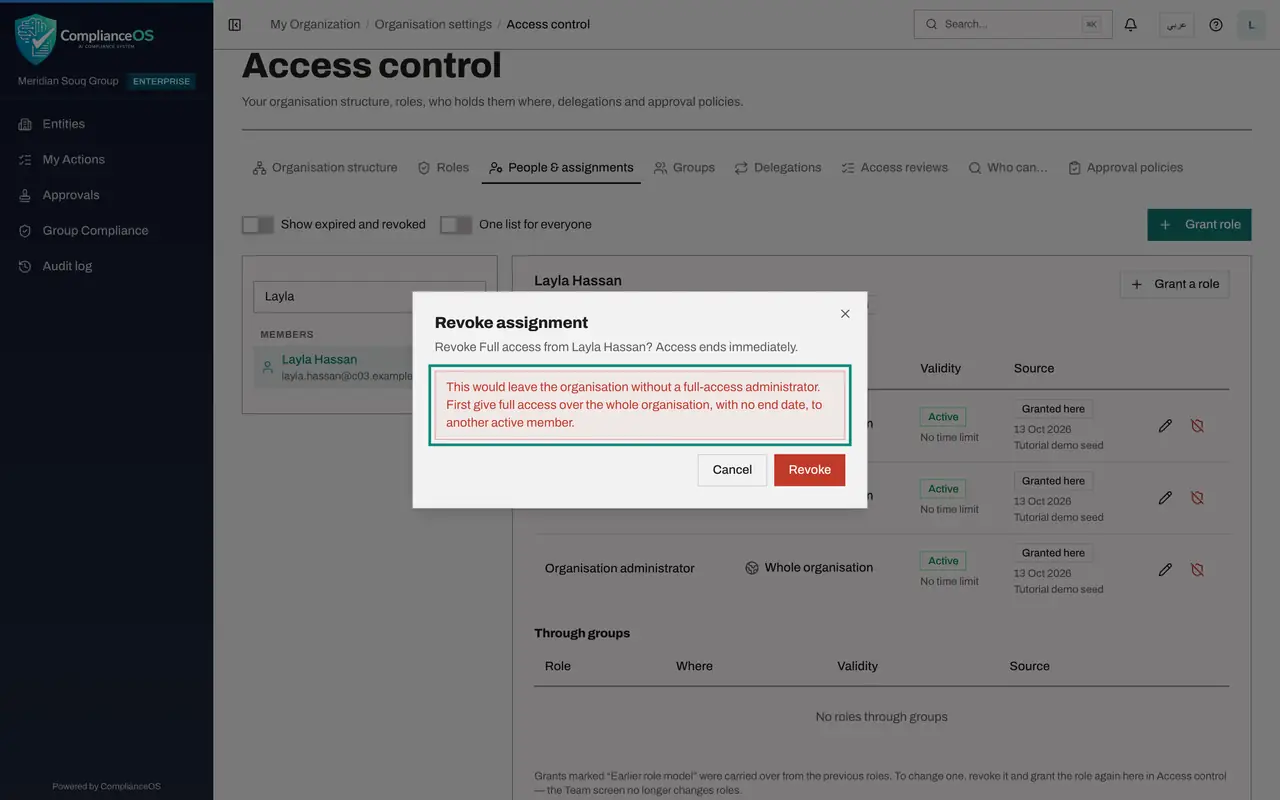
Select the shield button on your Full access, then Revoke in the confirmation. The change is refused. The message reads: This would leave the organisation without a full-access administrator. First give full access over the whole organisation, with no end date, to another active member.
- Select Revoke Full access
- Select Revoke
- 5
Select Cancel
Select Cancel. Nothing was changed: your Full access is still listed as Active with No time limit.
- Select Cancel
- 6
Try to make your Full access read-only
The same rule guards quieter changes. Select the pencil on your Full access, switch on Read-only and select Save. It is refused with the same message, because a read-only grant could not give roles to anyone.
- Select Edit Full access
- Select Save
- 7
Cancel and return to the second administrator
Select Cancel. Again nothing was changed. Now search for Omar again and select him, to put his access back as it was.
- Select Cancel
- Type Search people…:
Omar
- 8
Remove the end date again
The handover is postponed, so restore his access. Select the pencil on his Full access, clear Valid until and select Save. Leaving the box empty means no end date. The organisation has two full-access administrators again.
- Select Edit Full access
- Select Save
How to check it worked
Both refused changes show the message that begins: This would leave the organisation without a full-access administrator. At the end, both administrators again hold Full access with No time limit.
Common mistakes
- Counting an administrator whose Full access has an end date or is read-only. As this lesson shows, such a grant does not count, so the last permanent one cannot be removed.
- Planning to remove yourself first and appoint a successor afterwards. Do it the other way round: give the successor Full access over the whole organisation with no end date, then remove your own.
- Running the organisation with a single full-access administrator. Keep at least two, so that one can be changed without the other being stuck.
Check your understanding
1. Omar's Full access ends in 30 days. Layla, the only other administrator, tries to revoke her own Full access. What happens?
- A.It is revoked and Omar remains administrator
- B.It is refused, because a grant with an end date does not count as an administrator
- C.It is sent for approval
- D.Both lose access
Show answer
Answer: B. It is refused, because a grant with an end date does not count as an administrator
Only Full access over the whole organisation with no end date, not read-only, held by an active member, counts. Without Layla's, none would be left.
2. What must you do before the refused change will be accepted?
- A.Ask support
- B.Give Full access over the whole organisation, with no end date, to another active member
- C.Wait 24 hours
- D.Start an access review
Show answer
Answer: B. Give Full access over the whole organisation, with no end date, to another active member
The refusal says exactly this: first give full access over the whole organisation, with no end date, to another active member.