Lesson 7 of 21
Read the Team list and invite people
What you will be able to do
This lesson is for access administrators. You will read the Team list, which shows everyone in the organisation with the roles they really hold, and invite two new people: one with no role yet, and one with a first role that is limited to a single company and to read-only. You will also remove a person who was invited by mistake.
Before you start
- You are signed in as an administrator who can manage access for the whole organisation.
- You have each person's work email address.
Steps
- 1
Open Organisation settings and select Team
Open the account menu at the top right, choose Organisation settings, then select Team in the Settings list. Team Members lists everyone who belongs to your organisation.
- Select Team
- 2
Read the columns and the note
Each row shows the person, the roles they hold with the place each role applies, their status, and the date they joined. The note at the top says this list is for reading: roles are granted, changed and revoked in Access control, and the button Manage roles in Access control takes you there.
- 3
Select Invite Member and enter the person's details
Select Invite Member. Enter the person's work email address, and their full name so that colleagues recognise them in lists. The email address is required; the name is optional.
- Select Invite Member
- Type Email address *:
hana.qasim@example.com - Type Name (optional):
Hana Qasim
- 4
Leave First role on No role yet
First role is set to No role yet. The person joins with no access until a role is granted in Access control. Use this when the right role still has to be agreed, as it does for this person.
- 5
Select Send invitation
Select Send invitation. The window closes and a message confirms the invitation was sent, with a reminder that the person has no role yet. They receive an email with a link to join.
- Select Send invitation
- 6
Find the person in the list
The new person is at the end of the list with the words No roles yet and the status Invited, which changes to Active when they accept. On an invited person's row, the paper-plane button sends the invitation again, and the bin button removes the person.
- 7
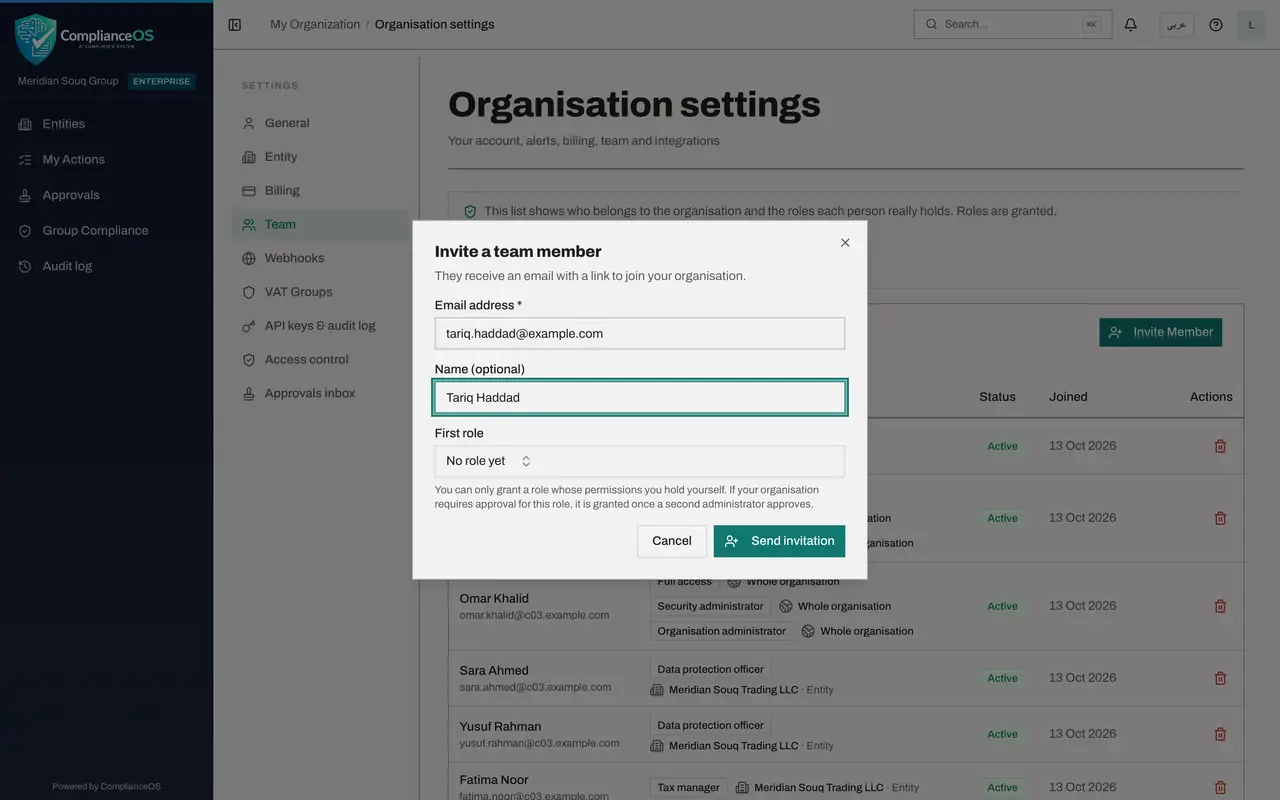
Invite the second person
Select Invite Member again and enter the second person's email address and name. This person is a contractor who needs to look at one company only.
- Select Invite Member
- Type Email address *:
tariq.haddad@example.com - Type Name (optional):
Tariq Haddad
- 8
Choose a first role
Open First role and choose Viewer, a built-in role that can read and export. The note under the box gives the rules: you can only grant a role whose permissions you hold yourself, and a role that needs approval is granted once a second administrator approves.
- Select No role yet
- Type Search roles…:
viewer
- 9
Choose where the role applies and switch on Read-only
Two more controls appear. Under Where the role applies, choose Meridian Souq E-Commerce in place of the whole organisation. Then switch on Read-only, so the person can view and export but change nothing.
- Select Whole organisation
- Type Search units and entities…:
E-Commerce - Choose Meridian Souq E-Commerce FZ-LLCUAE Operations
- 10
Select Send invitation
Select Send invitation. This time the message says the invitation was sent and the role was granted. The new row shows Viewer, the company it applies to, and the words read-only.
- Select Send invitation
- 11
Invite an address with a typing mistake
Mistakes happen. To see how to correct one, select Invite Member, type an address with a spelling mistake and select Send invitation.
- Select Invite Member
- Type Email address *:
tariq.hadad@example.com - Select Send invitation
- 12
Select the bin button on the wrong row
Select the bin button at the end of the row with the wrong address. A confirmation explains that the person is signed out and loses every role in the organisation straight away, while their past work stays in the records.
- 13
Select Remove
Select Remove. A message confirms the address was removed and the row leaves the list. Use the same button when someone leaves the company.
- Select Remove
How to check it worked
Team Members lists Hana Qasim with the status Invited and the words No roles yet, and Tariq Haddad with the status Invited and the role Viewer on Meridian Souq E-Commerce, marked read-only.
Common mistakes
- Looking for a way to change someone's role on the Team screen. The Roles column is read-only: roles are granted, changed and revoked in Access control.
- Giving a first role over the whole organisation when the person works on one company. Choose the entity or unit under Where the role applies.
- Choosing a first role you do not hold yourself, or a privileged one, and expecting it to be given at once. You can only grant what you hold, and a privileged role waits for a second administrator.
Check your understanding
1. You invite someone and leave First role on No role yet. What can they do after they join?
- A.Everything a viewer can do
- B.Nothing, until a role is granted in Access control
- C.Everything you can do
- D.Only approve requests
Show answer
Answer: B. Nothing, until a role is granted in Access control
The option reads: joins with no access until a role is granted in Access control.
2. Where do you change the role of someone already listed in Team?
- A.In the Roles column of the Team list
- B.In Access control, People and assignments
- C.In their invitation email
- D.In Billing
Show answer
Answer: B. In Access control, People and assignments
The note above the list says roles are granted, changed and revoked in Access control, and the button beside it takes you there.