Lesson 11 of 21
Approve a colleague's request for a privileged role
What you will be able to do
This lesson is for the second administrator. A colleague has asked for a privileged role to be given to a regional manager. You will find the request in your Approvals inbox, read what is being asked, approve it with a comment, and confirm that the role is now held.
Before you start
- A colleague has requested a privileged role and it is waiting, from the previous lesson.
- You are a different administrator from the requester, and you are allowed to grant this role over this scope yourself.
Steps
- 1
Select Approvals in the left menu
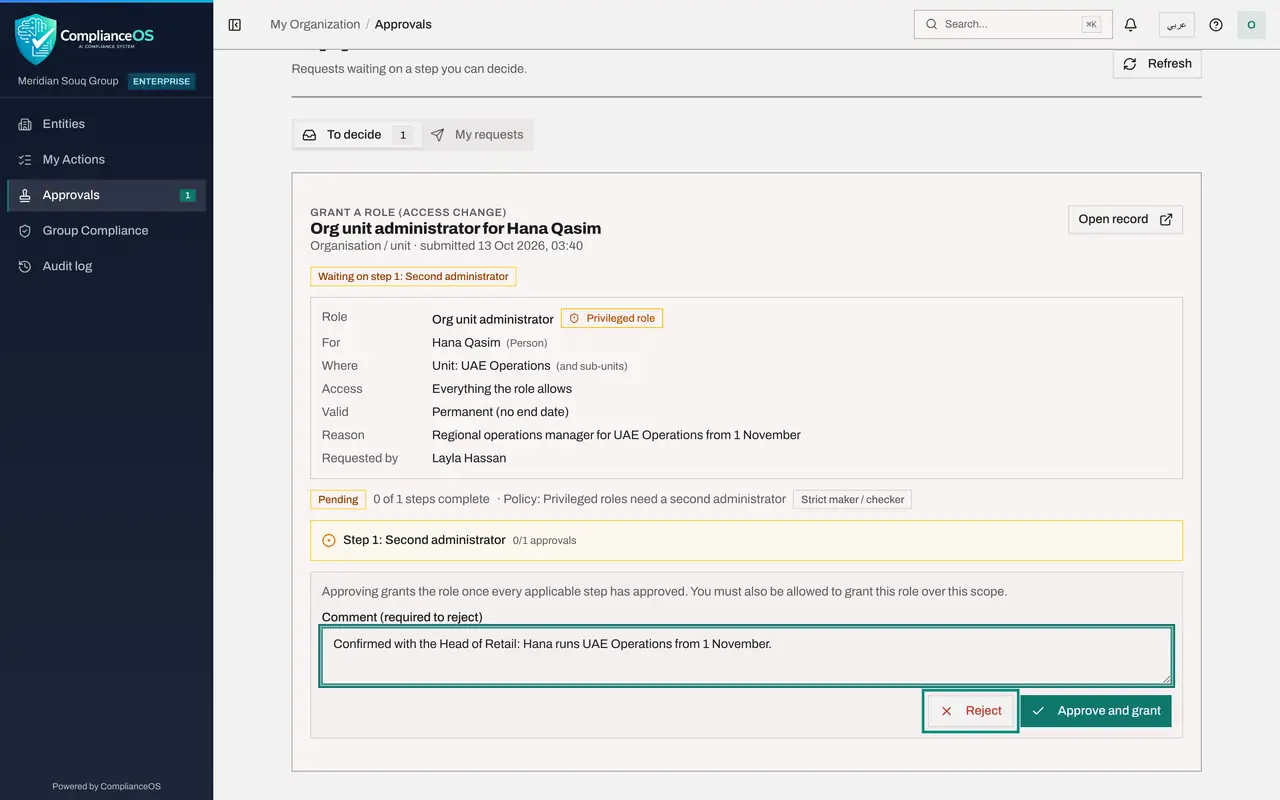
Select Approvals in the left menu. The To decide tab lists requests waiting on a step that you are allowed to decide, and the number on the tab counts them.
- Select Approvals1
- 2
Find the request and read it
Each request is a card. Read the title, which names the role and the person. Then read the details: the role is marked Privileged role, Where shows the unit and whether sub-units are included, and Reason and Requested by show why and who is asking.
- 3
Read the progress line
Under the details, the progress line shows the policy that applies and the step the request is waiting on: Second administrator, 0 of 1 approvals. The note says that approving grants the role, and that you must be allowed to grant this role over this scope yourself.
- 4
Add a comment
Type a short comment in the box. It is saved with your decision in the audit trail. A comment is optional when you approve and required when you reject.
- Type Comment (required to reject):
Confirmed with the Head of Retail: Hana runs UAE Operations from 1 Nov…
- Type Comment (required to reject):
- 5
Select Approve and grant
Select Approve and grant. The message Access granted appears, the role is given immediately and the request leaves your list.
- Select Approve and grant
- 6
Open Access control, People and assignments
To confirm, open the account menu at the top right, choose Organisation settings, select Access control and then the People and assignments tab.
- Select Account menu
- Select Organisation settings
- Select Access control
- Select People & assignments
- 7
Select the person and check the role
Search for Hana and select her. Under Granted directly, the role is listed with where it applies, the unit UAE Operations and its sub-units, the status Active and the reason the requester gave.
- Type Search people…:
Hana
- Type Search people…:
How to check it worked
The message Access granted appears and the request leaves the To decide tab. In Access control, the person's card lists Org unit administrator for UAE Operations with the status Active.
Common mistakes
- Approving without reading the Where line. A role on the whole organisation is very different from the same role on one unit.
- Rejecting without a comment. A comment is required to reject, so that the requester knows what to change.
- Expecting the requester to be able to approve when you are away. Arrange a delegation, or make sure a third administrator exists.
Check your understanding
1. What happens the moment you select Approve and grant on a one-step request?
- A.The requester must confirm
- B.The role is granted immediately and the request leaves your list
- C.The role is granted the next day
- D.Nothing until the person signs in
Show answer
Answer: B. The role is granted immediately and the request leaves your list
Approving grants the role once every applicable step has approved. This policy has one step, so the role is given at once.
2. You think the scope is too wide. What do you do?
- A.Approve and fix it later
- B.Type the reason in the comment box and select Reject
- C.Withdraw the request
- D.Ignore it
Show answer
Answer: B. Type the reason in the comment box and select Reject
A rejection needs a comment so the requester knows what to change. Only the requester can withdraw a request.