Lesson 13 of 21
Give a role to a team with a group
What you will be able to do
This lesson is for access administrators. When several people need the same access, a group saves work: you grant the role once to the group, and everyone in it holds the role. You will create a group, choose its members, grant it a role on one entity and see how the role appears for a member.
Before you start
- You are signed in as an administrator who can manage access.
- You know who belongs to the team and which role the team needs.
Steps
- 1
Open Access control on the Groups tab
In Access control select the Groups tab. A group is a named team. Roles granted to a group apply to every member. There are no groups yet.
- 2
Select New group and describe it
Select New group. Enter a name people will recognise and a short description. Managed in unit is optional: choose a unit only if that unit's own access administrators should look after the group. Leave it empty for a group that belongs to the whole organisation.
- Select New group
- Type Name *:
Month-end close team - Type Description:
Finance staff who close the books each month
- 3
Select Save
Select Save. The group appears as a card showing 0 members, 0 role grants and the label Organisation-wide.
- Select Save
- 4
Select Members and tick the people
Select Members on the card. Tick everyone who belongs to the team; here, Ahmed Saleh and Rashid Karim. The search box narrows a long list, and the counter shows how many are chosen.
- Select Members
- 5
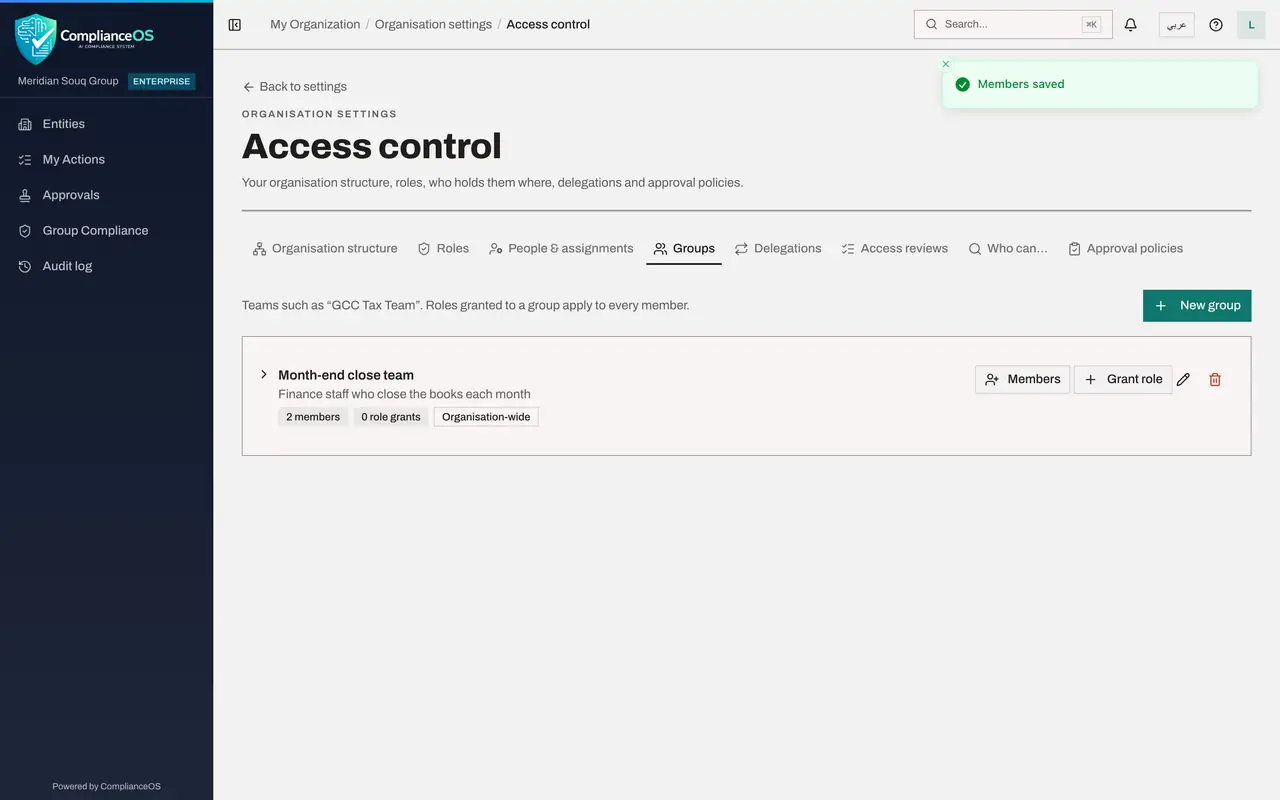
Save the members
Select Save. A message confirms the members were saved, and the card now shows 2 members.
- Select Save
- 6
Select Grant role on the group's card
Select Grant role on the card. The Grant role window opens with Group selected under Who and this group already chosen. Under Role, choose Accountant.
- Select Grant role
- Select Choose a role
- Type Search…:
accountant
- 7
Choose where it applies and select Grant
Under Where, choose the entity Meridian Souq E-Commerce, add a reason and select Grant. A message confirms that Accountant was granted to the group.
- Select Whole organisation
- Type Search units and entities…:
E-Commerce - Choose Meridian Souq E-Commerce FZ-LLCUAE Operations
- Type Reason:
Month-end close for the e-commerce company - Select Grant
- 8
Open the card to see members and roles
Select the group's name to open the card. It lists the members and, under Roles held by this group, the grant you just made. The pencil button renames the group, and the bin button deletes it, which also revokes its grants.
- 9
Check a member in People and assignments
Select the People and assignments tab, search for Ahmed and select him. The card says he is a member of the group, and under Through groups the role Accountant is listed with the group's name. It has no pencil or revoke button here, because it is managed on the group.
- Select People & assignments
- Type Search people…:
Ahmed
How to check it worked
On the Groups tab, the group Month-end close team shows 2 members and 1 role grant. On a member's card in People and assignments, the role Accountant is listed under Through groups with the group's name.
Common mistakes
- Trying to revoke a role held through a group from the person's card. It has no pencil or revoke button there: remove the person from the group, or revoke the group's grant.
- Deleting a group to tidy up. Deleting revokes every role granted to the group, and its members lose what they held through it.
- Putting administrators' Full access on a group without thought. Everyone later added to the group would receive it.
Check your understanding
1. A new accountant joins the month-end team. What is the quickest way to give them the team's access?
- A.Grant them each role one at a time
- B.Open the group's Members and tick their name
- C.Create a new group
- D.Copy a colleague's account
Show answer
Answer: B. Open the group's Members and tick their name
Roles granted to a group apply to every member, so adding the person to the group gives them all of the group's roles.
2. What happens when you delete a group that holds role grants?
- A.The grants move to each member
- B.The grants are revoked and members lose what they held through the group
- C.Nothing changes
- D.The group is only hidden
Show answer
Answer: B. The grants are revoked and members lose what they held through the group
The confirmation says the group's role grants are revoked and members lose what they held through it.