Lesson 19 of 21
Decide a colleague's own access and close the review
What you will be able to do
This lesson is for the second reviewer. A colleague has run an access review and could not decide the grants about her own access. You will find the review from the left menu, decide those grants, close the review and open the closed record with every decision in it.
Before you start
- An open review is waiting with grants marked Needs another reviewer, from the previous lesson.
- You may review access for the scope of the review, for example as a Security administrator.
Steps
- 1
Select Access reviews in the left menu
The left menu shows an entry named Access reviews with a number: one review is waiting for a decision from you. The bell also told you, when the review started, that items were waiting for a second reviewer. Select it. It opens the Access reviews tab of Access control.
- Select Access reviews1
- 2
Read the review's card and select Review
The card shows the review's name, its scope, the reviewer, the due date and the progress. The line 3 need another reviewer is the work that is waiting. Select Review to open it.
- Select Open review Whole organisation access review
- 3
Read the three waiting grants
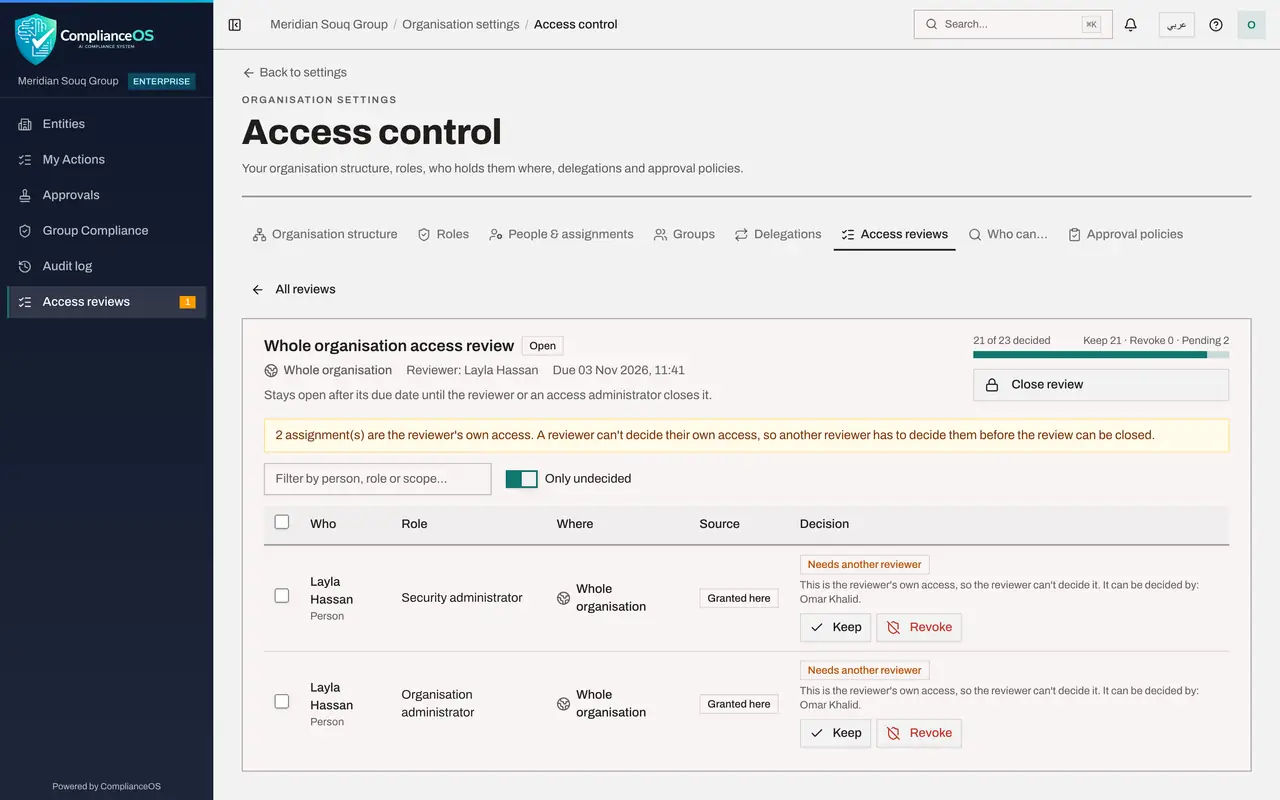
Only the undecided grants are listed: the reviewer's three administrator roles. Each says: This is the reviewer's own access, so the reviewer cannot decide it. It can be decided by you, so for you the rows have Keep and Revoke buttons.
- 4
Keep Full access
Start with the widest grant, Full access over the whole organisation. Confirm outside the system that she still needs it, then select Keep on that row. These rows have no comment box; the decision is recorded under your name.
- Select Keep
- 5
Keep the other two grants
Security administrator and Organisation administrator belong to the same job. Tick the box in the table header to select both rows, then select Keep 2 selected.
- Select Select all shown
- Select Keep 2 selected
- 6
Select Close review and confirm
Every grant now has a decision. Select Close review. The window confirms that every grant has been decided; select Close review again. The reviewer or any access administrator can close a review.
- Select Close review
- Select Close review
- 7
Go back and switch on Show closed reviews
Select All reviews, then switch on Show closed reviews. The review is listed as Closed with the date and its totals. Earlier reviews are kept in the same list.
- Select All reviews
- 8
Open the closed review to see every decision
Select View on the closed review and switch off Only undecided. Every grant is listed with its decision, Kept or Revoked. This is the record to show an auditor who asks how access is checked.
- Select Open review Whole organisation access review
How to check it worked
With Show closed reviews switched on, the review is listed as Closed with every grant decided and Pending 0. Opening it and switching off Only undecided lists each grant with its decision.
Common mistakes
- Keeping a colleague's administrator roles as a courtesy. Read each one: Full access over the whole organisation should be held by very few people.
- Deciding the grants and forgetting to close the review. It stays open, and is not a finished record, until someone selects Close review.
- Revoking the reviewer's Full access when no other permanent administrator would remain. The system refuses, for the reason shown in the lesson on the last administrator.
Check your understanding
1. Where does a second reviewer find a review that is waiting for them?
- A.Only by email
- B.Under Access reviews in the left menu, which shows the number waiting
- C.In the Approvals inbox
- D.In the audit log
Show answer
Answer: B. Under Access reviews in the left menu, which shows the number waiting
The left menu shows an Access reviews entry with a count, and it opens the Access reviews tab of Access control.
2. After the review is closed, how do you see what was decided for each grant?
- A.It cannot be seen
- B.Switch on Show closed reviews, open the review and switch off Only undecided
- C.Ask the reviewer
- D.Start the review again
Show answer
Answer: B. Switch on Show closed reviews, open the review and switch off Only undecided
Closed reviews are kept. Opening one and switching off Only undecided lists every grant with its decision.