Lesson 4 of 21
Build the organisation structure with unit types and units
What you will be able to do
This lesson is for access administrators. You will describe how your group is organised by naming the levels of the structure, called unit types, and by adding a region and a store under head office. Roles can then be given for a region or a store instead of for the whole organisation. You will also edit a unit and filter the list.
Before you start
- You are signed in as an administrator who can manage access for the whole organisation.
- You have a short, unique code ready for each unit, with no spaces.
Steps
- 1
Open Access control on the Organisation structure tab
Open Organisation settings, select Access control and stay on the Organisation structure tab. A new organisation starts with one unit, Head office, which holds every entity. A unit is a box in your organisation chart, such as a region or a store.
- 2
Select Unit types
Select Unit types. A unit type is the name of a level in your structure. Only Head office exists so far, at level 0.
- Select Unit types
- 3
Add a Region type
At the bottom of the window enter the key region, the name Region and the level 1, then select Add type. The key is a short lower-case label that cannot be renamed later. The level says how far below head office this type sits.
- Type Key:
region - Type Name:
Region - Type Level:
1 - Select Add type
- Type Key:
- 4
Add a Store type
Do the same for stores: the key store, the name Store and the level 2. Select Add type. All three levels are now listed, and the name and level of each can still be edited in the table.
- Type Key:
store - Type Name:
Store - Type Level:
2 - Select Add type
- Type Key:
- 5
Close the window and select Add unit
Select Close at the bottom of the Unit types window, then select Add unit. The form opens with Head office already chosen as the parent, which is the unit this new one sits under.
- Select Close
- Select Add unit
- 6
Name the region and choose its type
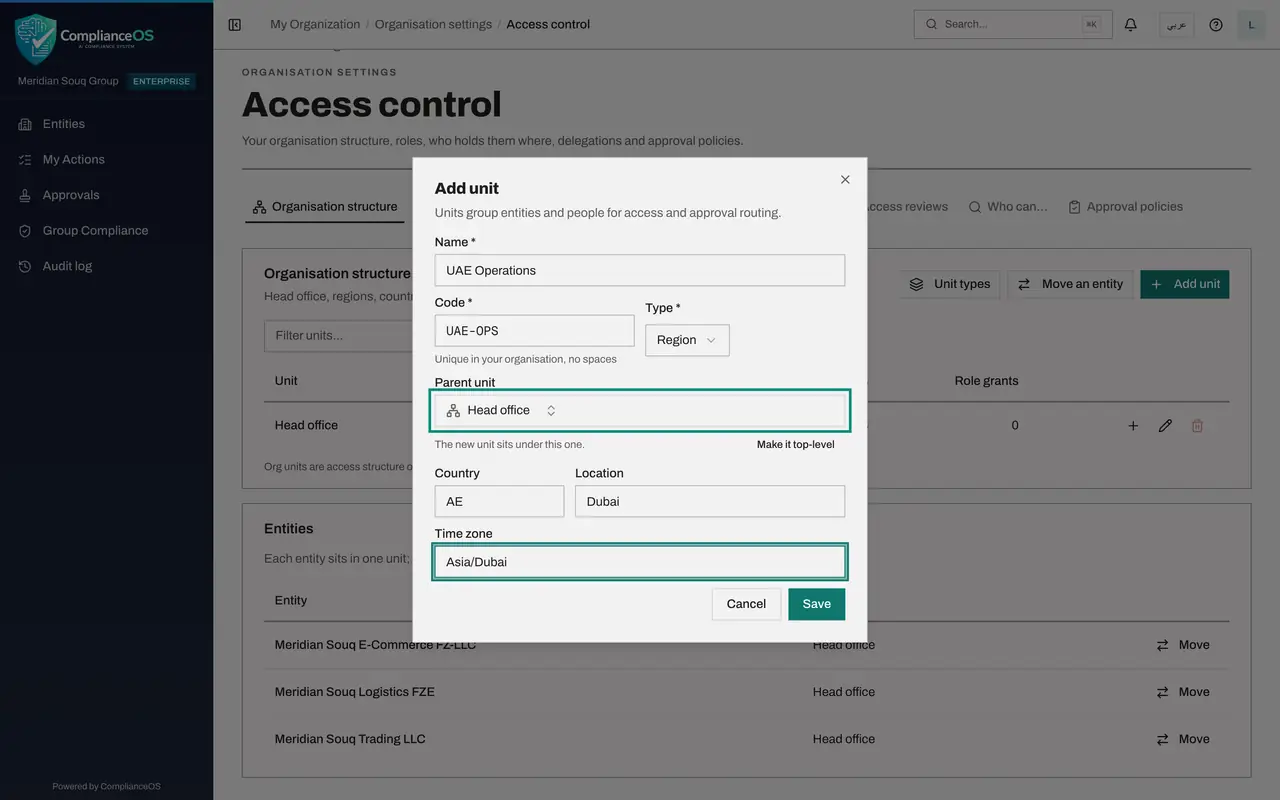
Enter the name UAE Operations and a short code without spaces. The code must be unique in your organisation. Under Type, choose Region.
- Type Name *:
UAE Operations - Type Code *:
UAE-OPS - Select Region
- Choose Region
- Type Name *:
- 7
Check the parent and add the location details
Parent unit shows Head office, so the region will sit under it. Then add the two-letter country code, the location and the time zone. These three are optional and help people recognise the unit.
- Type Country:
AE - Type Location:
Dubai - Type Time zone:
Asia/Dubai
- Type Country:
- 8
Save the region
Select Save. A message confirms the unit was created, and the region appears in the table, indented under Head office.
- Select Save
- 9
Select the plus button on the region's row
On the UAE Operations row select the plus button, named Add sub-unit. The form opens with UAE Operations as the parent and the next level, Store, already chosen as the type.
- Select Add a sub-unit under UAE Operations
- 10
Describe the store and save
Enter the store's name and code, then select Save. We leave the location details empty for now.
- Type Name *:
Dubai Mall Store - Type Code *:
DXB-MALL - Select Save
- Type Name *:
- 11
Edit the store
To change a unit, select the pencil button on its row. Add the country and the location. You can also rename the unit here, move it by choosing another parent, or switch Active off to retire a unit that is no longer used. Select Save.
- Select Edit Dubai Mall Store
- Type Country:
AE - Type Location:
Downtown Dubai - Select Save
- 12
Filter the list of units
In a large organisation, type part of a name or code in the Filter units box to find a unit quickly. Typing mall leaves only the store, with the units above it.
- Type Filter units…:
mall
- Type Filter units…:
- 13
Clear the filter and check the tree
Clear the filter box. The table reads as a tree: Head office, then UAE Operations, then Dubai Mall Store. The Entities and Role grants columns show 0 for the new units until you place entities in them and give people roles there. The bin button on Head office is greyed out, because the top unit cannot be deleted.
How to check it worked
The Organisation structure table shows UAE Operations indented under Head office with the type Region, and Dubai Mall Store indented under UAE Operations with the type Store.
Common mistakes
- Putting a space in the code. The code must be unique in your organisation and has no spaces; Save stays greyed out until it is valid.
- Adding the store beside the region instead of under it. Use the plus button on the region's row so the parent is filled in for you.
- Thinking a unit changes licensing. Units are for access only: licences stay with each registered legal entity, as the note under the table says.
Check your understanding
1. What is a unit type?
- A.A kind of user account
- B.The name of a level in your structure, such as Region or Store
- C.A licence tier
- D.A set of permissions
Show answer
Answer: B. The name of a level in your structure, such as Region or Store
Unit types name the levels of the tree. Each unit you add is given one of them.
2. You want Dubai Mall Store to sit under UAE Operations. What is the quickest way?
- A.Select Add unit and leave Parent unit empty
- B.Select the plus button on the UAE Operations row
- C.Select Move an entity
- D.Edit Head office
Show answer
Answer: B. Select the plus button on the UAE Operations row
The plus button on a unit's row opens the form with that unit already chosen as the parent.