Lesson 11 of 20
Upload evidence to the Evidence Vault
What you will be able to do
This lesson is for compliance officers and anyone who keeps proof of what was done. You will read the Evidence Vault, upload a photograph and link it to a record, upload a certificate with no linked record, and choose how long each file must be kept.
Before you start
- You hold a role that includes the Evidence Vault with the right to add files, such as compliance officer.
- The files are on your computer. The vault accepts PDF, Word, Excel, PowerPoint and CSV files, and PNG or JPG images, up to 50 megabytes each.
Steps
- 1
Open the Evidence Vault
In the left menu, under Assurance, select Evidence Vault. The vault holds the files that prove what was done. The tiles count the records, how many are sealed against change, and how many kinds of source there are.
- Select Evidence Vault
- 2
Read what is already here
Two records arrived without anyone opening the vault. The retention schedule was attached to a question in the CCTV assessment in lesson 2. Approved DPIA, Loyalty app purchase history, is a record the system stored by itself when that assessment was approved in lesson 9.
- 3
Select Upload
Scroll up and select Upload at the top right. The Upload Evidence form opens. It lists the kinds of file the vault accepts.
- Select Upload
- 4
Choose the file
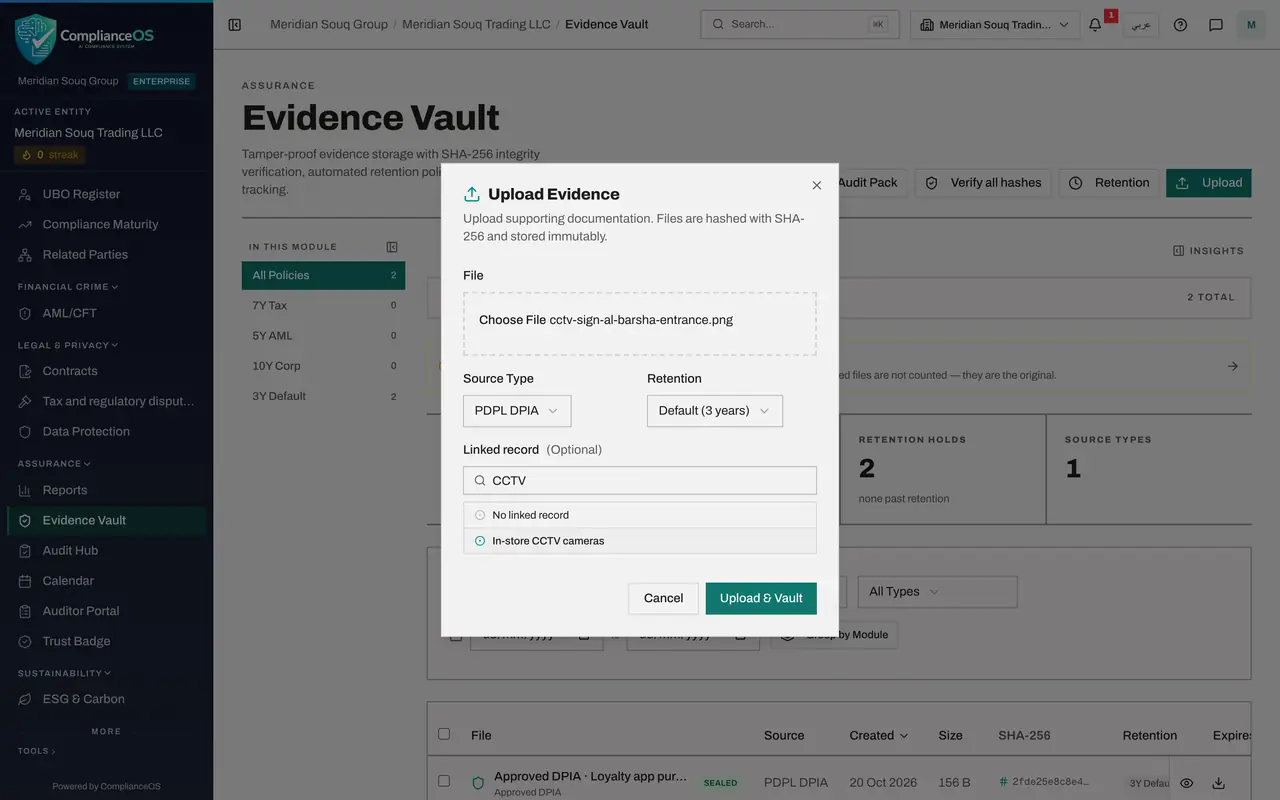
Select the file box and choose the file from your computer. Here it is a photograph of the CCTV sign at a store entrance, a PNG image. Its name appears in the box.
- Upload File:
cctv-sign-al-barsha-entrance.png
- Upload File:
- 5
Choose the source type
Open Source Type and choose the kind of record this file supports: PDPL DPIA, because the photograph is proof for the CCTV assessment.
- Select Source Type
- Choose PDPL DPIA
- 6
Link the file to its record
Linked record is optional. It now lists the assessments of this entity. Type part of the name in the search box and select In-store CCTV cameras. The file will be shown against that assessment.
- Type Search PDPL DPIA records…:
CCTV - Select In-store CCTV cameras
- Type Search PDPL DPIA records…:
- 7
Choose the retention
Retention sets how long the file must be kept: Tax for 7 years, AML for 5 years, Corporate for 10 years, or the Default of 3 years. It is preset from the source type, here Default, 3 years, for a DPIA. Check that it is right, and change it only if your organisation keeps this kind of file longer.
- 8
Select Upload and Vault
Select Upload and Vault. A message confirms Evidence uploaded and vaulted, and the file is added to the list.
- Select Upload & Vault
- 9
Start a second upload
Select Upload again and choose the fire safety certificate, a PDF. In Source Type choose Compliance Report.
- Select Upload
- Upload File:
fire-safety-certificate-al-barsha-2026.pdf - Select Source Type
- Choose Compliance Report
- 10
Leave it without a linked record
For this source type the form says records cannot be picked here, so the file will be stored without a linked record. That is fine: a certificate for a building does not belong to one record. Check Retention: for a compliance report it is preset to Corporate, 10 years.
- 11
Select Upload and Vault
Select Upload and Vault. The certificate is stored and the message confirms it.
- Select Upload & Vault
- 12
Read the new rows
Each row shows the file name with the words Uploaded document, the label Sealed, the source, the date, the size, the start of the SHA-256 fingerprint, the retention and the date it expires. A fingerprint is a code worked out from the exact contents of the file.
How to check it worked
Both files are listed in the vault, each marked Sealed and Uploaded document, with a SHA-256 fingerprint, a retention period and an expiry date. The photograph's source is PDPL DPIA and the certificate's is Compliance Report.
Common mistakes
- Choosing the shortest retention to save thinking. Retention decides when the file may be removed; a tax record must be kept seven years and a corporate record ten.
- Uploading the wrong file and expecting to replace it. A vaulted file is sealed and cannot be edited, so check the file name before you select Upload and Vault.
- Leaving Source Type as Other. The source type is how colleagues and auditors filter the vault, so choose the kind of record the file supports.
Check your understanding
1. Is the Linked record required when you upload evidence?
- A.Yes, always
- B.No, it is optional; choose one when the file supports a particular record
- C.Only for images
- D.Only administrators can set it
Show answer
Answer: B. No, it is optional; choose one when the file supports a particular record
The form marks Linked record as Optional and offers No linked record. For some source types no records can be picked, and the file is stored without one.
2. In the list, what tells you a file was uploaded by a person rather than created by the system?
- A.Its size
- B.The words Uploaded document under its name
- C.Its retention
- D.Nothing
Show answer
Answer: B. The words Uploaded document under its name
Files people upload are labelled Uploaded document. Records the system stores by itself, such as the record of an approval, are labelled as snapshots.