Lesson 1 of 20
Send a privacy policy for approval
What you will be able to do
This lesson is for anyone who prepares records. You will look at an empty Approvals inbox, write a privacy policy as a draft, fill in every field, and send it to a second person for approval.
Before you start
- You are signed in with a role that can create privacy policies, such as Data Protection Officer.
- A second person in your organisation can approve privacy policies. You cannot approve your own work.
Steps
- 1
Open Approvals in the left menu
Select Approvals. This inbox is shared by every module. The first tab, To decide, lists requests waiting for your decision. It says Nothing waiting for you, because nobody has sent you anything yet.
- Select Approvals
- 2
Select the My requests tab
Select My requests. This tab lists the records you prepared and sent to someone else. It is empty too. By the end of this lesson your first request will be here.
- Select My requests
- 3
Open the Policy library
In the left menu select Data Protection, then Privacy policies and training, then Policy library. Each policy here must be approved by someone other than its author before it is published.
- Select Data Protection
- Select Privacy policies & training
- Select Policy library
- 4
Select New policy
Select New policy. A small form opens. Start from offers ready-made starter templates, such as Privacy notice or Data retention policy, and a blank page.
- Select New policy
- 5
Choose Blank policy
Open Start from and choose Blank policy. A template fills in standard wording for you. A blank policy starts empty, which suits a short notice like this one.
- Select Privacy notice
- Choose Blank policy
- 6
Type the title and choose the type
In Title, type a name that says what the policy covers. In Type, choose Privacy notice. The type is shown to the approver and is used to group policies in the library.
- Type Title (English):
In-store CCTV privacy notice - Select Other
- Choose Privacy notice
- Type Title (English):
- 7
Select Create draft
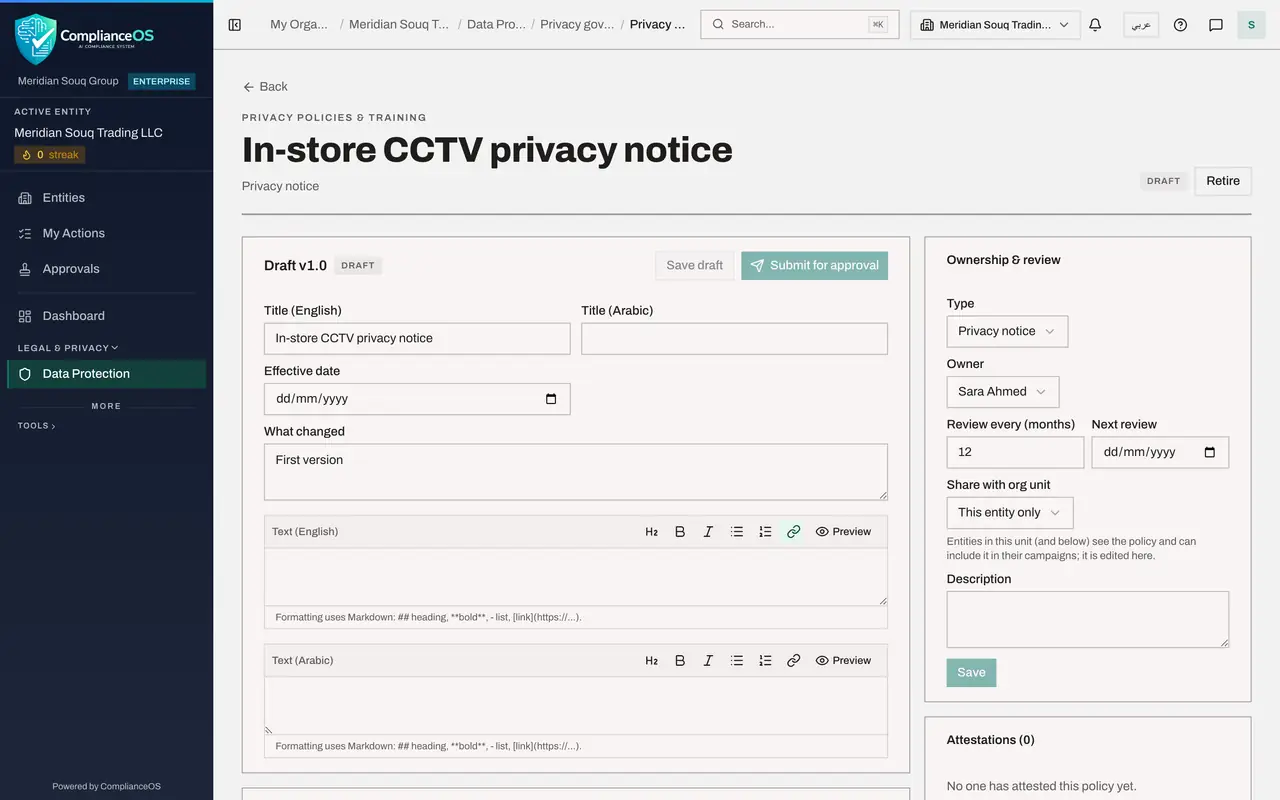
Select Create draft. The policy opens as Draft version 1.0. A draft is your working copy: nobody is asked to do anything yet.
- Select Create draft
- 8
Set the effective date
In Effective date, enter the day the policy starts to apply. Here it is the first day of next month. The Arabic title beside it is optional.
- Type Effective date:
2026-11-01
- Type Effective date:
- 9
Write the policy text
Type the policy in the Text, English box. The approver reads exactly what you write here. The small buttons above the box add a heading, bold text, lists and links. The Arabic text box below is optional.
- Type Text (English):
Meridian Souq uses CCTV cameras in its stores for the safety of custom…
- Type Text (English):
- 10
Check the preview
Select Preview above the text to see the policy as readers will see it. Select it again to return to editing.
- Select Preview
- 11
Describe the policy under Ownership and review
On the right, Ownership and review shows the type, the owner and how often the policy must be reviewed, here every 12 months. Type a short description and select Save.
- Select Edit
- Type Description:
Tells customers and staff how CCTV is used in our stores. - Select Save
- 12
Select Submit for approval
Select Submit for approval at the top of the draft. Your text is saved, the draft is locked, and a request opens in the approvers' inbox.
- Select Submit for approval
- 13
Read the Awaiting approval box
The draft now shows Awaiting approval. The box names the policy that applies, Strict maker and checker, and one step called Approval. The note says you prepared this, so someone else has to approve or reject it. You have no Approve button.
- 14
Find the request under My requests
Select Approvals in the left menu, then My requests. Your request is listed as Pending, with the policy type, the entity and the time you submitted it.
- Select Approvals
- Select My requests
How to check it worked
The draft shows Awaiting approval with one step called Approval, a note says someone else has to approve or reject it, and the request is listed under My requests in the Approvals inbox with the status Pending.
Common mistakes
- Looking for an Approve button on your own draft. The preparer never gets one: the note under the approval steps explains that someone else has to decide.
- Selecting Save draft and assuming the approver has been told. Only Submit for approval opens a request in the approver's inbox.
- Leaving the Effective date empty. The approver cannot tell from which day the policy applies, and the published version shows no start date.
Check your understanding
1. You wrote a policy and submitted it. Who can approve it?
- A.You, after waiting one day
- B.Anyone in the organisation
- C.Someone else who holds the permission to approve privacy policies
- D.Nobody: it publishes by itself
Show answer
Answer: C. Someone else who holds the permission to approve privacy policies
The approval box shows Strict maker and checker: the person who wrote or edited a version cannot approve it, so it needs a second person with the approve permission.
2. Where do you look to see whether your request is still waiting?
- A.Approvals, on the To decide tab
- B.Approvals, on the My requests tab
- C.The audit log
- D.The Evidence Vault
Show answer
Answer: B. Approvals, on the My requests tab
To decide lists what is waiting for your decision. My requests lists what you sent to others, with the status of each.