Lesson 14 of 20
What a read-only auditor can do
What you will be able to do
This lesson is for auditors and for the people who work with them. Signed in with the read-only Auditor role, you will check a file's integrity yourself, read its handling history, download an audit pack, and see what the product tells you when a decision is not yours to make.
Before you start
- You hold the Auditor role on the entity. It reads and exports, and changes nothing.
- The vault holds evidence. Lessons 11 to 13 added it.
Steps
- 1
Open the Evidence Vault as an auditor
Select Evidence Vault in the left menu. You see the same records as the compliance officer. At the top there are only Download Audit Pack and Retention: no Upload and no Verify all hashes, because the Auditor role is read-only.
- Select Evidence Vault
- 2
Open a record
Select the fire safety certificate. Overview shows the source type, the dates, the retention and who uploaded it, by name.
- 3
Verify the integrity yourself
Select Integrity, then Verify Integrity. The stored file is checked against the fingerprint recorded at upload. Integrity verified means it has not been changed. You do not have to rely on the client's word.
- Select Integrity
- Select Verify Integrity
- 4
Read the handling history
Select Custody. Every event on this file is listed with the time and the person: the upload by Mariam Aziz, the share link she created, the download through that link by an external recipient, and the moment she revoked the link.
- Select Custody4
- 5
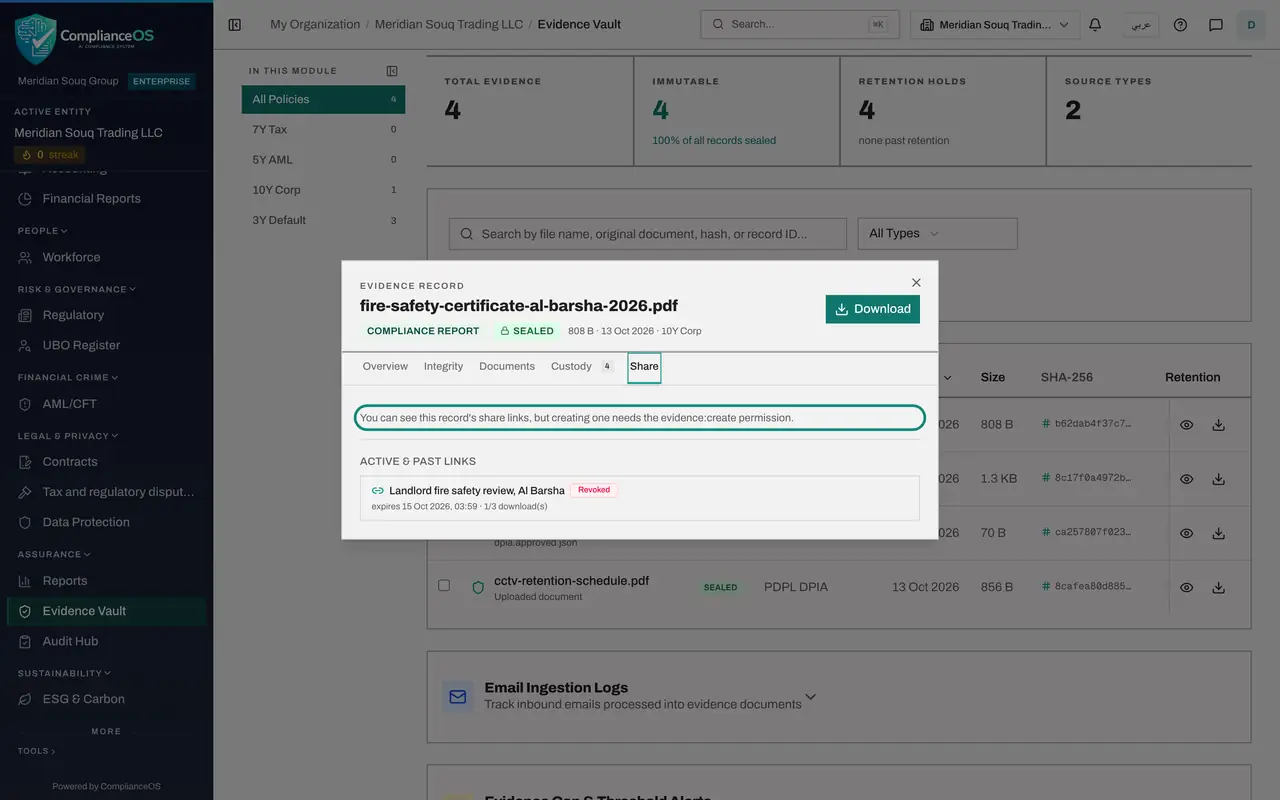
Look at the Share tab
Select Share. You can see the links that exist and how often each was used. A note says that creating a link needs a permission you do not hold.
- Select Share
- 6
Download an audit pack
Close the record and select Download Audit Pack. The box states how many records will be exported. Select the Download button. The ZIP file holds every evidence file with its certificate and a list of fingerprints.
- Select Close
- Select Download Audit Pack
- Select Download 4 record(s)
- 7
Open a record that is awaiting approval
Now select Data Protection, then DPIAs, and open the assessment In-store CCTV cameras with View Details. It is still Pending DPO approval.
- Select Data Protection
- Select DPIAs1
- Select Open In-store CCTV cameras
- 8
Read why you cannot decide
Scroll down to DPO Approval Required. You can read the approval policy and the waiting step. In place of Approve and Reject, a note names what is needed, in words: the permission Data protection, DPIAs, Approve, over this entity.
- 9
Check your own Approvals inbox
Select Approvals in the left menu. To decide reads Nothing waiting for you. Requests reach only the people who hold the permission for the waiting step.
- Select Approvals
How to check it worked
The Integrity tab reads Integrity verified with the time of your check, an audit pack was downloaded, and on the pending assessment a note names the permission needed to decide, in words.
Common mistakes
- Asking the client to verify files for you. An auditor can select Verify Integrity personally, and the check is recorded under the auditor's own name.
- Looking for an Upload button. A read-only role cannot add or share evidence; ask the compliance officer to upload it or to create a share link.
- Reading the note about a missing permission as an error. It explains why you are not offered Approve or Reject, and names the permission an approver holds.
Check your understanding
1. Which of these can a read-only auditor do in the Evidence Vault?
- A.Upload new evidence
- B.Create a share link
- C.Verify the integrity of a file and download an audit pack
- D.Delete a file
Show answer
Answer: C. Verify the integrity of a file and download an audit pack
The auditor's vault has Download Audit Pack and Retention, and each record offers Verify Integrity. Upload and Verify all hashes are not shown, and the Share tab says creating a link needs a permission the auditor does not hold.
2. An auditor opens an assessment that is awaiting approval. What is shown instead of Approve and Reject?
- A.Nothing
- B.An error page
- C.A note naming the permission the Approval step needs
- D.The same buttons, greyed out
Show answer
Answer: C. A note naming the permission the Approval step needs
The note reads: Step Approval needs the permission Data protection, DPIAs, Approve over this entity.