Lesson 5 of 20
Fix a rejected record and send it again
What you will be able to do
This lesson is for preparers. You will find a request that was rejected, read the approver's reason, correct the record, say what changed, and submit it again.
Before you start
- A record you submitted was rejected. Lesson 4 rejected the CCTV privacy notice.
- You know how to make the correction the approver asked for.
Steps
- 1
Open Approvals and select My requests
Select Approvals in the left menu, then My requests. The count on the tab has dropped, because one of your requests is no longer pending.
- Select Approvals
- Select My requests
- 2
Show only rejected requests
Set Status to Rejected. The card shows Rejected by Yusuf Rahman, the time, and the reason he typed, in quotation marks.
- Select All statuses
- Choose Rejected
- 3
Select Open record
Select Open record. The draft opens with the status Rejected and the reason in a red box at the top. The fields can be edited again.
- Select Open record
- 4
Correct the text
Make the change the approver asked for. Here you add a sentence at the end, saying how long recordings are kept.
- Type Text (English):
Meridian Souq uses CCTV cameras in its stores for the safety of custom…
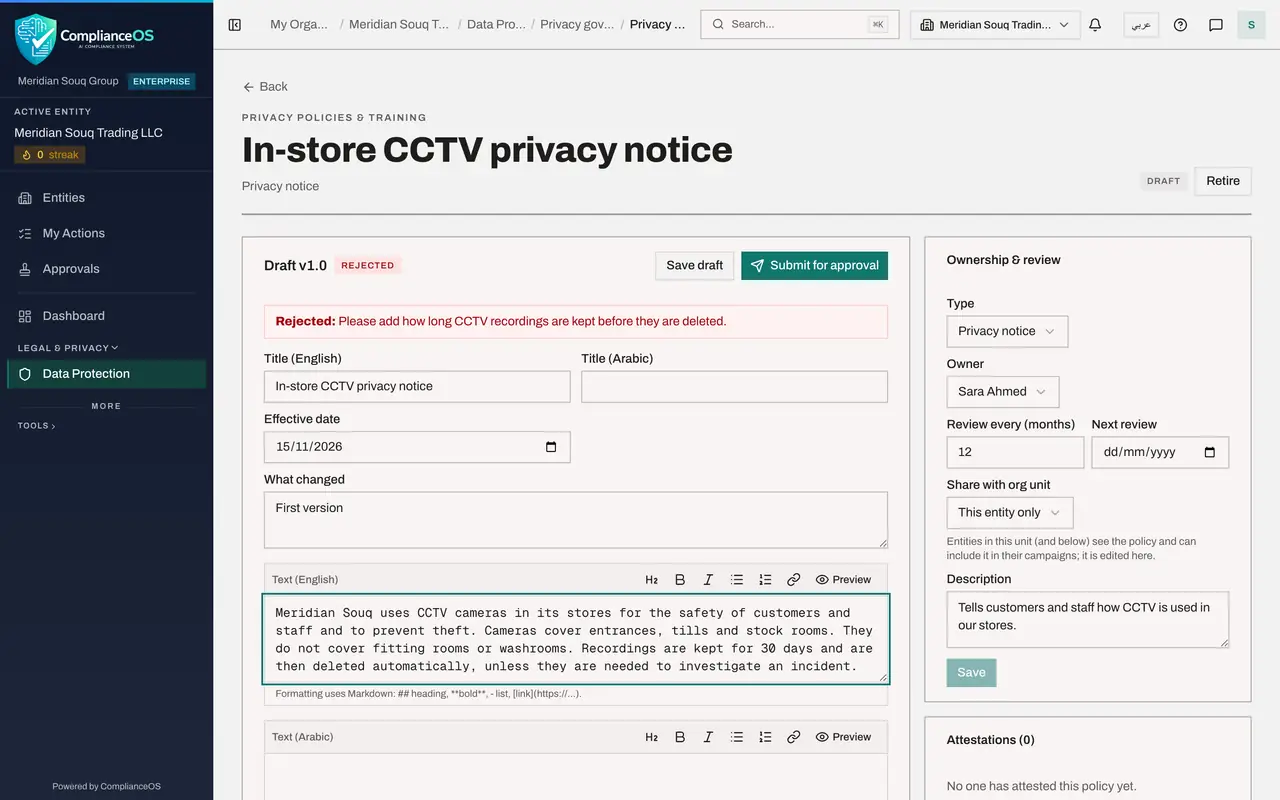
- Type Text (English):
- 5
Say what changed
In What changed, replace First version with a short note about the correction. The approver sees this note beside the version.
- Type What changed:
Added the 30 day retention period for recordings.
- Type What changed:
- 6
Select Submit for approval
Select Submit for approval. The draft is saved and locked, and a new request goes to the approvers.
- Select Submit for approval
- 7
Check My requests
Go back to Approvals and My requests, and select Refresh. A new Pending request is at the top. The rejected request and the withdrawn one stay below as history.
- Select Approvals
- Select My requests2
- Select Refresh
How to check it worked
The draft shows Awaiting approval again, and My requests lists a new Pending request above the Rejected one.
Common mistakes
- Resubmitting without changing anything. The approver will reject it again for the same reason.
- Leaving What changed as First version. A short note about the correction lets the approver see at once what is different.
- Waiting for a pop-up to tell you about the rejection. In this example nothing appeared under the bell; the rejection and its reason are shown under My requests and on the record.
Check your understanding
1. Where can you read why your request was rejected?
- A.Only by asking the approver
- B.On the request card under My requests, and in red on the record
- C.In the Evidence Vault
- D.Nowhere; reasons are private
Show answer
Answer: B. On the request card under My requests, and in red on the record
The card shows Rejected by, the approver's name and the reason in quotation marks. The record repeats the reason in a red box.
2. After you resubmit, what happens to the rejected request?
- A.It is deleted
- B.It turns into the new request
- C.It stays in the list as Rejected, and a new Pending request is added
- D.It is approved automatically
Show answer
Answer: C. It stays in the list as Rejected, and a new Pending request is added
Each submission is its own request. Earlier ones are kept so the history shows every decision.