Lesson 10 of 20
Approval policies at a glance
What you will be able to do
This lesson is for administrators and for anyone who wants to know where the approval rules come from. You will open the list of actions that need approval in every module, read the default rule for one of them, and see a rule the organisation has saved. Nothing is changed in this lesson; changing a policy is covered in the course on policies and connectors.
Before you start
- You hold a role that can open Access control, such as organisation administrator.
Steps
- 1
Open Access control
Select your initial at the top right, then Organisation settings, then Access control in the Settings list. As an administrator you see every tab: structure, roles, people, groups, delegations, reviews and approval policies.
- Select Account menu
- Select Organisation settings
- Select Access control
- 2
Select Approval policies
Select the Approval policies tab. Approvable actions lists every action in the product that needs a second person: assessments and policies in data protection, journal entries, tax returns, contract drafts, sustainability reports, access changes and compliance tasks. They all use the one Approvals inbox.
- Select Approval policies
- 3
Select Publish a privacy policy version
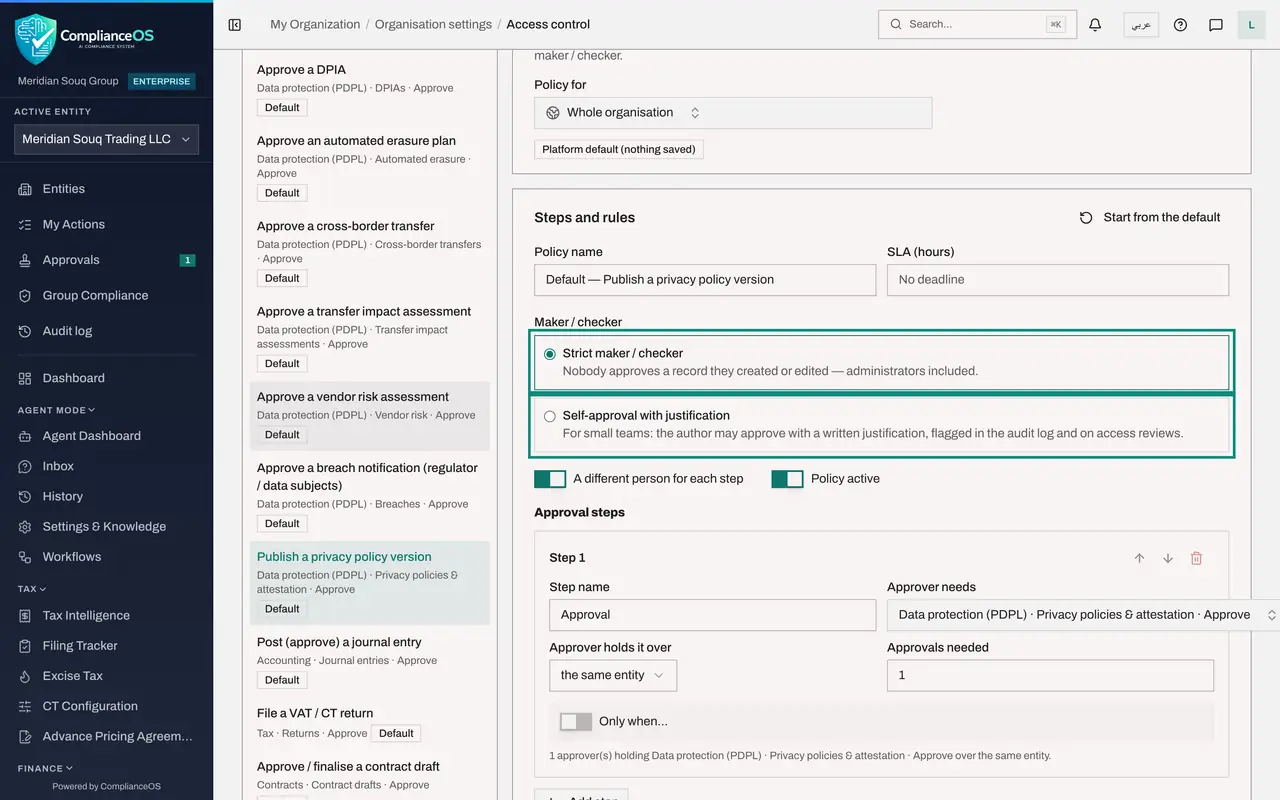
Select Publish a privacy policy version, the action from lesson 1. Under its name is the permission an approver needs. The word Default means nobody has changed the rule.
- 4
Read the default rule
The panel states the rule in a sentence: by default one approver holding the approve permission on the same entity, with strict maker and checker. Policy for shows the scope, here the Whole organisation, and Platform default means nothing has been saved.
- 5
Read the maker and checker choices
Maker and checker has two settings. Strict means nobody approves a record they created or edited, administrators included. Self-approval with justification is meant for very small teams: the author may approve, but must write why, and it is flagged. Below them, two switches require a different person for each step and keep the policy active.
- 6
Read the approval step
Approval steps lists who must approve, in order. Step 1 says which permission the approver needs, where they must hold it, and how many approvals are needed. Add step would add a second approver, and Only when limits a step to certain records.
- 7
Look at an action from another module
Scroll up and select Post, approve, a journal entry. Accounting uses the same kind of rule: one approver holding the journal approve permission on the same entity. Only the permission differs.
- 8
Open an action with a saved policy
Select Grant a role, access change. It shows 1 saved instead of Default: this organisation has saved its own policy, named Privileged roles need a second administrator.
- 9
Read the saved policy's condition
Scroll to its step. The line under it reads Only when privileged role is yes. So a second administrator must approve only when a powerful role is granted; ordinary roles are granted at once.
- 10
Leave without saving
Save policy at the bottom would replace the rule for the scope shown beside it. You are only reading, so do not select it. Leave the page by choosing another item in the left menu.
How to check it worked
You can name the default rule: one approver who holds the approve permission on the same entity, with strict maker and checker. You have left the page without selecting Save policy.
Common mistakes
- Selecting Save policy while only looking. Saving replaces the default for the whole organisation, and new requests follow the saved policy at once.
- Assuming each module has its own approval system. The same list covers data protection, accounting, tax, contracts, sustainability reporting, access changes and compliance tasks.
- Choosing Self-approval with justification to save time. It lets authors approve their own work, and every such approval is flagged for review.
Check your understanding
1. What does the default approval policy require?
- A.Two approvers from head office
- B.One approver holding the approve permission on the same entity, who did not prepare the record
- C.No approval
- D.Approval by an administrator only
Show answer
Answer: B. One approver holding the approve permission on the same entity, who did not prepare the record
The description under each action says: by default one approver holding the permission on the same entity, with strict maker and checker.
2. An action in the list shows 1 saved instead of Default. What does that mean?
- A.One request is waiting
- B.The organisation has saved its own policy for that action
- C.The action is switched off
- D.One person can approve it
Show answer
Answer: B. The organisation has saved its own policy for that action
Default means the built-in rule applies. A count of saved policies means the organisation replaced it with its own steps.