Lesson 4 of 20
Work through your inbox and reject a request
What you will be able to do
This lesson is for approvers. As the second person, you will read the To decide tab, filter it by type of approval, open the record behind a request, and send it back with a clear reason because it is not ready.
Before you start
- A colleague has sent a record for approval and it has reached a step you can decide.
- You did not write or edit that record yourself.
Steps
- 1
Open Approvals in the left menu
The number beside Approvals in the left menu counts the requests waiting for you. Select Approvals. The To decide tab lists them, each as a card.
- Select Approvals3
- 2
Read what is waiting
Three requests from Sara Ahmed are waiting: a privacy policy and two data protection impact assessments, or DPIAs. The amber label on each card names the step that is waiting for you.
- 3
Filter by type of approval
Open Type of approval and choose Approve a DPIA. Only the two assessments are listed. Different kinds of record arrive in the same inbox, and this filter lets you work through one kind at a time.
- Select All
- Choose Approve a DPIA
- 4
Show the privacy policy
Now choose Publish a privacy policy version. The card shows the policy's name and version, the entity, and when it was submitted.
- Select Approve a DPIA
- Choose Publish a privacy policy version
- 5
Read the facts on the card
The box on the card lists facts about the record in plain words: the policy type, whether this is a major change, and whether a legal review is outstanding. Below it are the approval steps and the rule Strict maker and checker.
- 6
Select Open record
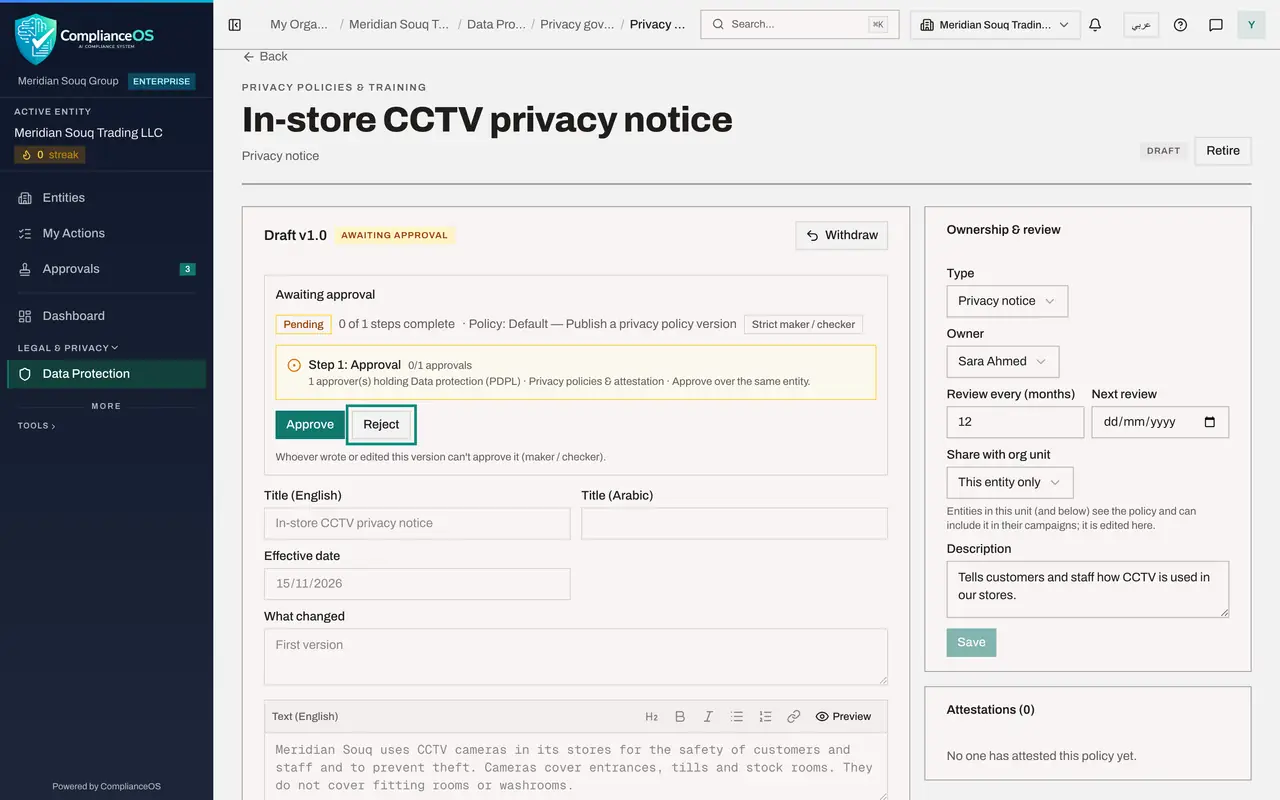
Select Open record. The policy opens so you can read exactly what you are asked to approve. Because you did not write it, the Awaiting approval box offers you Approve and Reject.
- Select Open record
- 7
Read the draft
Read the text. The notice says cameras are used but not how long recordings are kept, so it is not ready to publish.
- 8
Select Reject
Scroll back to the Awaiting approval box and select Reject. A box asks for your reason. Its Reject button is greyed out until you type one.
- Select Reject
- 9
Type the reason
Say what needs to change, in words the author can act on.
- Type Reason:
Please add how long CCTV recordings are kept before they are deleted.
- Type Reason:
- 10
Confirm with Reject
Select Reject in the box. A message confirms Version rejected and returned to its author. The draft now shows Rejected, with your reason in red.
- Select Reject
- 11
Return to the inbox
Select Approvals again. The policy has left To decide, and the two assessments are still waiting. The author now sees the rejection and your reason under My requests.
- Select Approvals2
How to check it worked
A message confirms Version rejected and returned to its author, the draft shows Rejected with your reason in red, and the request has left your To decide tab.
Common mistakes
- Rejecting without a useful reason. The Reject button stays greyed out until you type one, and the author sees exactly what you wrote.
- Correcting the text yourself instead of rejecting. If you edit the version you become one of its makers and can no longer approve it.
- Deciding from the card alone. Always select Open record and read what you are being asked to approve.
Check your understanding
1. Why is a reason required when you reject?
- A.It is only needed for tax records
- B.So the author knows what to fix and the decision is on record
- C.Because rejected records are deleted
- D.It is optional; the button works without it
Show answer
Answer: B. So the author knows what to fix and the decision is on record
The reason is shown to the author on the record and on their request card, and it is kept with the decision.
2. Your inbox holds a privacy policy and two assessments. How do you see only the assessments?
- A.Open each record in turn
- B.Set Type of approval to Approve a DPIA
- C.Select My requests
- D.Ask an administrator
Show answer
Answer: B. Set Type of approval to Approve a DPIA
Type of approval appears when the inbox holds more than one kind of request, and narrows the list to the kind you choose.